Quick Parts for Snippets
You type the same paragraphs over and over — the support reply, the meeting boilerplate, the address block. Quick Parts store reusable text snippets you insert in two clicks. Here is how to save your first one and build a snippet library that actually gets used.
TL;DR / Quick Fix
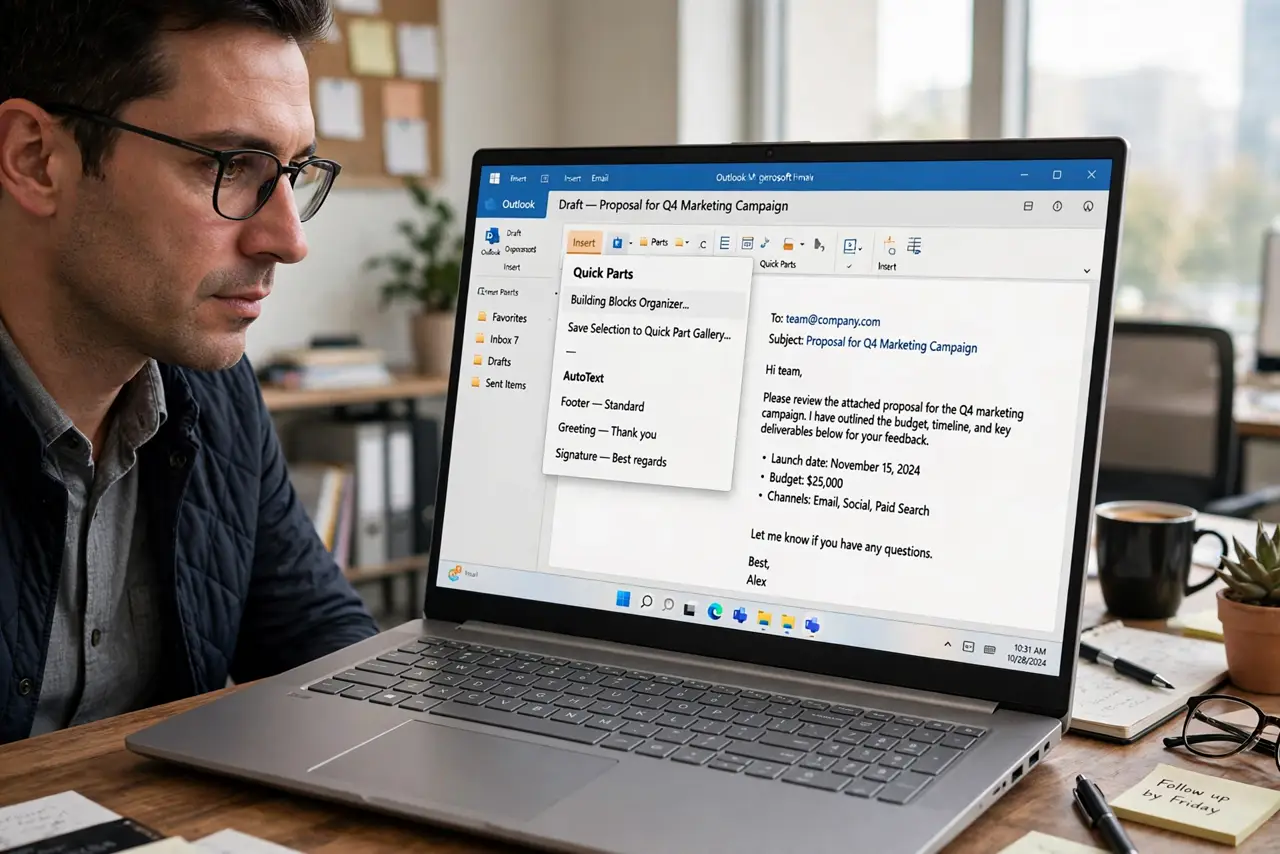
Quick fix: in a new message type the reusable text, select it, go to Insert > Quick Parts > Save Selection to Quick Part Gallery, and name it. Insert it later from the same menu. Name snippets by purpose — refund-reply, meeting-notes — so the right one surfaces instantly.
Follow these steps
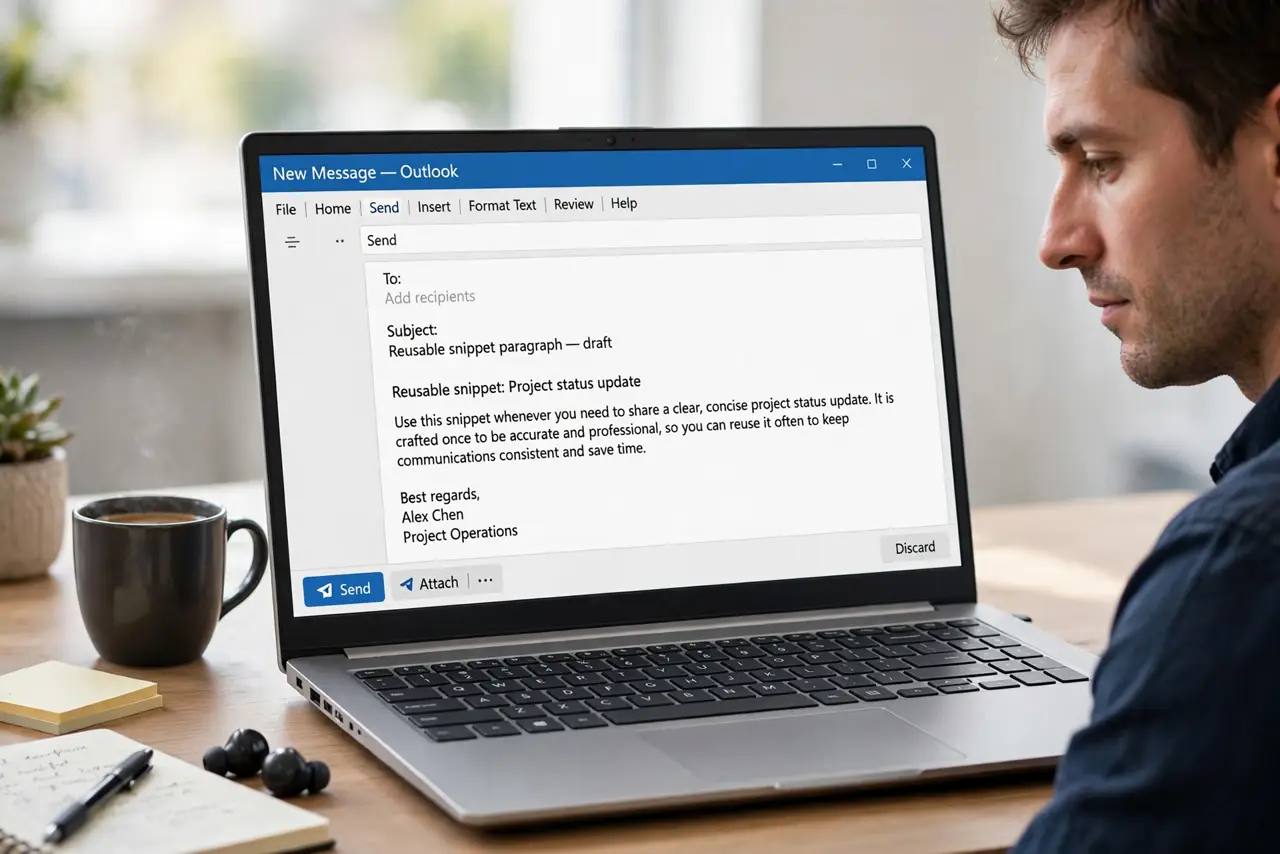
- Write the snippet once, well. Draft the paragraph in a new message exactly as you will reuse it — tone, links, sign-off. A sloppy snippet multiplies sloppiness.
- Save it to the gallery. Select the text, go to Insert > Quick Parts > Save Selection to Quick Part Gallery, give it a clear name, and save.
- Organize by category. Assign categories like Replies, Intros, Closings when saving. Categories turn a long list into a navigable library.
- Insert with two clicks. Place the cursor, open Insert > Quick Parts, and click the snippet. It drops in formatted, ready to personalize.
- Personalize after inserting. Snippets are starting points, not finished mail. Tweak the name, the detail, the tone — every single time.
- Edit from the gallery. Right-click a Quick Part > Edit Properties to update the text or name. Update the snippet when the process changes, not after the tenth wrong send.
What NOT to do
- Do not save a snippet with someone else's name in it. Personalize before saving, not after sending.
- Do not build fifty snippets on day one. Start with the three you type weekly; grow from proof.
- Do not store passwords or sensitive data in Quick Parts. Snippets are plain text, easily forwarded.
- Do not skip the personal touch. A canned reply that reads canned costs more trust than it saves time.
Frequently asked questions
Where are Quick Parts stored?
In your NormalEmail.dotm template on that computer — which is why they do not follow you to a new PC unless migrated.
Do Quick Parts work in the new Outlook?
The new Outlook uses My Templates instead — a similar snippet feature with cloud sync. Classic Quick Parts stay on classic Outlook.
Can Quick Parts include images or tables?
Yes — the gallery stores formatting, images, and tables, not just plain text.