Quick Steps in Outlook? Setup
The same five clicks, fifty times a day: file the invoice, flag the request, forward to the team. Quick Steps turn any routine into one click — a little macro for your inbox. Here is how to set up your first ones and which routines deserve one.
TL;DR / Quick Fix
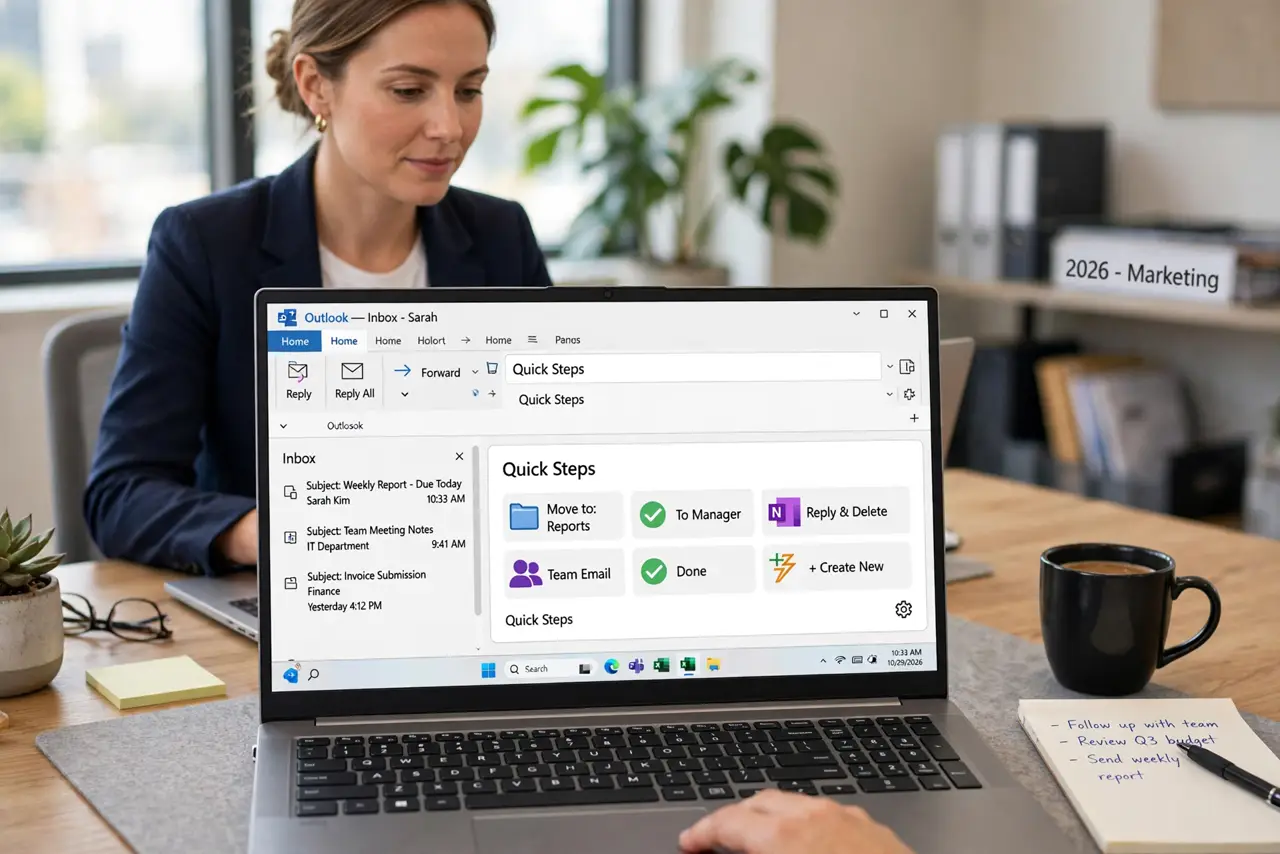
Quick fix: on the Home tab open the Quick Steps gallery, click Create New, name it, add actions like Move to folder and Mark as read, and assign a shortcut key. Run it on any selected message with one click. Build Quick Steps only for routines you repeat daily.
Follow these steps
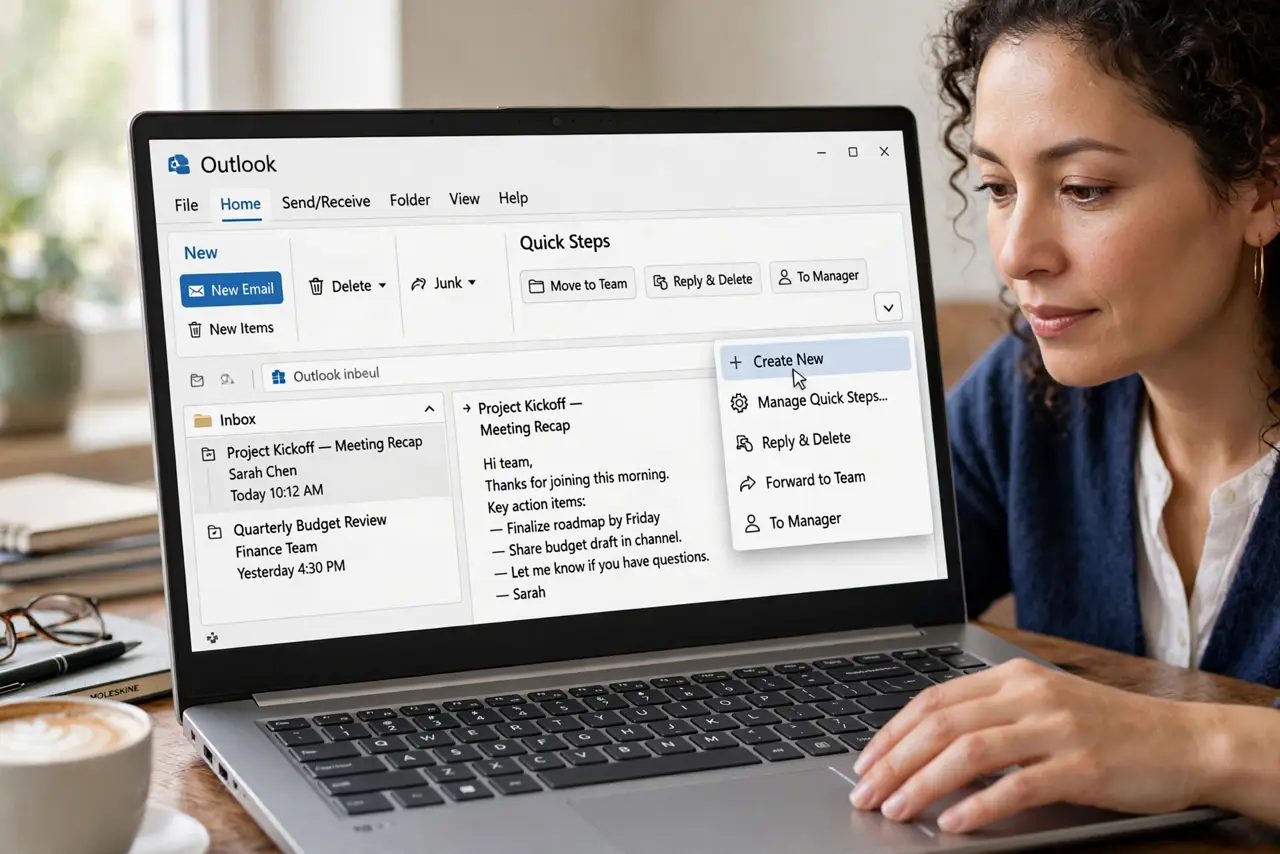
- Open the Quick Steps gallery. On the Home tab, find the Quick Steps box and click the small arrow to expand it, then choose Create New.
- Name it like a verb. File invoice or To team + done — a name that says what happens. You will pick it from a list later, so make it obvious.
- Stack the actions in order. Add actions: Move to folder, Mark as read, Categorize, Flag. Order matters — Outlook runs them top to bottom.
- Assign a shortcut key. Pick Ctrl+Shift+1 through 9 for your top steps. Keyboard-driven triage is where Quick Steps really pay off.
- Test on one message. Select a single message and run the step. Undo (Ctrl+Z) reverses most actions if it misbehaves.
- Manage and prune. Right-click the gallery > Manage Quick Steps to edit, reorder, or delete. Retire steps for dead routines — a gallery of twenty is a gallery unused.
What NOT to do
- Do not build a Quick Step for a monthly task. Setup time should pay back within a week.
- Do not stack Delete with Move in one step. One mis-click and the logic is gone before you notice.
- Do not assign shortcuts you will never remember. Three memorized beats nine forgotten.
- Do not forget Quick Steps are per-computer in classic Outlook. They do not roam unless your setup syncs them.
Frequently asked questions
Do Quick Steps work in the new Outlook?
Partially — the new Outlook supports a smaller set of quick actions; the full multi-action Quick Steps remain a classic Outlook strength.
Can a Quick Step reply with a template?
Yes — combine the Reply action with Quick Parts or a template for one-click canned responses.
What is the difference between Quick Steps and rules?
Rules run automatically on arrival; Quick Steps run when you click. Use rules for the predictable, Quick Steps for the judgment calls.