Outlook Rules: Server vs Client? Fix It
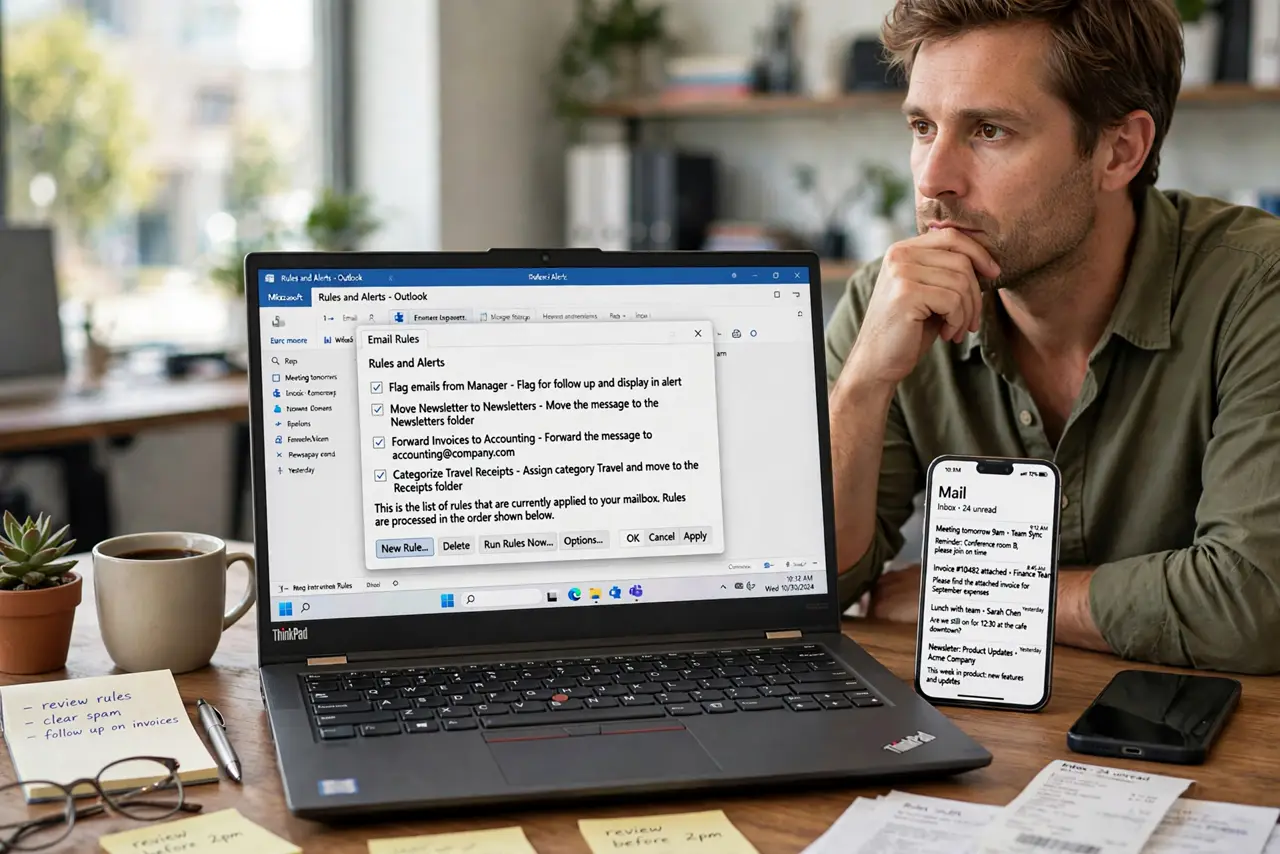
Your Outlook rule works perfectly — until you close Outlook, and then nothing gets sorted. That is the server-vs-client divide: server rules run in the cloud always, client rules only run while Outlook is open. Knowing which you built explains every 'it worked yesterday' mystery.
TL;DR / Quick Fix
Quick fix: open your rule and check for the '(client-only)' tag — if present, rebuild the rule using only server-supported actions like move and categorize. Test it with Outlook closed, and compare with [[always-on Gmail filters|gmail-filters-vs-labels]], which never have this problem.
Follow these steps
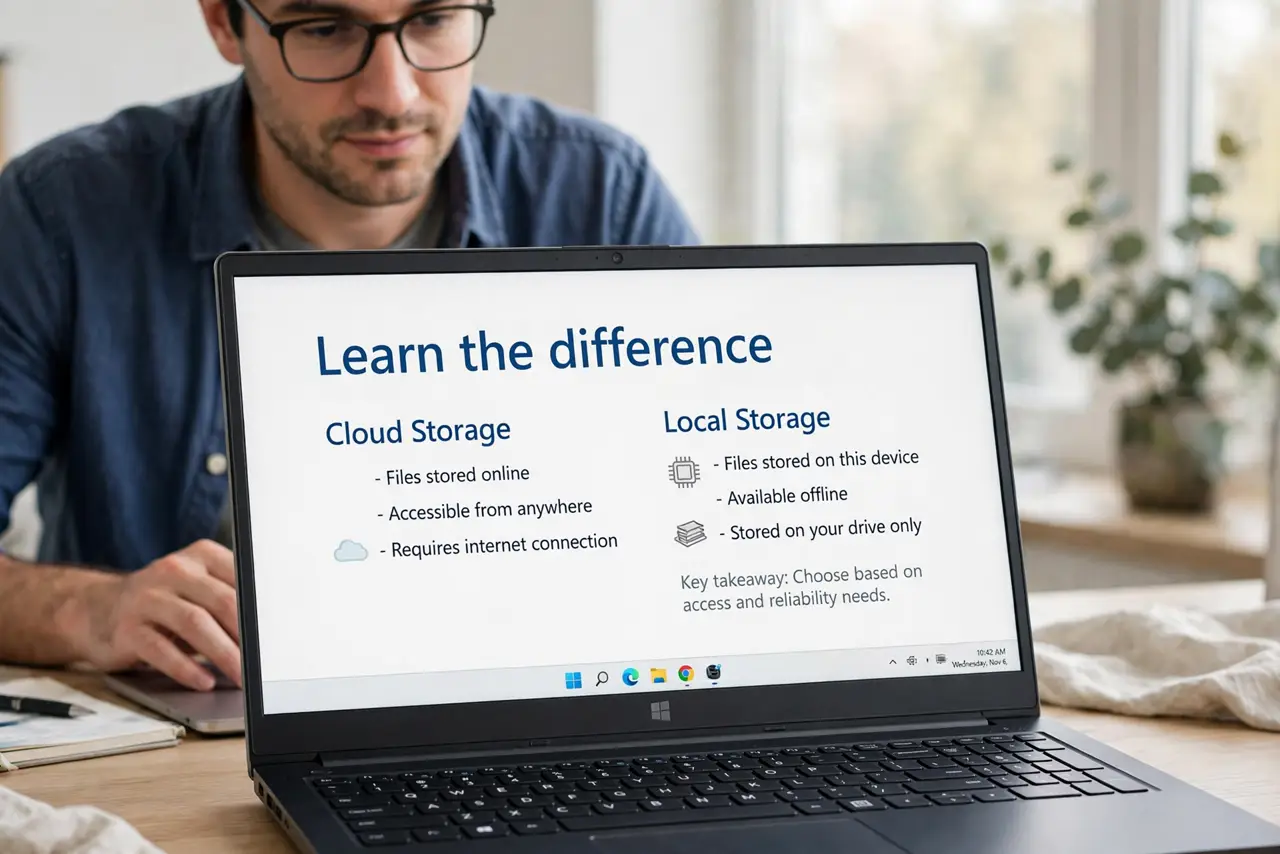
- Learn the difference. Server rules run on Microsoft's servers 24/7. Client-only rules need the Outlook desktop app open — close it and they sleep.
- Spot the '(client-only)' tag. Outlook labels client-only rules in the rules list. That tag is the entire explanation for rules that die when the app closes.
- Rebuild with server actions. Recreate the rule using move-to-folder, categorize, or flag — all server-side. Avoid actions like 'play a sound' or 'display a notification', which force client-only.
- Order rules deliberately. Rules run top to bottom; check 'stop processing more rules' where needed. One greedy rule can starve the ones below it.
- Test with Outlook closed. Send yourself a test email, close Outlook completely, wait a minute, then check via webmail. If it sorted, your rule is truly server-side.
- Clean up duplicates yearly. Old client-only rules linger and conflict. Delete the ones you replaced so only the working server rules remain.
What NOT to do
- Do not build critical rules as client-only. Anything important — boss's mail, invoices — must be a server rule or it fails on weekends.
- Do not assume the phone app runs rules. Mobile Outlook does not execute client rules; only server rules sort mail before it reaches your phone.
- Do not stack ten overlapping rules. Conflicting rules produce mystery filing — keep the list short and ordered with stop-processing flags.
- Do not forget webmail shows the truth. If Outlook desktop and webmail disagree, the server rules are what webmail shows — trust that.
Frequently asked questions
Why do my Outlook rules only work when it's open?
They are client-only rules. Rebuild them with server-supported actions and they will run around the clock.
How do I know if a rule is server or client?
Outlook tags client-only rules in the rules list. No tag means it runs on the server.
Do rules work on the Outlook phone app?
Server rules do — they sort mail before it arrives. Client-only rules never run on the phone.