Book a Room With Room Finder
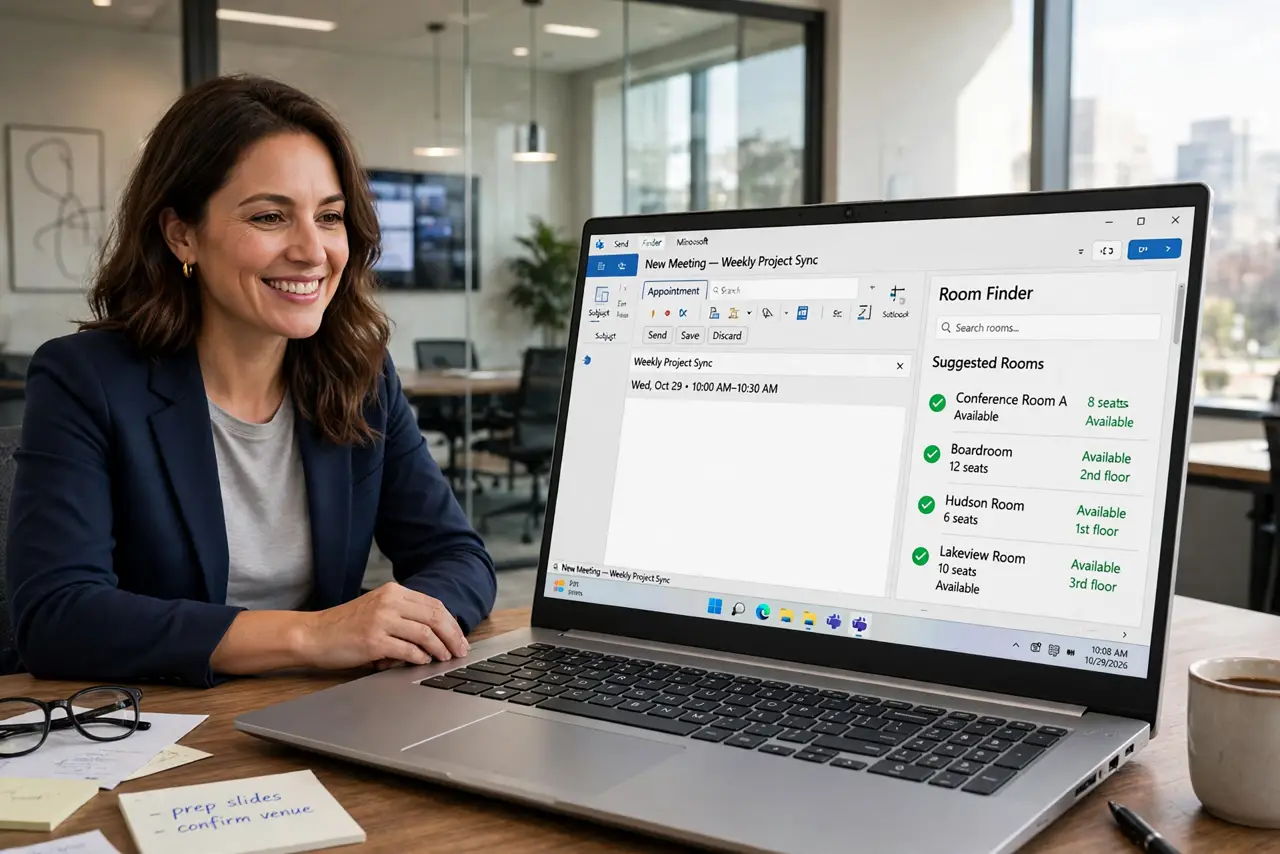
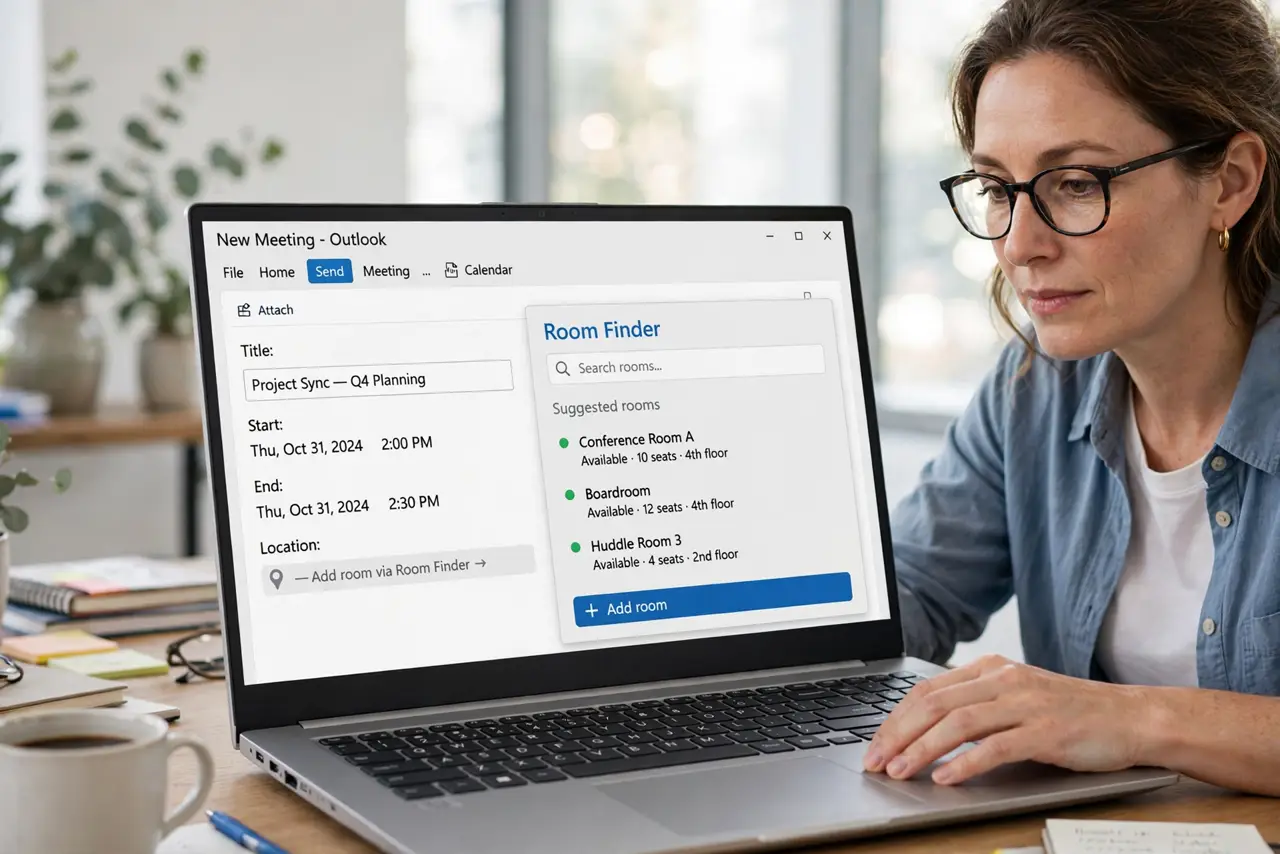
The meeting time is set — now where does everyone sit? Room Finder lists available meeting rooms beside the Scheduling Assistant, filtered by capacity and equipment. Here is how to book the right room in the same flow as the invite.
TL;DR / Quick Fix
Quick fix: in a new meeting invite open the Room Finder pane, filter by capacity, and pick a free room — it joins as an attendee. Book the room in the same invite, not a separate one. Release rooms you no longer need; ghost bookings starve everyone.
Follow these steps
- Open Room Finder on the invite. In the new meeting window, open the Room Finder pane — or Location field > Browse rooms. It sits beside the Scheduling Assistant.
- Set the time first. Pick the meeting time before hunting rooms — availability is meaningless without a when. The pane shows free and busy per room at your slot.
- Filter by what matters. Filter by capacity, floor, or equipment — projector, video. A room for four with no screen is a closet with chairs.
- Pick the room as an attendee. Click the room — it joins the invite like a person and auto-accepts if free. The location field fills itself.
- Confirm the booking stuck. Check the Tracking tab: the room should show Accepted. No acceptance means no room — rebook, do not assume.
- Release what you do not use. Meeting canceled or moved? Cancel the invite so the room frees up. Ghost bookings are the top complaint in every office.
What NOT to do
- Do not book the room in a separate invite. One invite holds time, people, and room — split invites split the truth.
- Do not book the biggest room just in case. Small meetings in big rooms block the teams that actually need them.
- Do not assume the room accepted. Always verify on the Tracking tab.
- Do not no-show booked rooms. Cancel — someone else is hunting for space right now.
Frequently asked questions
Why do I not see any rooms?
Your organization may not publish room lists to you, or you are in the wrong building filter. Ask IT which room list you should see.
Can I book a room without a meeting?
Book a short meeting with just the room as attendee — that is the standard personal-hold method.
The room declined — now what?
Pick the next suggested room in the pane, or shift the time slightly. Declines usually mean a real conflict, not a glitch.