Sweep: Bulk-Clean a Sender
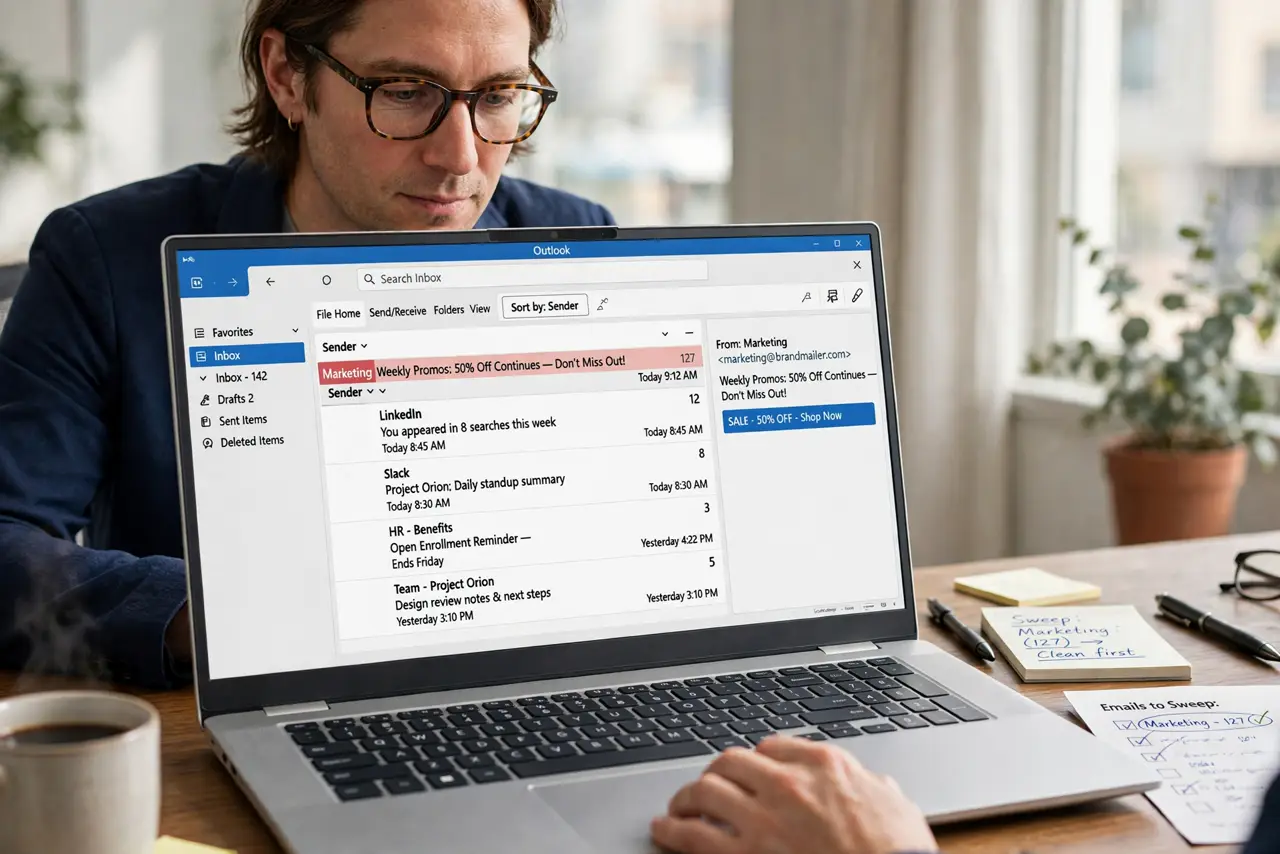
One sender — the daily deals, the notification firehose — owns half your inbox. Sweep deletes one sender's mail in bulk with one rule: keep the latest, delete the rest, or always delete. Here is how to use it without nuking something you needed.
TL;DR / Quick Fix
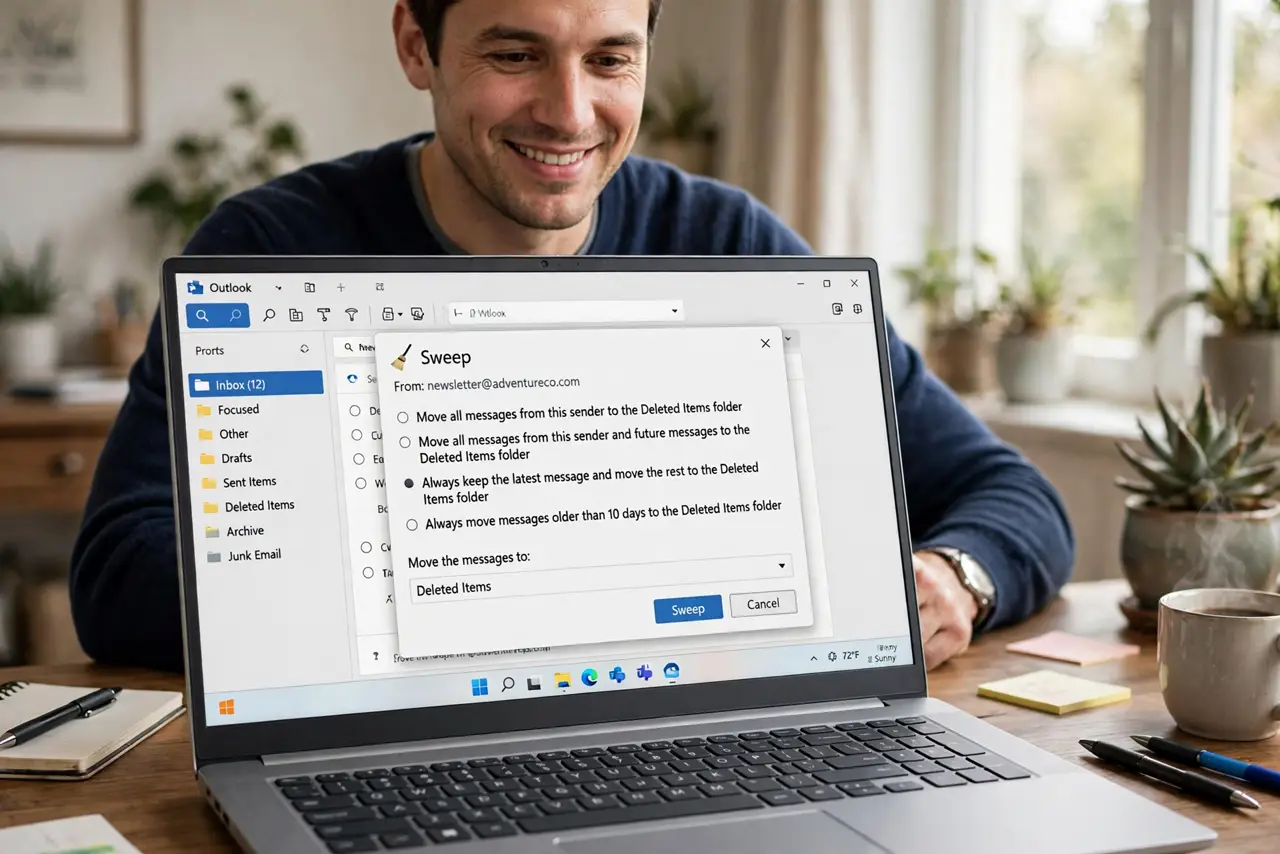
Quick fix: select a message from the noisy sender, click Sweep, and choose Always keep the latest message and move the rest from the folder. Sweep keeps working on future mail too. Use it only for senders you never act on — newsletters, notifications, receipts you never open.
Follow these steps
- Pick the worst offender. Sort the inbox by sender or just notice who fills it. One dominant noisy sender is the perfect first Sweep.
- Open Sweep on their message. Select any message from that sender and click Sweep in the toolbar — Outlook.com and new Outlook.
- Choose keep the latest. Always keep the latest message and move the rest from the folder — you keep a current copy, the history vanishes.
- Decide: this folder or everywhere. Apply to the inbox only, or everywhere. Inbox-only is the safe start; everywhere is for true junk.
- Let it run on future mail. Sweep creates an ongoing rule — future mail from that sender gets the same treatment automatically. Check the rule list to confirm.
- Review the rule monthly. Open Settings > Mail > Sweep and rules and glance at your Sweeps. Delete the rule if the sender became useful — senders change.
What NOT to do
- Do not Sweep a sender you sometimes act on. Sweep is for the never-opened, not the sometimes-useful.
- Do not choose always delete for receipts. Keep the latest keeps proof; always-delete keeps nothing.
- Do not Sweep before checking the latest message. Make sure the newest one is not the one you needed.
- Do not forget Sweep is a rule. It keeps running — review it, or it will surprise you in six months.
Frequently asked questions
Where is Sweep in classic Outlook?
Classic Outlook has no Sweep button — build the equivalent with a rule that always deletes or moves older mail. Sweep lives in Outlook.com and the new Outlook.
Does Sweep delete mail permanently?
It moves mail to Deleted Items, which empties on its schedule. Nothing is instantly unrecoverable — check there first if you swept wrong.
Can I undo a Sweep?
Stop the rule first under Settings > Mail > Sweep, then recover from Deleted Items. The rule stops future sweeps; the past is recoverable within the deleted-items window.