Make Every Meeting a Teams Meeting
Half your invites go out without the Teams link, and then comes the where is the link message five minutes before start. One setting adds an online meeting to every new invite automatically. Here is where it hides.
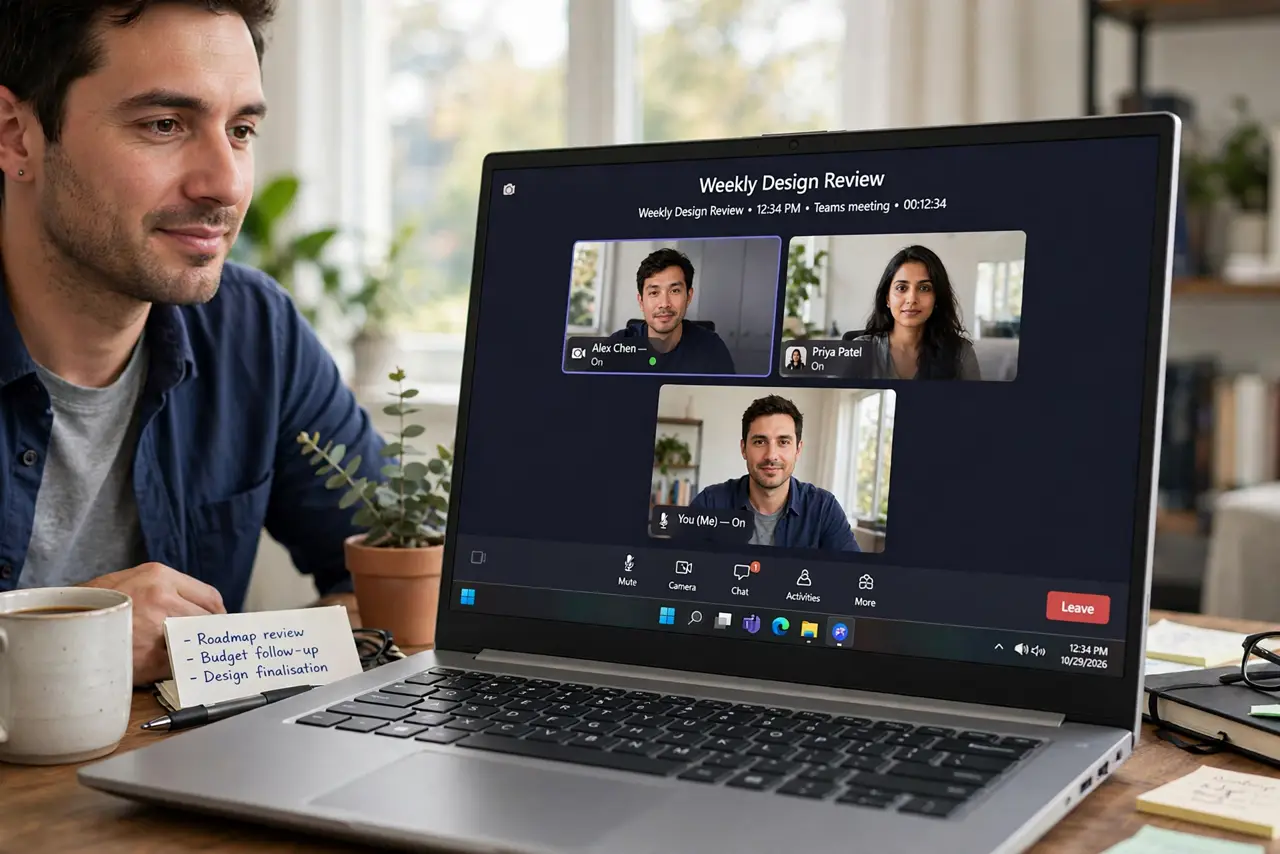
TL;DR / Quick Fix
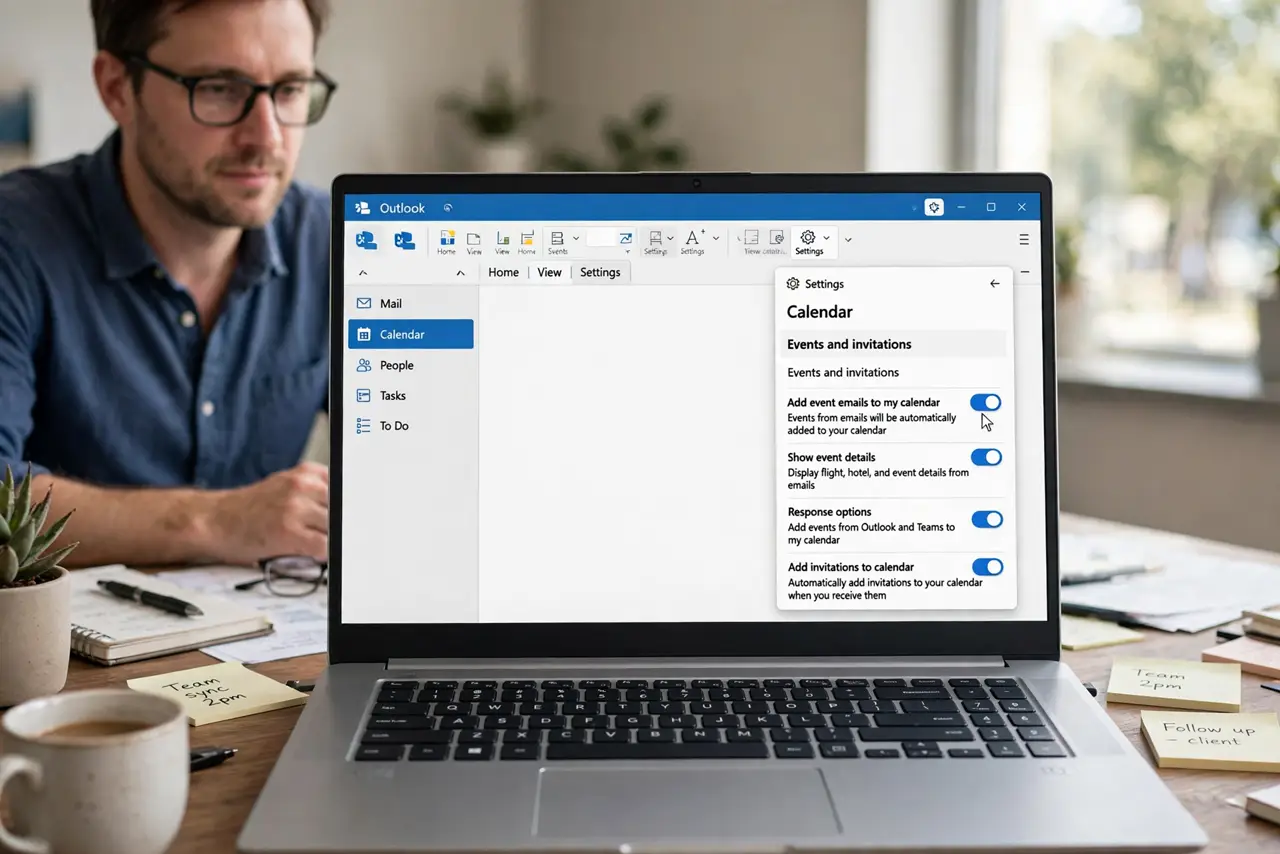
Quick fix: in Outlook go to Settings > Calendar > Events and invitations and turn on Add online meeting to all meetings. Every new invite then carries a Teams link. You can still remove it per invite. If the toggle is missing, your IT admin controls it.
Follow these steps
- Open the calendar settings. New Outlook and web: Settings > Calendar > Events and invitations. Classic: File > Options > Calendar.
- Find the online-meeting toggle. Look for Add online meeting to all meetings — or Add Teams meeting. Switch it on — this is the whole trick.
- Check new invites. Create a test invite — the Teams link and dial-in should appear automatically. If not, the admin may have locked the setting.
- Remove it when you meet in person. For room-only meetings, delete the Teams block from the invite. An unused link just confuses room attendees.
- Set the meeting options. Use Meeting options to choose who gets admitted directly from the lobby. Default lobby settings are fine until a client gets stuck waiting.
- Ask IT if the toggle is missing. Some organizations enforce the default centrally. If the switch is not there, it is policy — ask, do not hack around it.
What NOT to do
- Do not paste Teams links manually into every invite. That is what the toggle is for.
- Do not leave the link on in-person meetings. Redundant links breed is this remote or not confusion.
- Do not assume external guests breeze through the lobby. Set lobby options before client meetings.
- Do not fight IT policy with workarounds. If the default is enforced, there is usually a compliance reason.
Frequently asked questions
Why do some invites still lack the link?
Invites created before you flipped the toggle, or from mobile apps with their own default, will not have it. The setting covers new desktop invites going forward.
Can I default to Teams but sometimes use Zoom?
Yes — keep the Teams default and swap the link per invite. Or set the default per the tool you use most.
Does this affect existing meetings?
No — only new invites. Old meetings keep whatever they had.