Voting Buttons? How To Use Them
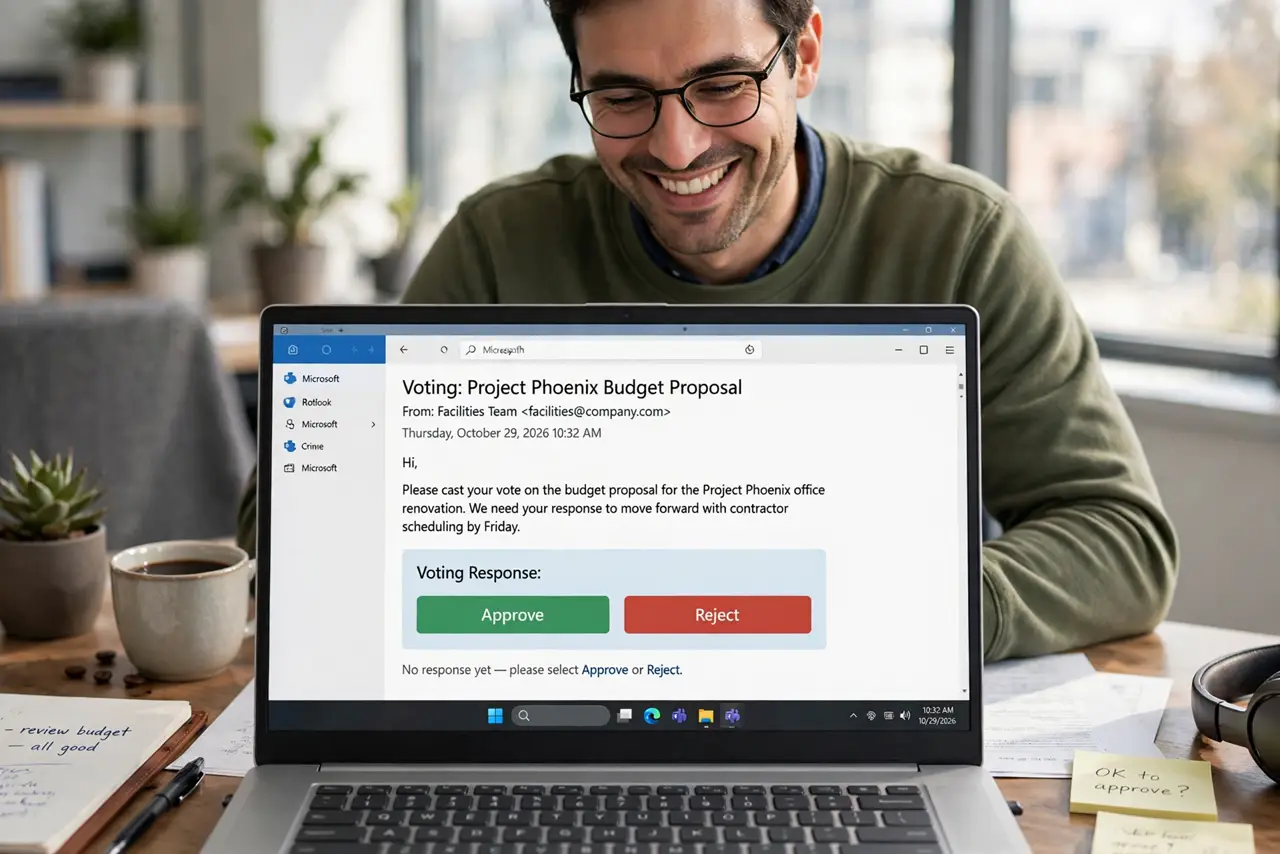
Need the team to approve, reject, or pick an option — without a messy reply-all thread? Outlook's voting buttons embed clickable choices right in your email, and every response arrives back as a tallied vote you can review in one place. It is the cleanest way to poll a small group from inside email. Here is how to add them and count the votes.
TL;DR / Quick Fix
Quick fix: voting buttons add choices like Approve or Reject to an email, and replies arrive as tallied votes. In a new message, open Options > Use Voting Buttons and pick a preset or custom ones. Track results in the sent message. They only work well when everyone uses Outlook.
Follow these steps
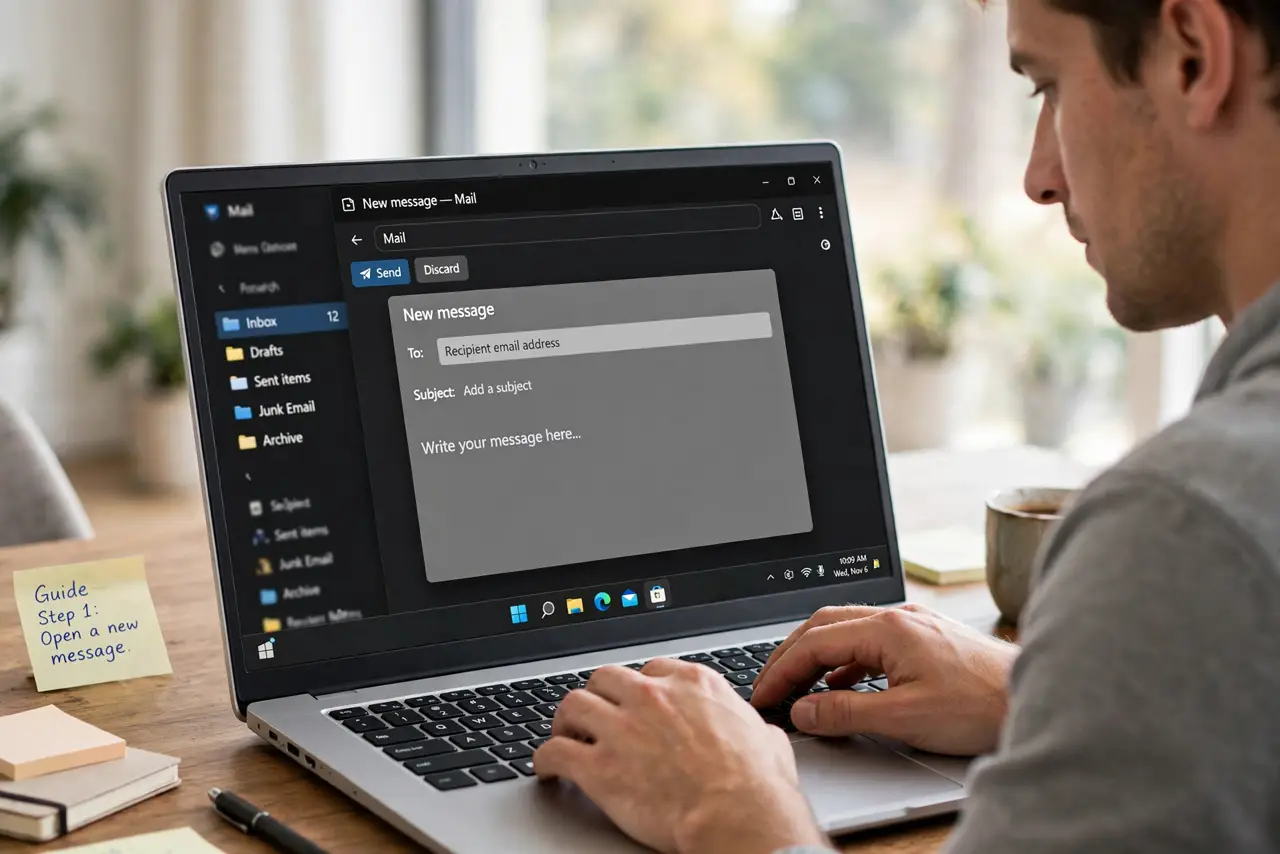
- Open a new message. Voting buttons attach to the message you are composing — start a fresh email to your voters.
- Find Use Voting Buttons. On the Options tab, click Use Voting Buttons. You will see presets like Approve;Reject and Yes;No.
- Pick a preset or type custom options. Choose a preset, or select Custom and type your own choices separated by semicolons — for example, Monday;Tuesday;Wednesday.
- Send to your Outlook recipients. Voting works best when everyone uses Outlook or Exchange. Other email programs may show the options as plain text.
- Track responses in the sent message. Open the message in Sent Items and click the Tracking button (or the vote tally) to see who voted what, summarized automatically.
- Nudge the non-voters. The tracking view shows who has not responded. A polite follow-up to just those people beats another group email.
What NOT to do
- Do not use voting buttons for binding decisions with outsiders. Non-Outlook recipients may not see working buttons at all.
- Do not make the options ambiguous. 'Maybe;Sort of' produces useless tallies — offer clear, distinct choices.
- Do not forget to check the tracking tab. Votes arrive as separate messages unless you look at the summary in the sent item.
- Do not use voting for sensitive topics. Everyone's vote is visible to you — it is not an anonymous ballot.
Frequently asked questions
Can I add voting buttons to a message I already sent?
No — they must be added while composing. For a sent message, your only option is a new email (or recalling the first one, which is unreliable).
Why do recipients see plain text instead of buttons?
They are probably not using Outlook. Voting buttons need Outlook or Exchange on the receiving end to render as clickable buttons.
How many options can I include?
A handful works best — three to five. Long lists get confusing; for big surveys use a proper form or poll tool instead.