Android Parental Controls
Androids parental controls live in Google Family Link — free, built in, and far more capable than most parents realize. App approvals, screen-time limits, bedtime lockouts, and location sharing, all managed from your own phone. The setup takes fifteen minutes; the peace of mind lasts years.
TL;DR / Quick Fix
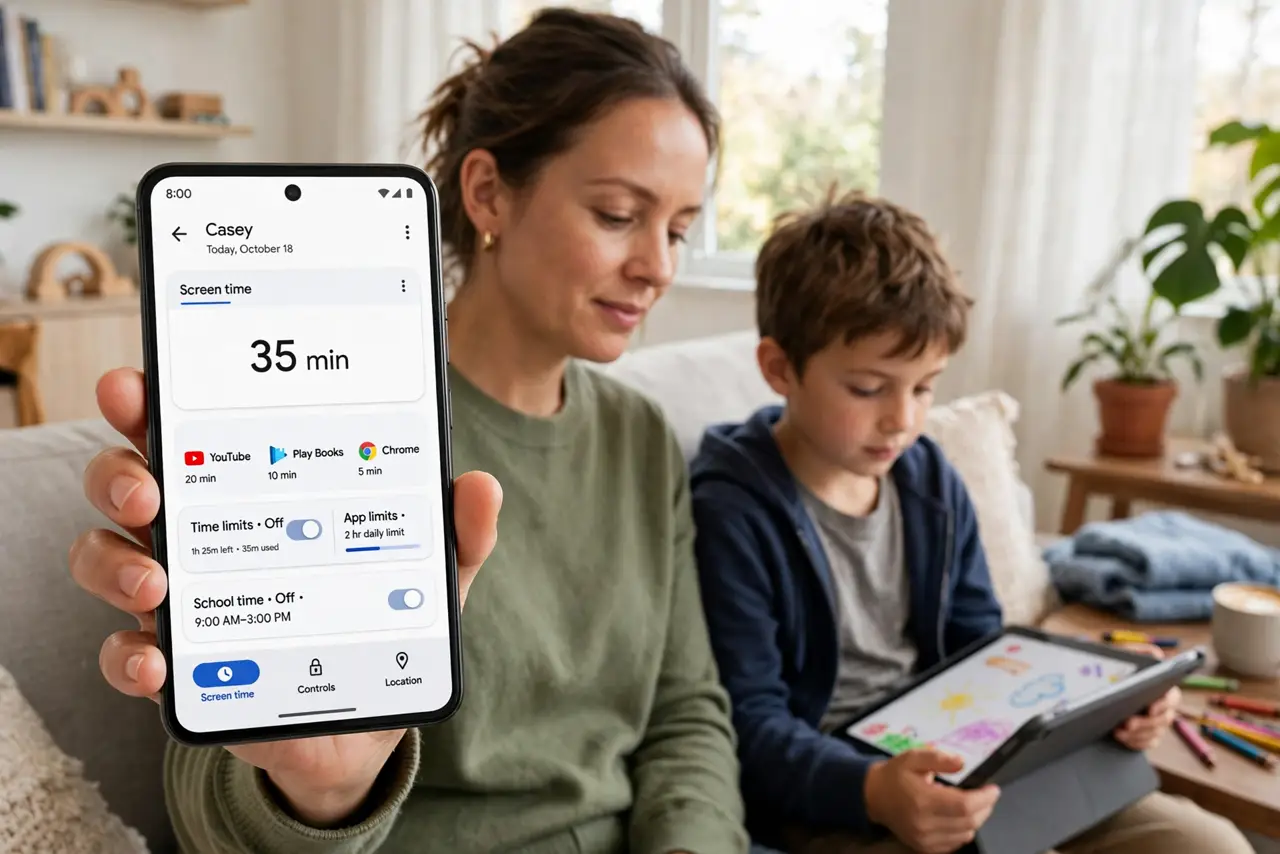
Quick fix: install Google Family Link on your phone, link your childs Google account, and set app approvals, daily limits, and a bedtime lockout. Approve or block new app installs from your own phone. Review the activity reports together weekly — the conversation matters more than the dashboard.
Follow these steps
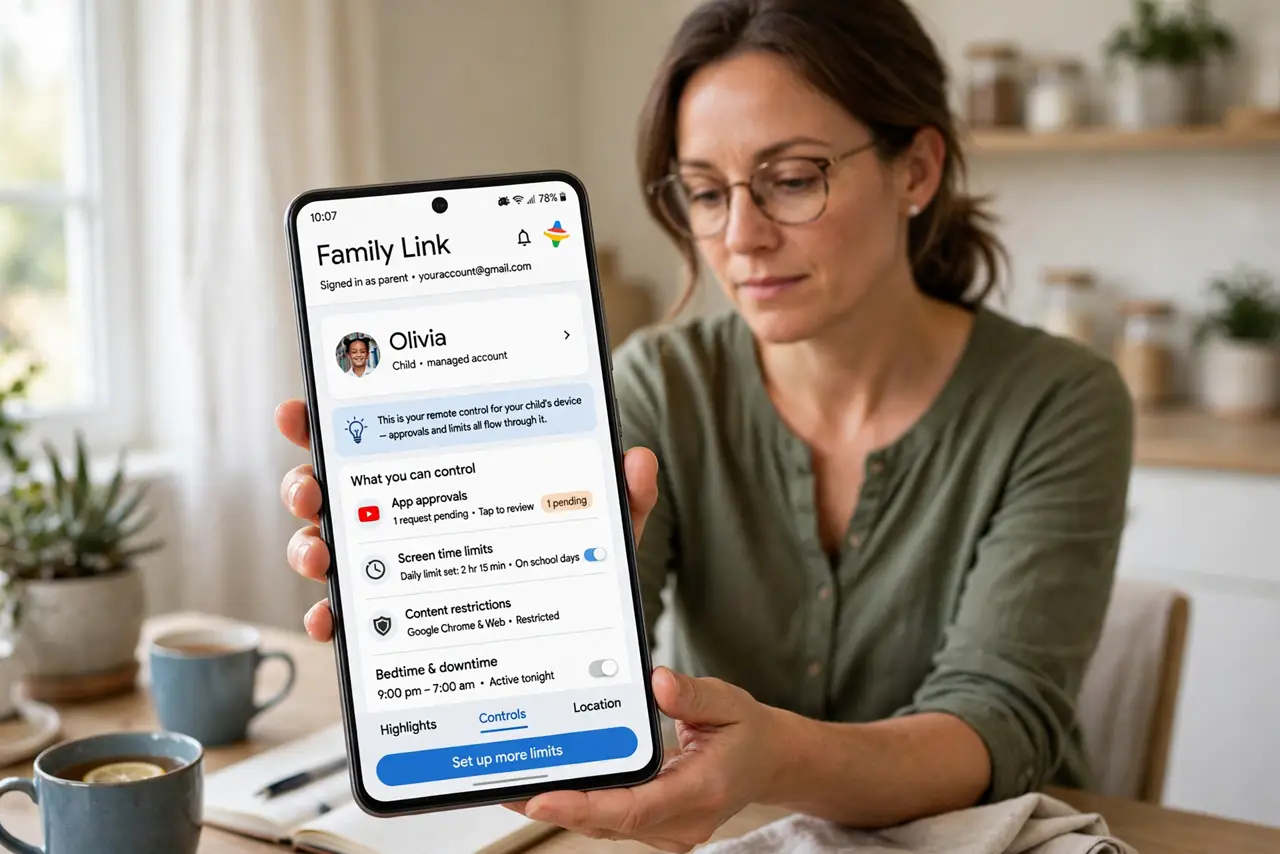
- Install Family Link on your phone. Get Google Family Link on the parents phone and sign in. This becomes your remote control for the childs device — approvals and limits all flow through it.
- Link the childs Google account. Create or link a supervised Google account for the child during setup. Supervision ties to the account, so it follows them across their Android devices.
- Require approval for new apps. Turn on app install approvals — every download request lands on your phone first. This single toggle stops most surprise installs and purchases.
- Set daily limits and bedtime. Cap total screen time and schedule a bedtime lockout when the device goes quiet overnight. Consistent hours beat nightly negotiations.
- Filter content in Google apps. Enable SafeSearch, YouTube restricted mode, and Play Store maturity filters from Family Link. Coarse but effective as a first layer.
- Use location sharing wisely. Family Link can show the childs location. Use it for safety check-ins, not constant tracking — and pair the approach with the iPhone side if the house is mixed.
What NOT to do
- Do not set it up and never look again. Kids grow, apps change — review settings every few months.
- Do not use location as surveillance. Constant tracking teaches evasion; check-ins teach responsibility.
- Do not forget the browser. Family Link filters Google apps well; a third-party browser can be a side door — manage that too.
- Do not skip the conversation. Controls without explanation become a game to beat; controls with explanation become training wheels.
Frequently asked questions
What age needs Family Link?
Google requires supervision under 13 in most regions; beyond that it is your call based on maturity, not birthday.
Can kids bypass Family Link?
Factory resets and second accounts are the classic escapes. Updates close holes, but attention is the real lock.
Does it work on Chromebooks?
Yes — the same supervised account carries the limits to Chromebooks, which is handy for school devices.