Start a Password Manager
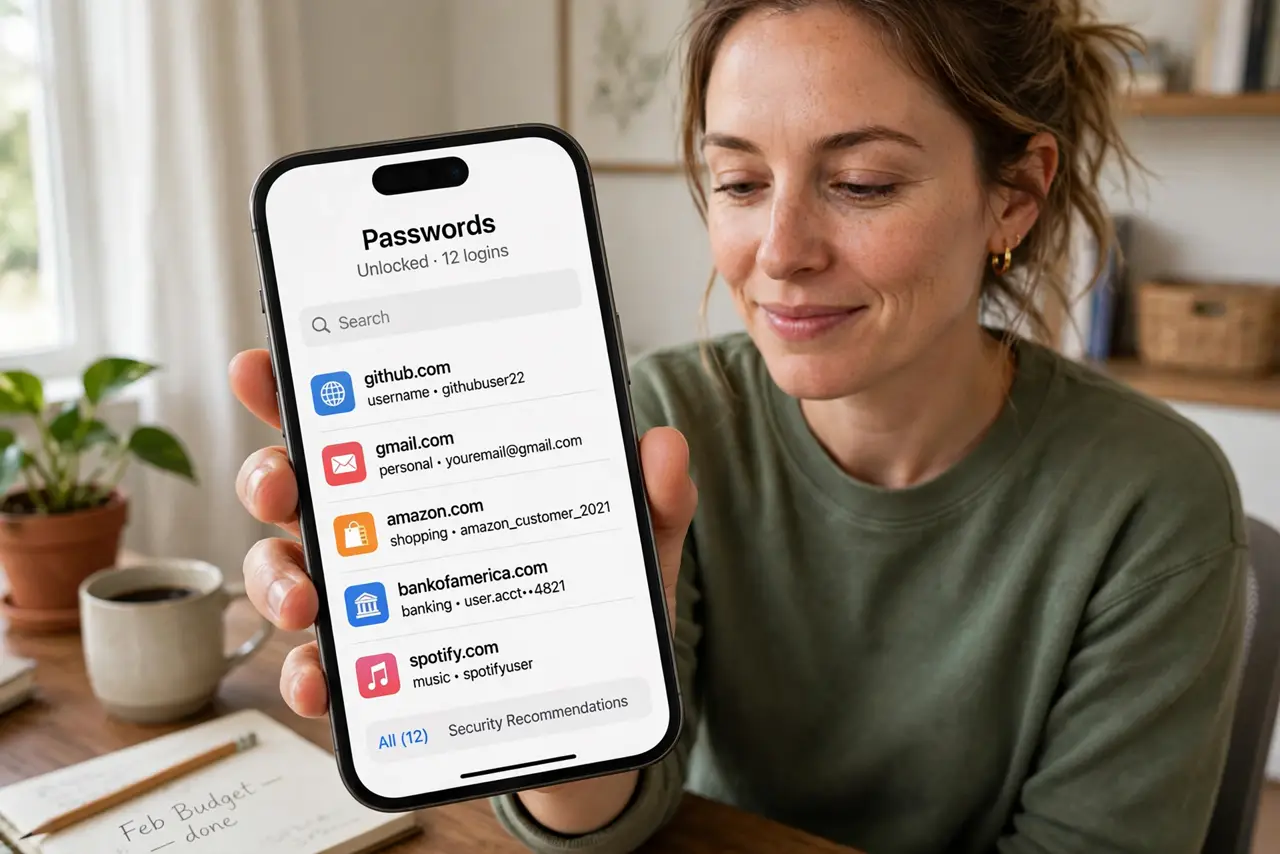
The sticky-note era is over — reusing three passwords everywhere is how one breached forum hands attackers your email, your bank, and your cloud storage. A password manager remembers a unique, strong password for every site so you only memorize one master password. This guide walks you through starting one safely, including how it compares with browser password managers.
TL;DR / Quick Fix
Quick fix: pick a reputable password manager, create one strong master password you will remember, and let it generate a unique password for every site. Turn on autofill so logins fill themselves. Import saved browser passwords, then delete them from the browser — one vault, every device.
Follow these steps
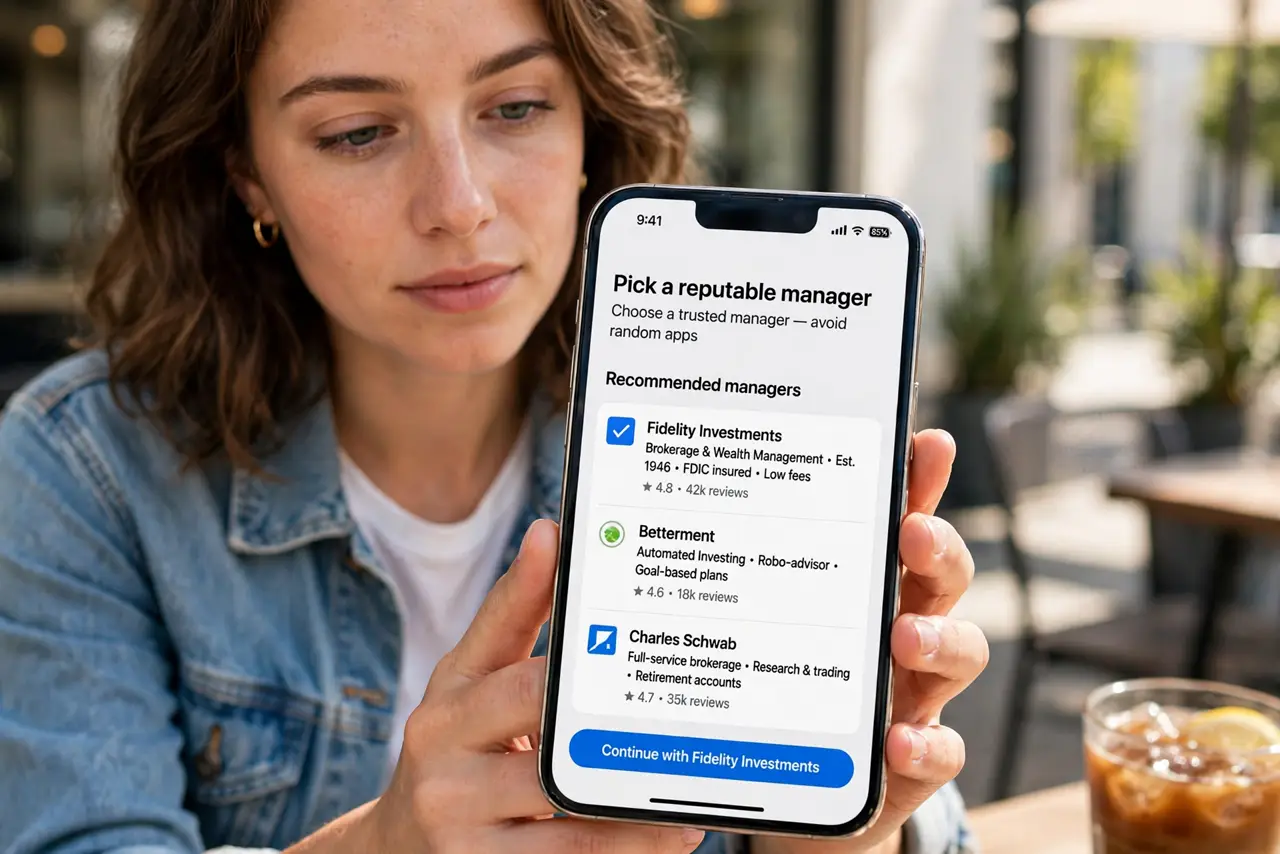
- Pick a reputable manager, not a random app. Choose a well-reviewed manager with a long track record and independent security audits. Your entire digital life goes in here — popularity and audit history matter more than a pretty icon.
- Create one strong master password. This is the only password you must memorize, so make it long and memorable — four or five random words work better than a short complex jumble. Write it on paper until it sticks, then store the paper safely.
- Turn on two-factor for the vault. Protect the manager itself with an authenticator app. A vault guarded only by a master password is one phish away from disaster.
- Import your existing saved passwords. Most managers import directly from Chrome, Safari, or Edge in a few clicks. This is the moment your scattered logins become one organized vault.
- Let it generate new passwords as you log in. When you next sign into each site, use the generator to replace the old reused password with a long random one. Work through your important accounts first: email, bank, cloud.
- Enable autofill on every device. Install the manager on your phone and computer and turn on autofill. Logins fill themselves, and you stop typing passwords where shoulder surfers can watch.
What NOT to do
- Do not reuse your master password anywhere else. It guards everything — if it leaks, the vault is the attacker's.
- Do not store the master password in the notes app on the same phone. A thief with your unlocked phone gets the keys and the vault together.
- Do not skip the emergency access setup. If something happens to you, a trusted person needs a way in — most managers offer this.
- Do not keep passwords in the browser after importing. Delete them from Chrome or Safari so there is only one vault to protect.
Frequently asked questions
What if I forget my master password?
Most managers cannot recover it — that is the security model. Set up account recovery or emergency access now, while you remember it.
Are free password managers safe?
Reputable free tiers use the same encryption as paid. You pay for extras like family sharing, not for the core security.
Can the password manager company see my passwords?
No — with zero-knowledge encryption, only your master password unlocks the vault. The company holds scrambled data it cannot read.