Plug In CPU Power
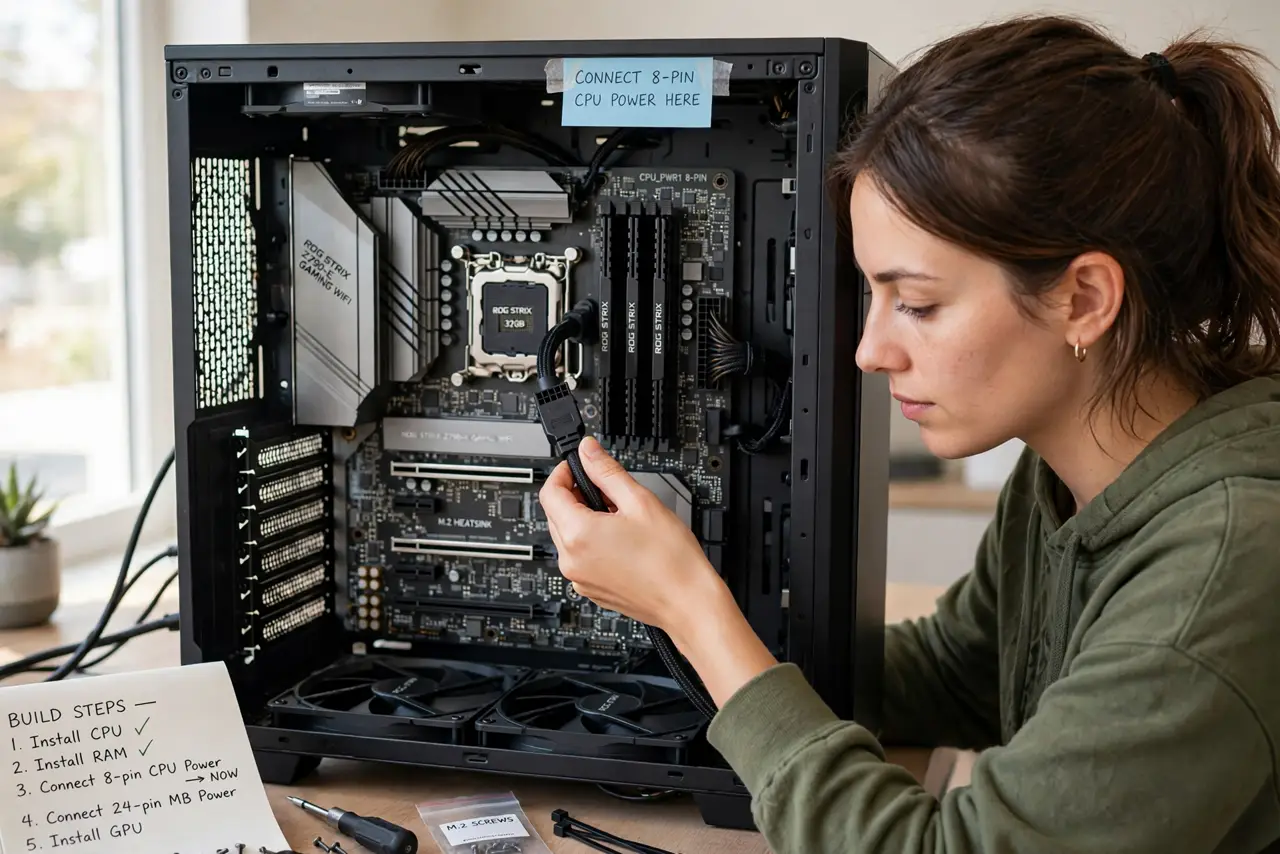
You press the power button, fans spin up cheerfully, and... nothing. No display, no beeps, just fans. Before you panic about a dead motherboard, check one cable: the CPU power connector, a small 4 or 8-pin plug near the top of the board that first-time builders forget more than any other. This guide shows you exactly where it lives and how it clicks in. It is the star of the first-build mistakes hall of fame.
TL;DR / Quick Fix
Quick fix: the CPU power cable is the small 4 or 8-pin connector near the top of the motherboard — it is the most forgotten cable in first builds. Fans spin but nothing boots without it. Plug it in firmly before you panic about a dead build.
Follow these steps
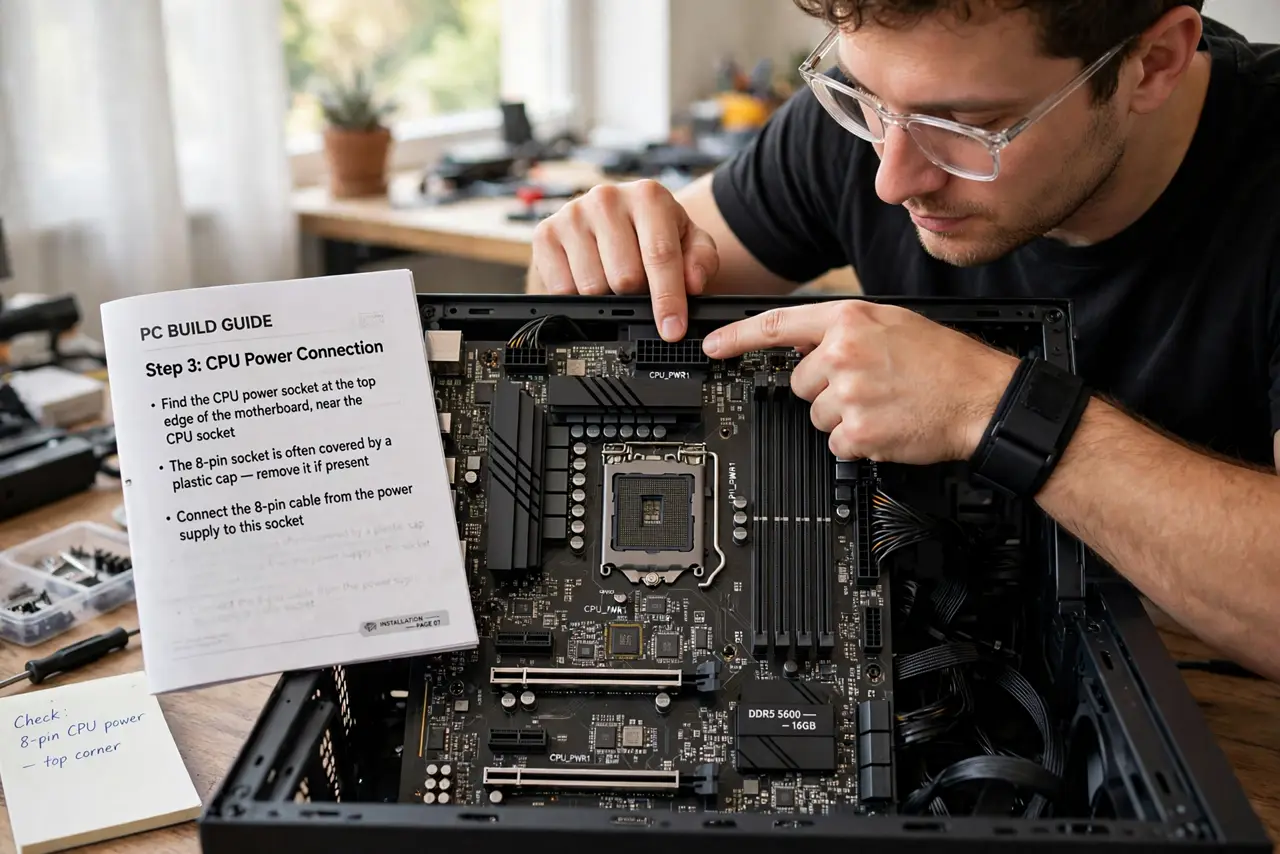
- Find the CPU power socket. Look at the top edge of the motherboard, near the CPU socket — a small 4-pin or 8-pin socket, sometimes covered by a plastic cap. The motherboard manual marks it clearly.
- Find the matching PSU cable. Your power supply includes a cable labeled CPU — usually a 4+4 pin that splits. Do not confuse it with the similar-looking PCIe graphics card cable.
- Check the connector shape. CPU power connectors have a specific pin shape that only fits one way. If it resists, check the orientation — never force it.
- Push until it clicks. Seat it firmly and evenly until the clip engages. A half-inserted CPU cable causes the exact fans-but-no-boot symptom.
- Route it neatly. Run the cable behind the motherboard tray through the case's top cutout. Clean routing is not just pretty — it keeps the cable from snagging fans.
- Verify before closing up. With everything connected, do a test boot before final cable management. Seeing it post now saves disassembling a finished build later.
What NOT to do
- Do not use a PCIe cable in the CPU socket. They look similar but are wired differently — forcing one can damage the board.
- Do not assume the 24-pin is enough. The big motherboard cable powers the board; the CPU needs its own feed.
- Do not leave it half-plugged. Partial connections cause intermittent boot failures that are maddening to diagnose.
- Do not mix modular PSU cables between brands. The cable mixing warning exists because the pinouts differ and damage follows.
Frequently asked questions
Why do fans spin but nothing boots?
The classic cause is the forgotten CPU power cable — fans run on the 24-pin, but the CPU gets no power. Check the small top connector first.
Is it 4-pin or 8-pin on my board?
Check the motherboard manual or look at the socket. Most modern boards use 8-pin; some add a second 4-pin for extreme overclocking.
Can I split one cable for two connectors?
Use the PSU's dedicated CPU cable as intended. Daisy-chaining the wrong cables risks instability — when in doubt, read the PSU manual.