Extract One Page From a PDF? How To
You need page 14 from a 200-page report, not the whole file. Emailing the entire document wastes bandwidth and buries the point. This guide shows how to pull out exactly the pages you need into a clean new PDF.
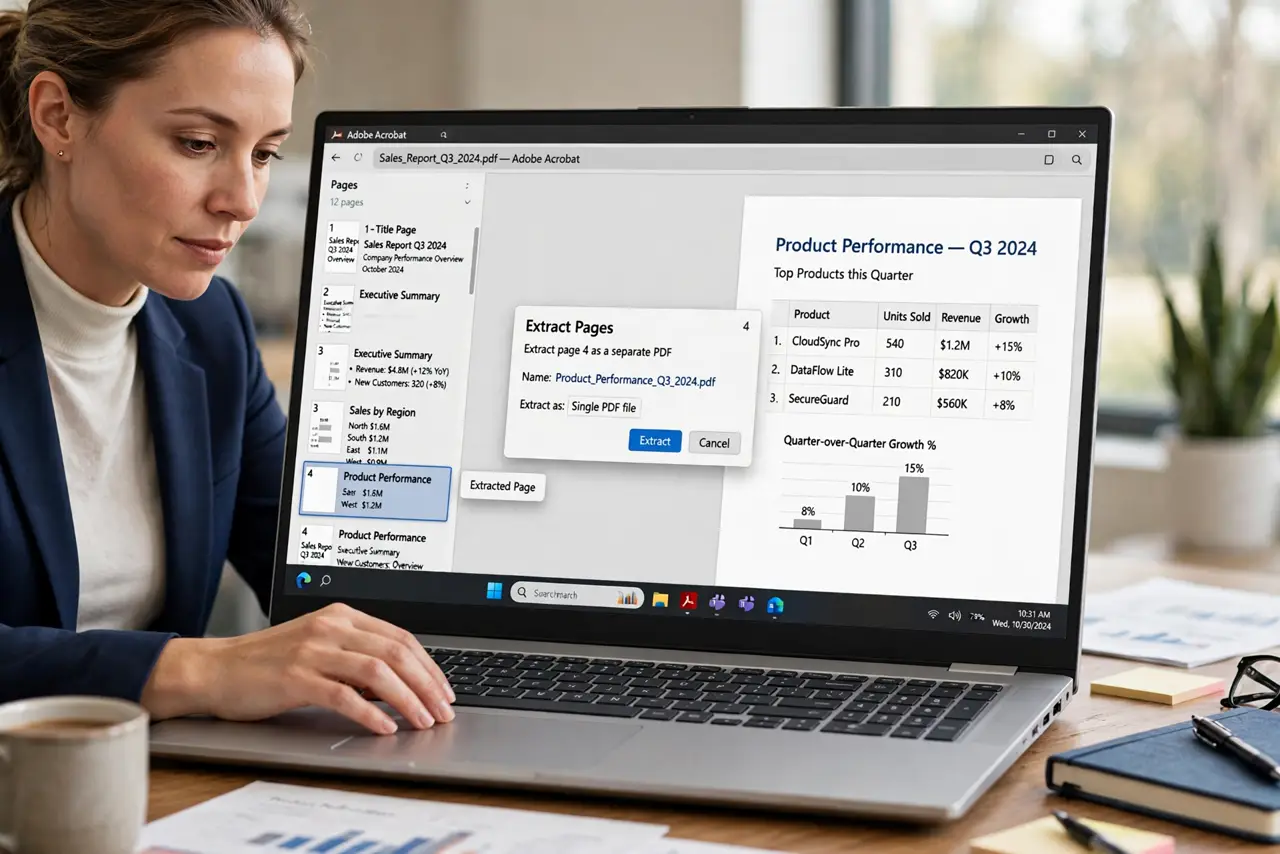
TL;DR / Quick Fix
Open the PDF's print dialog, choose the pages you need, and print to PDF to create a new file. For precise work, use a PDF tool's extract or organize pages feature. Name the new file clearly so it never gets confused with the original.
Follow these steps
- Note the exact page numbers. Find the pages you need and write down their numbers. Guessing from memory is how page 13 ships instead of page 14.
- Use print to PDF for quick jobs. Open Print, set the page range to just your pages, and choose Print to PDF or Save as PDF. A new file with only those pages appears.
- Use extract for precise work. In a full PDF tool, open Organize Pages, select the thumbnails, and choose Extract. Extraction preserves quality better than reprinting.
- Merge the pages if needed. If the extracted pages join other documents, merge them now while the page order is fresh in your mind.
- Name the new file clearly. Name it after its content, like Contract-signature-page, not extract-1. A clear name prevents it from being mistaken for the full document.
- Verify the extracted pages. Open the new file and confirm it holds exactly the right pages, in order, fully readable.
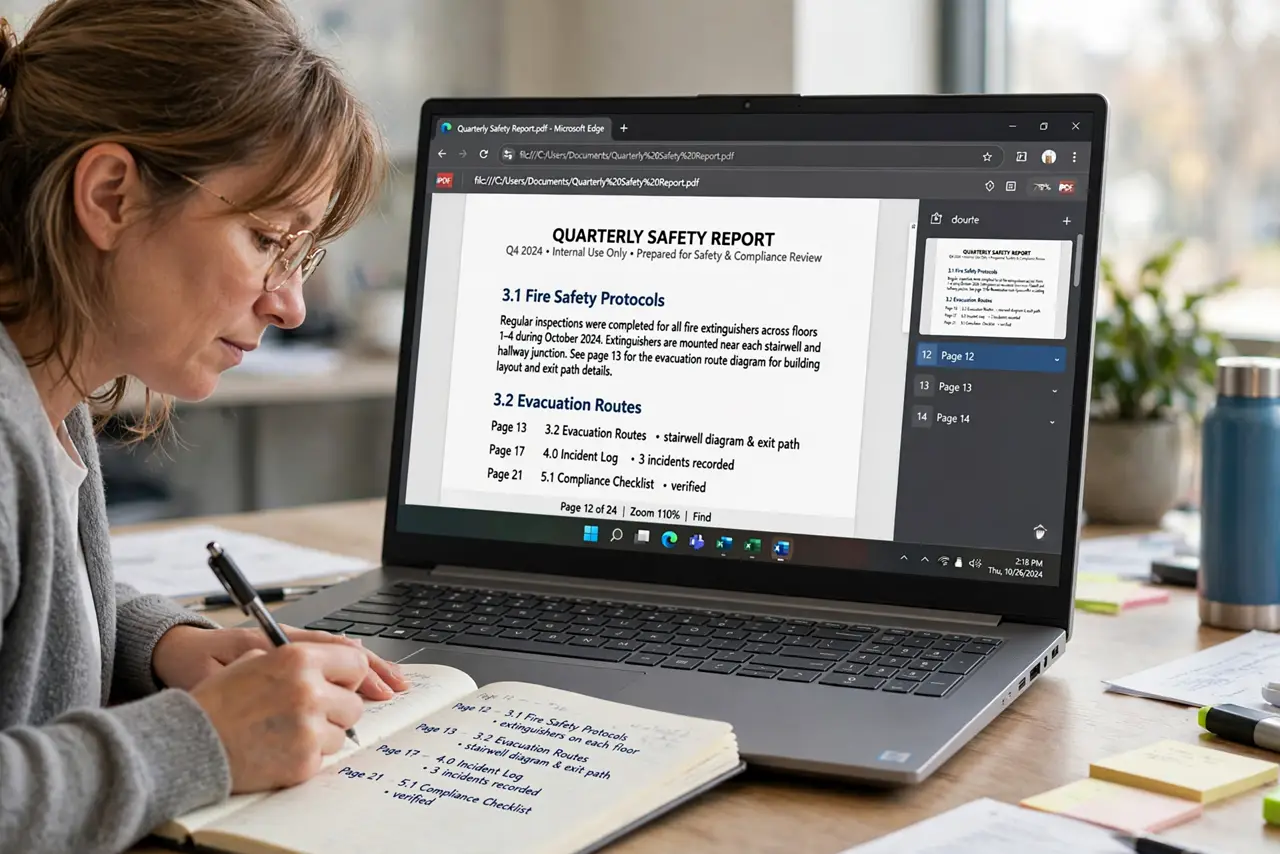
What NOT to do
- Do not screenshot pages instead of extracting. Screenshots lose resolution and look unprofessional.
- Do not send the whole 200-page file when one page will do. Respect the recipient's time and inbox.
- Do not extract from a scanned PDF expecting selectable text. The extraction keeps the image; it does not create text.
- Do not forget the original's context. Note the source document and page number in the new file's name or a cover note.
Frequently asked questions
How do I save one page of a PDF separately?
Print just that page to PDF, or use a PDF tool's Extract feature on the page thumbnail.
Does extracting reduce quality?
Extraction keeps the original quality. Print-to-PDF re-renders, which can slightly change quality — use Extract for the best fidelity.
Can I extract multiple non-adjacent pages?
Yes. Select each page thumbnail with Ctrl-click in the organize view, then extract them together.