Call Forwarding? Set It Up
Heading on vacation, switching to a work phone for the week, or just want calls to ring somewhere else for a while? Call forwarding sends your incoming calls to another number automatically — no apps, no accessories. It is built into every phone and takes under a minute to set up.
TL;DR / Quick Fix
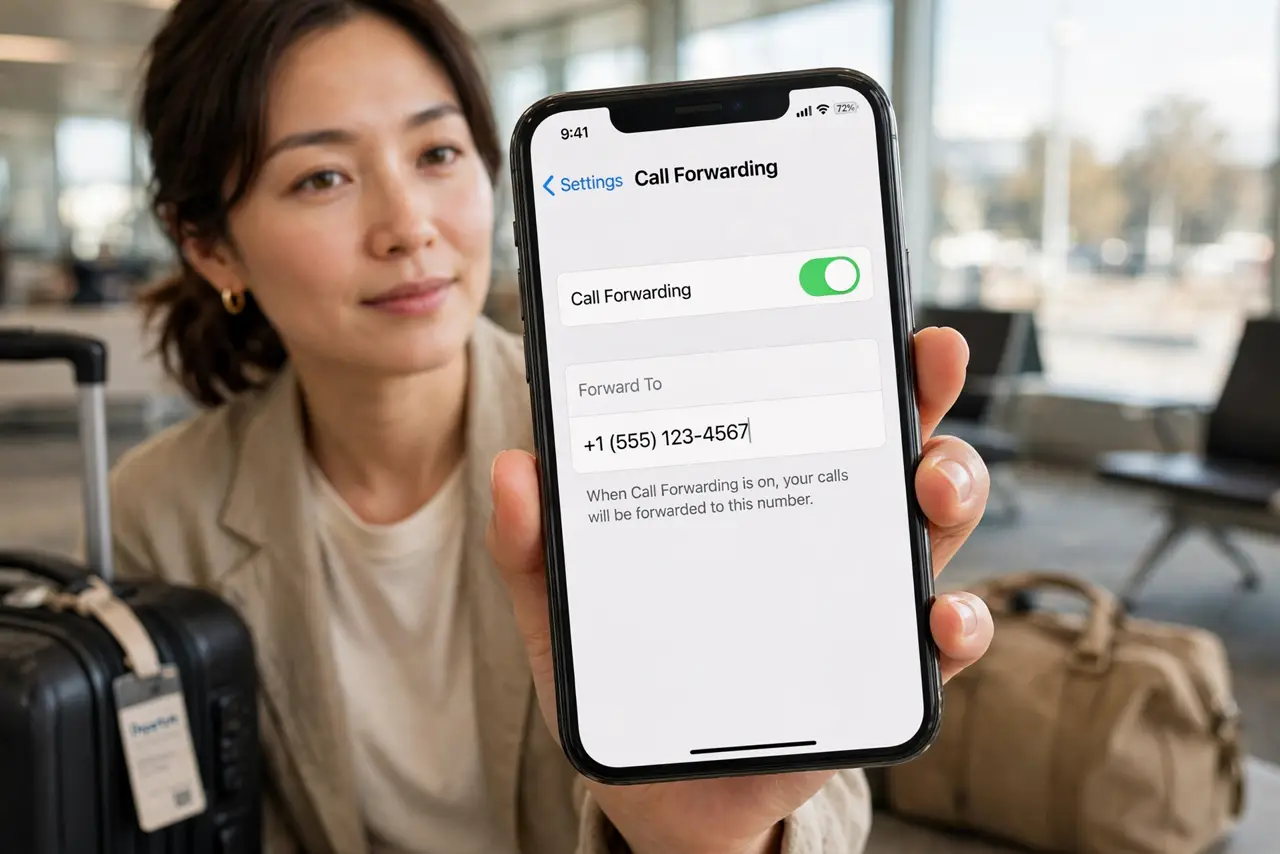
Quick fix: call forwarding sends incoming calls to another number automatically. On iPhone, go to Settings > Phone > Call Forwarding and enter the number. On Android, open Phone > Settings > Calls > Call forwarding. Turn it off when done — forwarded calls use your plan.
Follow these steps
- Open the forwarding settings. On iPhone: Settings > Phone > Call Forwarding. On Android: Phone app > Settings > Calls > Call forwarding. Both let you enter a destination number in under a minute.
- Choose when calls forward. Android offers conditions: always forward, or only when busy, unanswered, or unreachable. iPhone forwards all calls when on. Pick the condition that matches your situation — 'when unreachable' covers dead zones and dead batteries.
- Enter the full destination number. Include the area code and any country code if forwarding across borders. A wrong digit sends your calls to a stranger — double-check before saving.
- Verify it actually works. Call your number from another phone and confirm it rings at the destination. Do not discover a typo when an important call goes missing.
- Know the costs. Forwarded calls typically count as outgoing calls on your plan, and international forwarding can get expensive. Check your carrier's rates before forwarding abroad for weeks.
- Turn it off when done. Forwarding stays on until you disable it. Set a reminder for your return date — forgotten forwarding is the classic reason for missed calls weeks later.
What NOT to do
- Do not forward to a number you have not tested. One wrong digit routes your calls to a stranger.
- Do not leave forwarding on indefinitely. It keeps charging your plan and confusing callers long after you needed it.
- Do not forward to a phone that is off or full. Calls then die at the destination with no voicemail fallback.
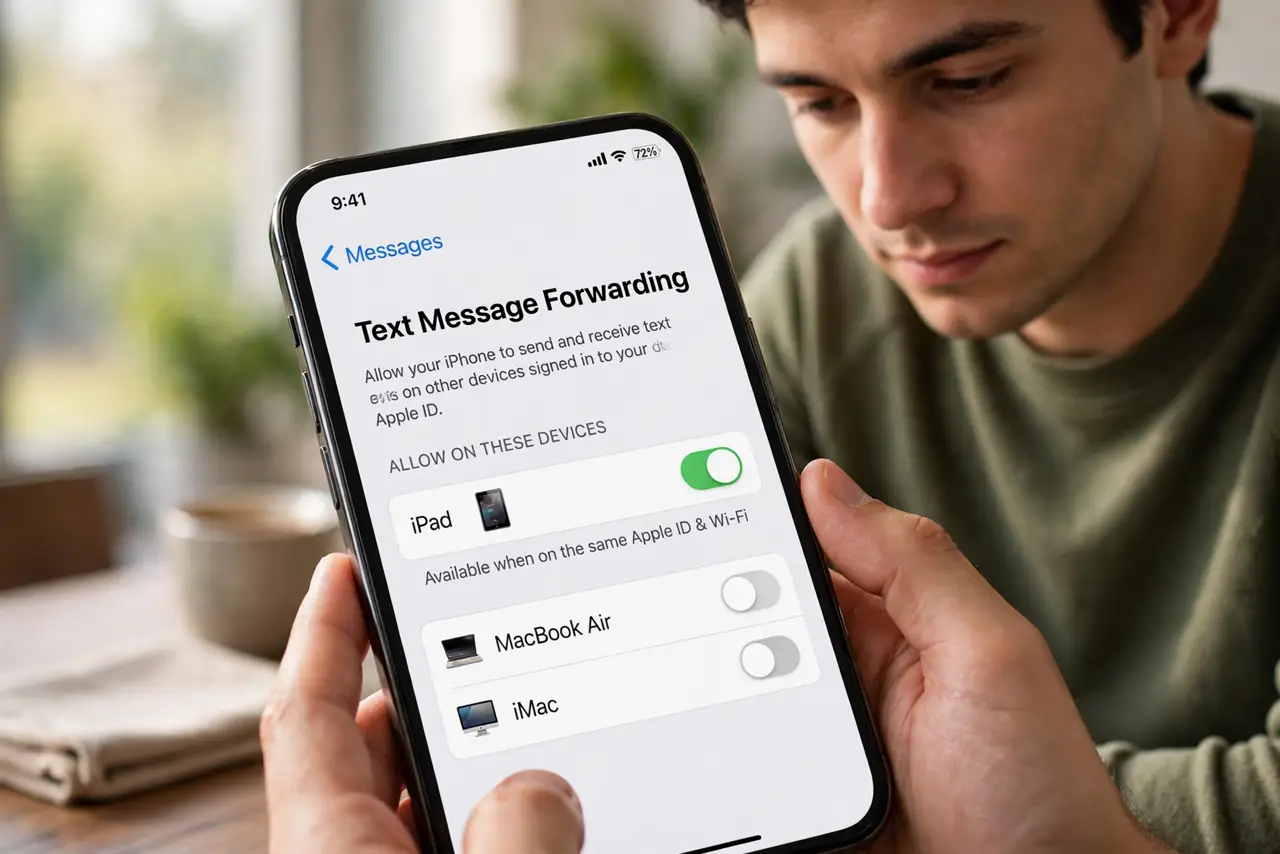
- Do not assume texts forward too. Call forwarding handles voice calls only — SMS goes to your original number.
Frequently asked questions
Will callers know their call was forwarded?
No. It rings at the destination as a normal incoming call. Some phones show a small forwarding icon in the status bar as your only reminder.
Does call forwarding work when my phone is off?
Yes — that is the point. Forwarding happens at the carrier level, so your phone can be off, dead, or in another country.
Can I forward only some calls?
Not by caller — forwarding is all-or-nothing per condition. For per-contact handling, use blocking, silencing, or Do Not Disturb exceptions instead.