Camera Shows Black? Fix It
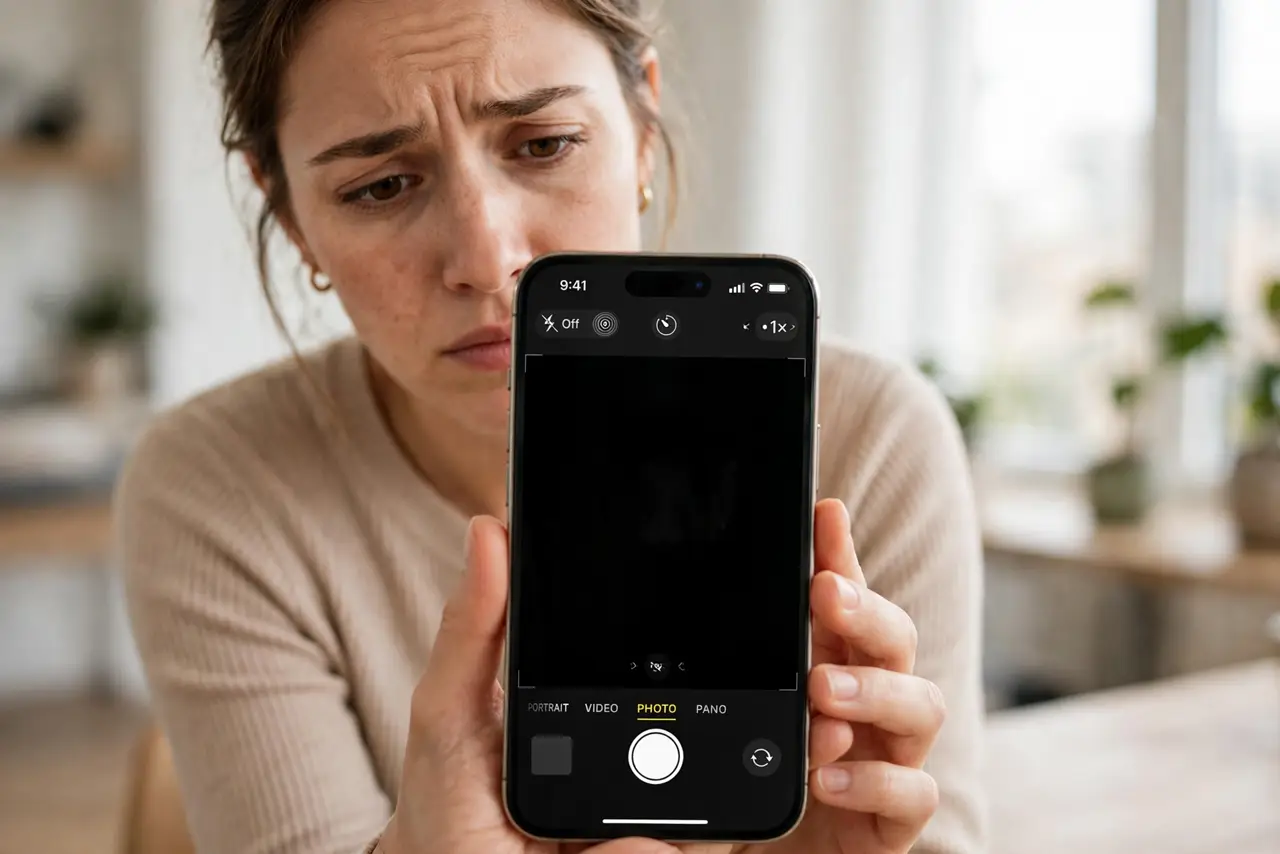
You open the camera and get… nothing. A black viewfinder where the world should be — the app is open, the buttons are there, but no image. A black camera screen is alarming but usually software: a stuck process, a permission glitch, or a conflicting app. Work this ladder before assuming the hardware died.
TL;DR / Quick Fix
Quick fix: a black camera screen is usually software, not a dead camera. Force-close the camera app and reopen it. If still black, restart the phone — this clears the stuck camera process. Check that no other app is using the camera, and verify camera permissions in settings.
Follow these steps
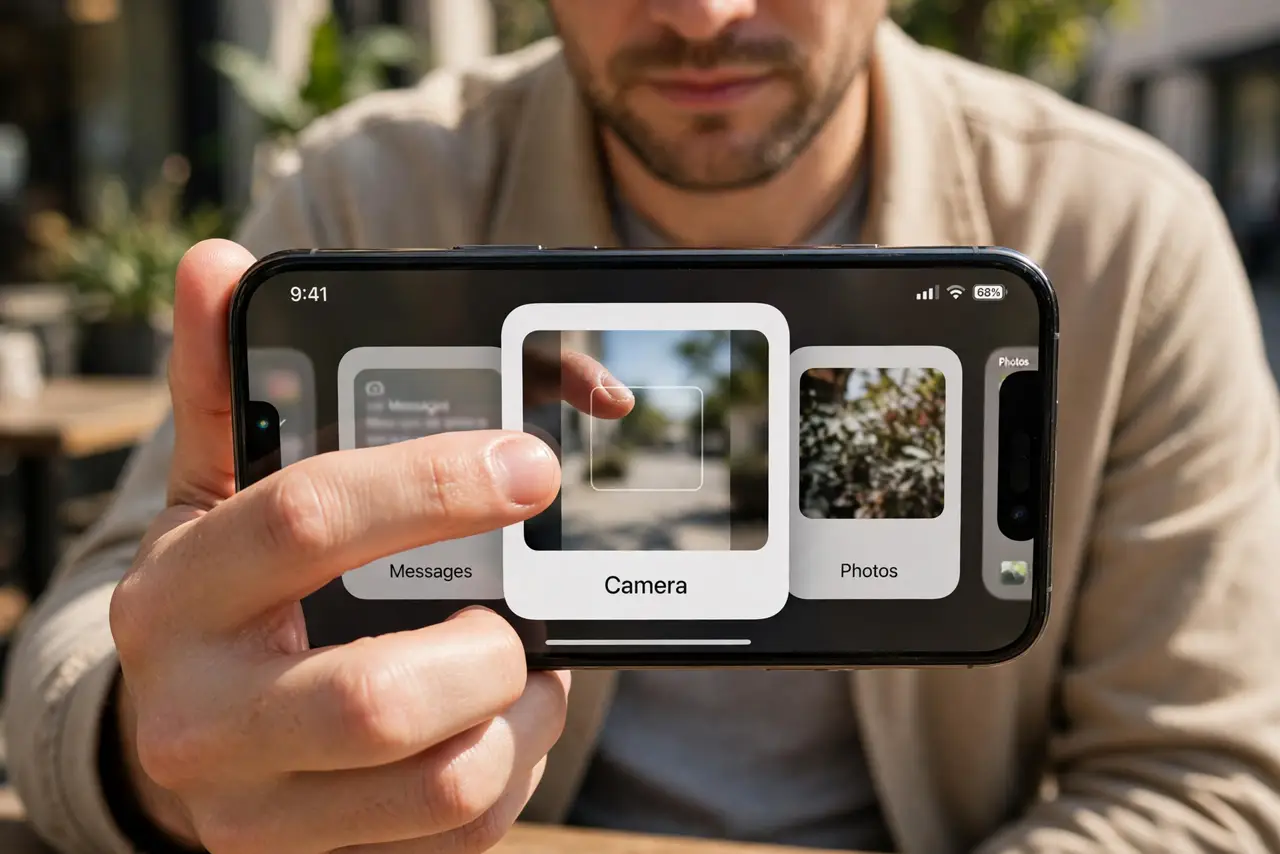
- Force-close and reopen the camera. Swipe the camera app away from the app switcher and relaunch it. A crashed camera process is the most common cause — this alone fixes the majority of black screens. If the camera opens fine but refuses to save photos, that is a storage problem, not a black screen.
- Restart the phone. If force-closing fails, restart. The restart clears the system camera service that a force-close cannot reach. Test the camera immediately after boot.
- Check for a camera-hogging app. Video call apps, QR scanners, and social apps can hold the camera open in the background. Close recent apps — especially anything that uses video — then retry.
- Verify camera permissions. On iPhone: Settings > Privacy & Security > Camera. On Android: Settings > Apps > Camera > Permissions. A revoked permission can present as a black or frozen viewfinder.
- Test front vs rear separately. If the rear camera is black but the front works (or vice versa), note it — that pattern points to a specific sensor or its driver, useful if you end up at a repair shop.
- Update the phone before despairing. Camera driver bugs get fixed in updates. If the black screen started after an update, the next patch often resolves it — check for updates as a late step, not a first one.
What NOT to do
- Do not assume the camera is dead. Software causes the vast majority of black screens — work the ladder first.
- Do not factory-reset for a black viewfinder. It is the nuclear option for a problem that restarts almost always fix.
- Do not install 'camera fixer' apps. They cannot reach the system camera service and often bring malware.
- Do not poke at the lens assembly. If it is hardware, prying makes it worse — that is a repair shop's job.
Frequently asked questions
Why is my camera black but the app opens?
The app launched but the camera hardware feed did not start — a stuck process or a permission issue. Force-close plus restart resolves most cases.
Can another app break my camera?
It can block it temporarily by holding the camera open. Closing the offending app frees it — no permanent damage.
The front camera works but rear is black — hardware?
Possibly, but restart and update first. If one sensor stays black through all software steps, then yes — likely hardware.