Can't Take Photos? Storage Fix
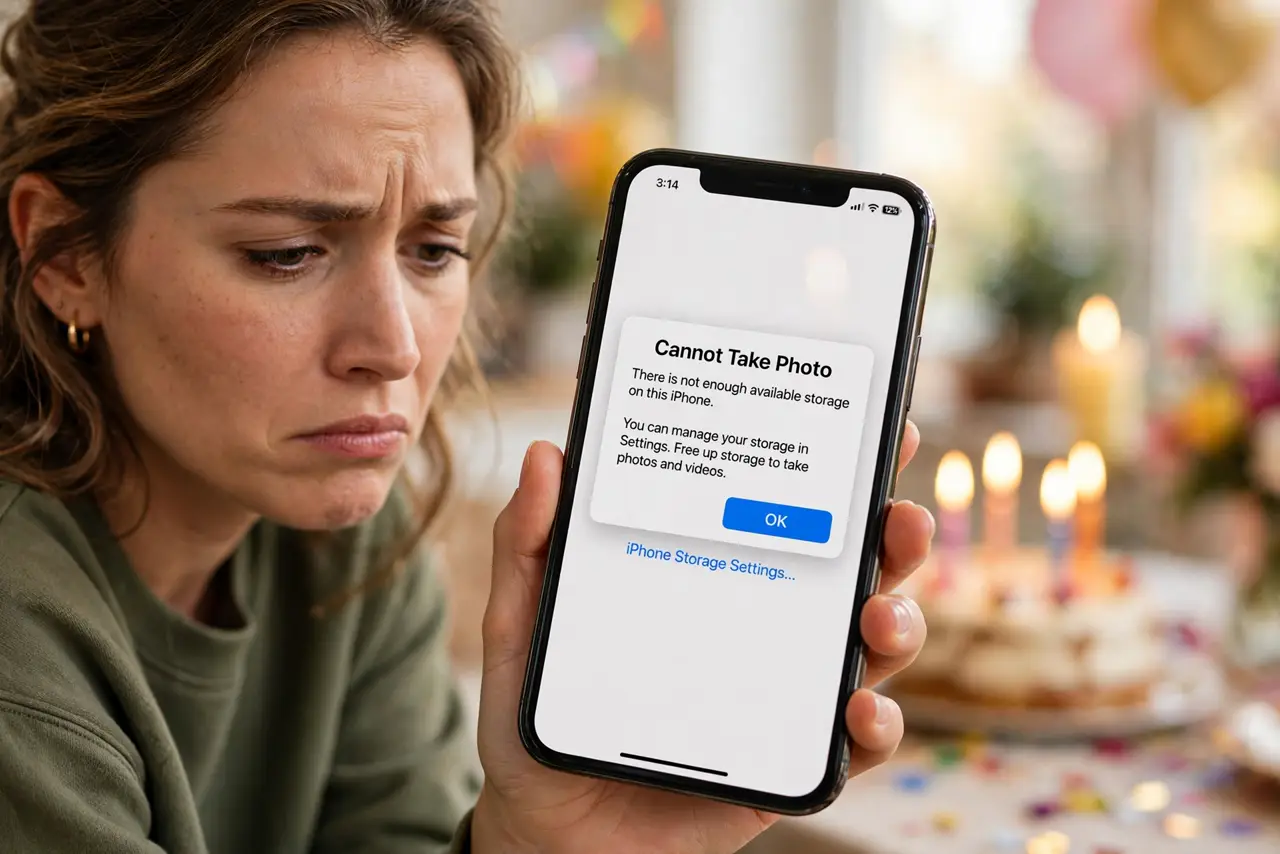
The moment arrives — the sunset, the birthday candles — you tap the shutter and the phone refuses: cannot take photo, not enough storage. The camera needs working room for every shot, and a full phone gives it none. This is the emergency version of the storage cleanup: the fastest megabytes first.
TL;DR / Quick Fix
Quick fix: the camera needs free working space — a full phone can't save photos. Fastest relief: delete large message attachments, offload one or two big unused apps, and clear per-app caches. Then move photos to cloud or computer and remove local copies. Keep gigabytes free.
Follow these steps
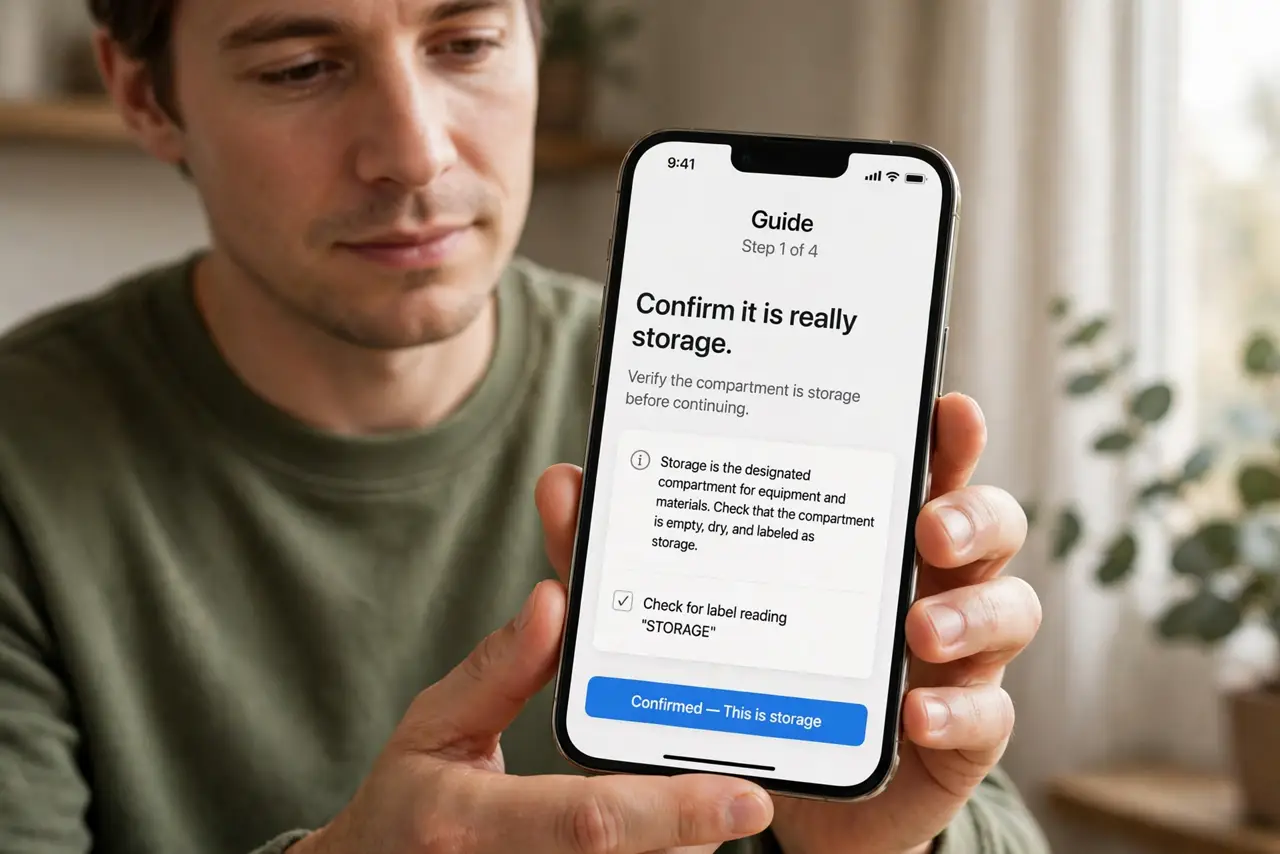
- Confirm it is really storage. The error says so explicitly — 'Cannot Take Photo: There is not enough available storage.' If the message differs, you have a different camera problem; see camera shows black instead.
- Nuke large attachments first. Message attachments are the fastest big win: open the large attachment review and delete the biggest videos. One minute of work can free gigabytes.
- Offload the biggest unused app. One 2 GB game you have not opened in months buys the camera a lot of runway. Offload it rather than deleting — your progress and data stay.
- Clear caches for instant megabytes. On Android, clear per-app caches; on iPhone, offload and reinstall the most bloated app. Caches are the only thing safe to purge in a hurry — see the full storage cleanup for the complete order.
- Move photos off the phone now. Back up to cloud or computer, then remove local copies with the 'free up space' option. Photos are usually the biggest category — and every new photo needs the room you just freed.
- Prevent the next emergency. Keep several gigabytes permanently free and run the attachment review quarterly. The camera failing at a wedding is a preventable tragedy.
What NOT to do
- Do not delete photos in a panic without checking the backup. Emergency purges are how irreplaceable shots get lost.
- Do not shoot in maximum resolution 'to make it count.' Bigger files fill the remaining space faster — fix storage first.
- Do not ignore the warning after freeing a little. A few hundred megabytes is one burst away from full again — free gigabytes.
- Do not factory-reset at the event. You will miss the moment and risk everything — cleanup is faster and safer.
Frequently asked questions
How much free space does the camera need?
More than you think — the camera buffers each shot before saving. Keep at least a couple of gigabytes free; several is comfortable.
Why can I take one photo but not video?
Video files are enormous compared to photos. A phone with slivers of space may squeeze one photo but fail a ten-second video instantly.
Will lowering photo resolution help?
Marginally — it slows the bleeding but does not fix a full phone. Free real space instead.