Flashlight Turns On in Your Pocket? Fix It
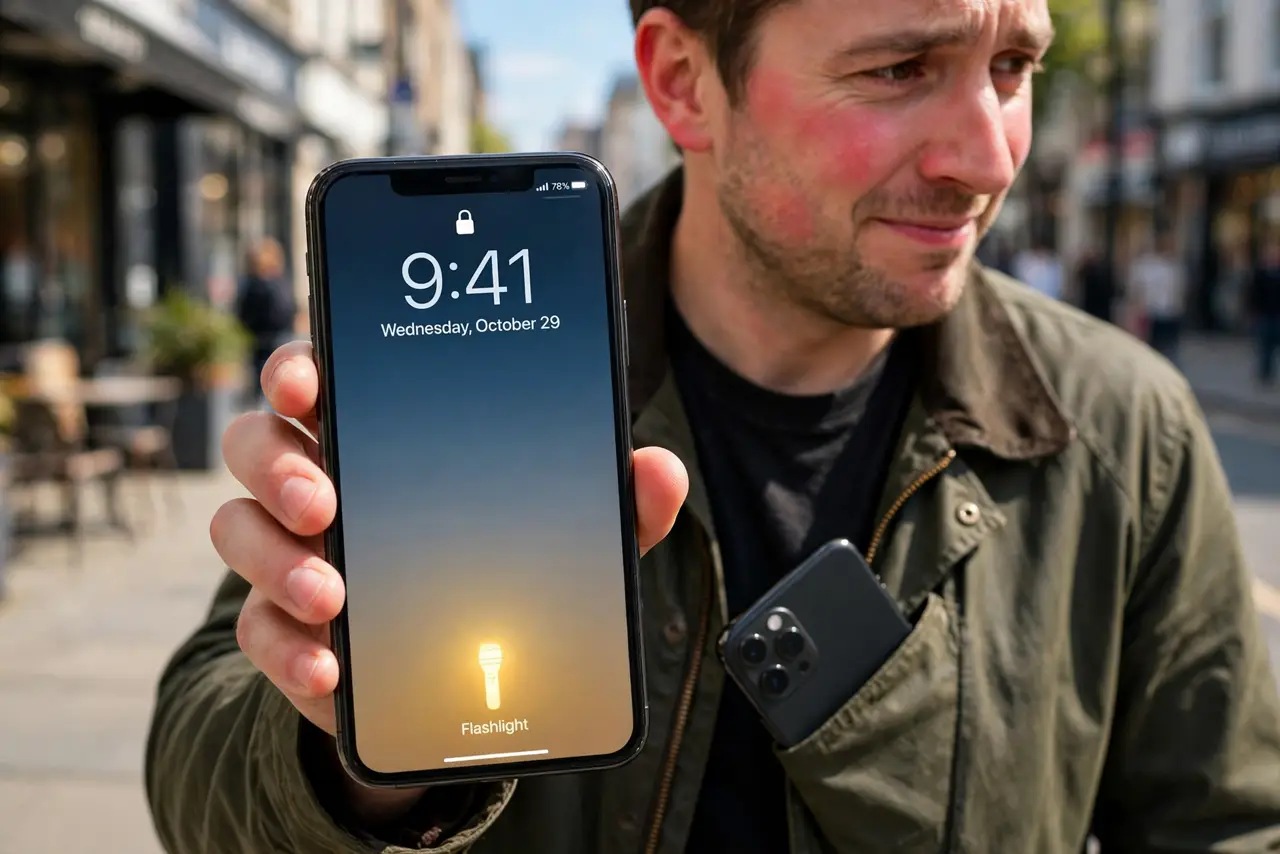
You pull the phone out and the flashlight is blazing — again. Lock-screen shortcuts and tap gestures make it easy to trigger the torch by accident in a pocket or bag. This guide stops the accidental activations, whether the culprit is a shortcut or a swipe you never meant.
TL;DR / Quick Fix
Quick fix: on iPhone, remove the flashlight button from the lock screen or require a firm press; on Android, disable the power-button-gesture for the torch. Turn off tap-to-wake gestures that trigger in pockets. A quick settings toggle is faster than fumbling once it's already on.
Follow these steps
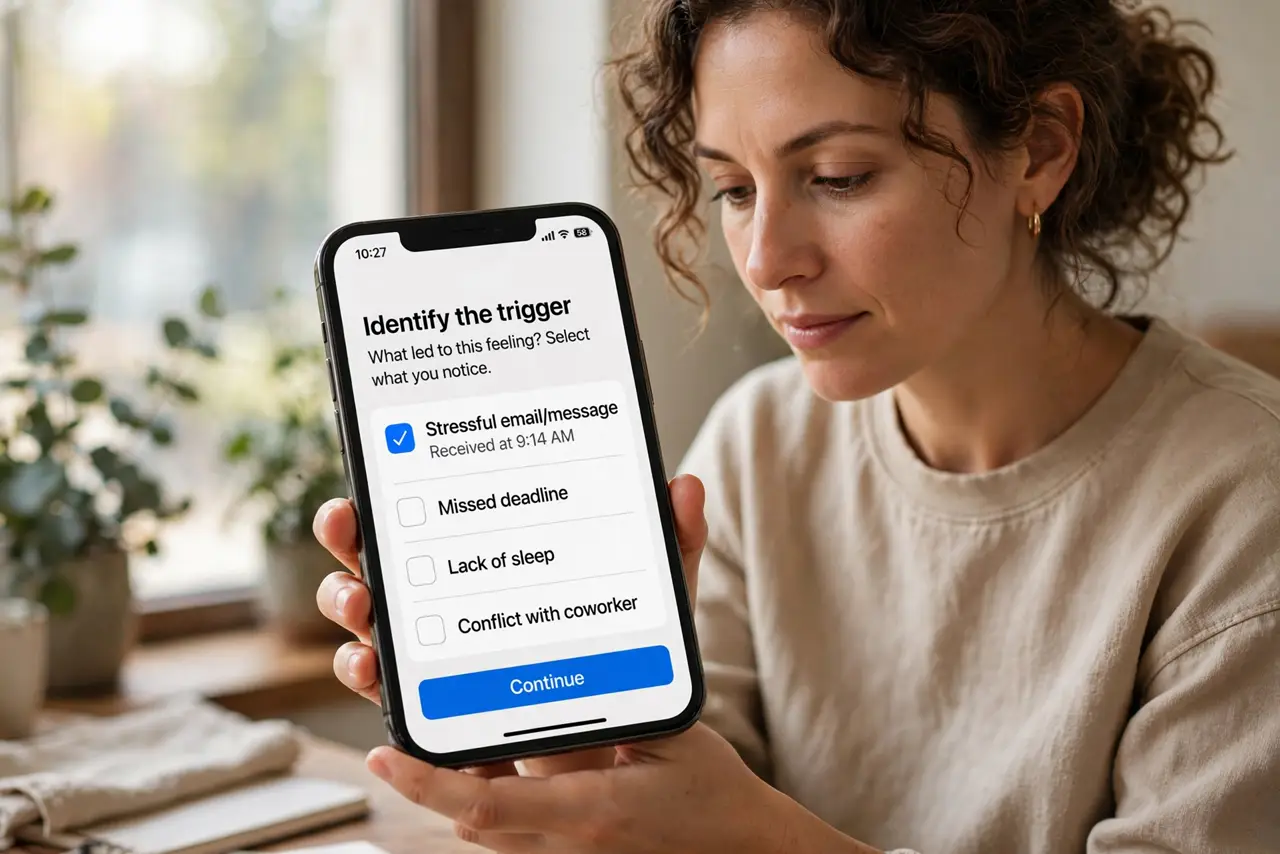
- Identify the trigger. Notice how it turns on: lock-screen button, double-press of the power key, or a tap gesture. The fix depends on the trigger.
- Remove or harden the lock-screen button. On iPhone, customize the lock screen to remove the flashlight shortcut, or require a longer press. No button, no pocket activation.
- Disable the power-button torch gesture. On Android, turn off the double-press-power-for-torch shortcut if you keep triggering it. Use the quick-settings tile deliberately instead.
- Turn off accidental tap gestures. Disable tap-to-wake and similar gestures that fire inside pockets. The screen staying dark prevents most accidental shortcuts.
- Check third-party flashlight apps. A rogue flashlight app with shake-to-activate can be the culprit. If you installed one, check its gesture settings — or see why a flashlight app wants your location before trusting it.
- Carry it screen-in. Put the phone in your pocket with the screen facing your leg. Fewer accidental touches reach the screen that way.
What NOT to do
- Do not install a flashlight app to fix this. The built-in torch plus the settings above is all you need — extra apps add gestures, not fixes.
- Do not ignore a flashlight that turns on by itself outside pockets. Scheduled automations or a stuck button need a different investigation.
- Do not leave the torch blazing unnoticed. It drains the battery fast and the LED gets hot against fabric.
- Do not disable the flashlight entirely in frustration. You want it available deliberately — just not accidentally.
Frequently asked questions
Why does my flashlight keep turning on in my pocket?
A lock-screen shortcut, power-button gesture, or tap-to-wake feature is being triggered by pressure and movement in the pocket.
Can I remove the flashlight from the lock screen?
On iPhone, yes — customize the lock screen controls. On Android, the quick-settings tile can be rearranged so it is harder to hit accidentally.
Does the flashlight drain the battery a lot?
Yes — the LED is one of the hungriest components. An accidental hour-long pocket session can cost serious battery.