Hide Notification Previews
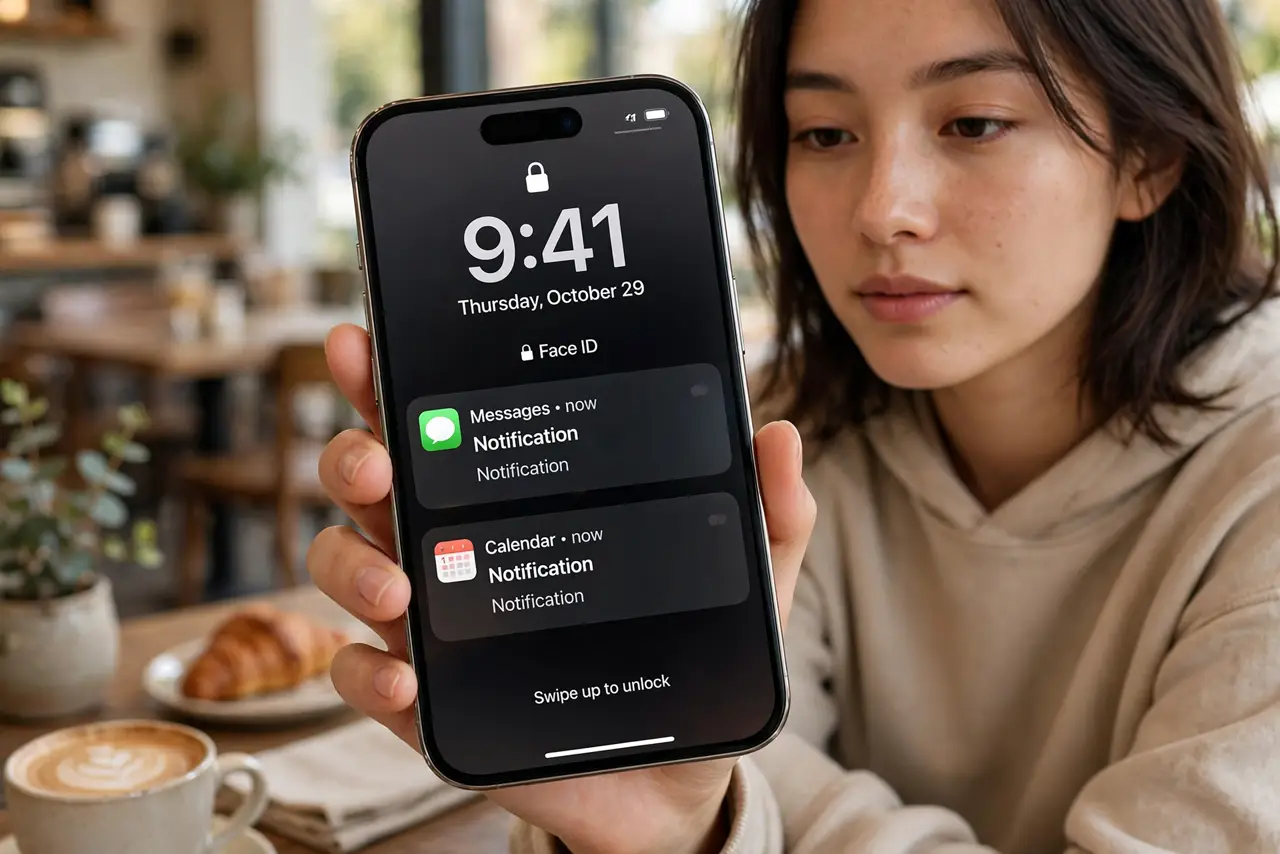
Your phone lights up on the table and anyone nearby can read your messages — the two-factor code, the private reply, the doctor's office text. Lock-screen notification previews trade privacy for convenience by default. Hiding them takes one setting and changes nothing about how notifications work when the phone is unlocked.
TL;DR / Quick Fix
Quick fix: hide message contents on the lock screen so only app names show until you unlock. On iPhone, go to Settings > Notifications > Show Previews and choose When Unlocked. On Android, go to Settings > Notifications > lock-screen notifications and choose Hide sensitive content.
Follow these steps
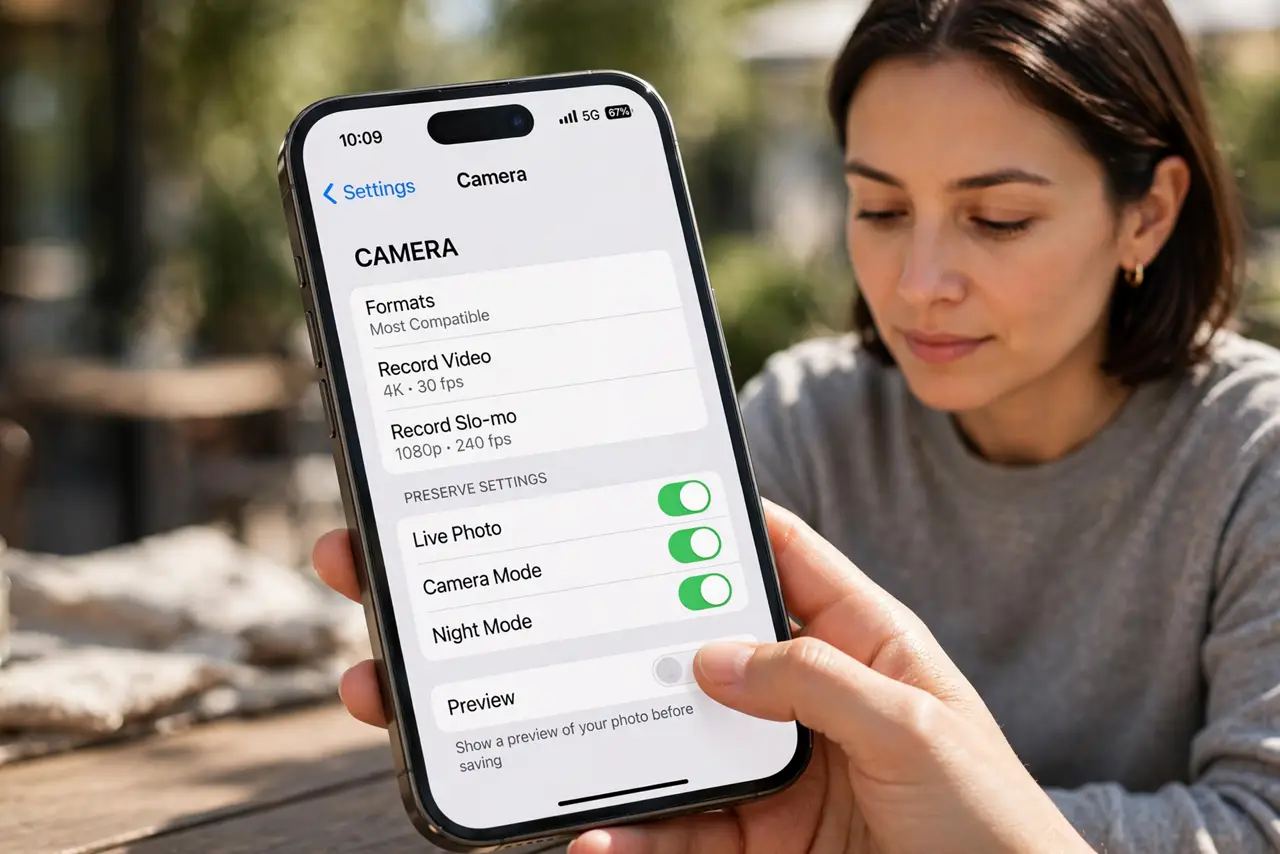
- Change the preview setting on iPhone. Go to Settings > Notifications > Show Previews and select When Unlocked (or Never). Now the lock screen shows which app pinged you, but the message text appears only after Face ID or your passcode.
- Hide sensitive content on Android. Go to Settings > Notifications > Notifications on lock screen and choose Hide sensitive content — or Hide all, if you want total discretion. Per-app overrides live under each app's notification settings.
- Keep it per-app where it matters. Messaging, email, and banking apps deserve hidden previews; a weather alert can stay visible. Both platforms let you set the global default, then tighten the sensitive apps individually.
- Understand what 'When Unlocked' does. With Face ID, glancing at the phone reveals previews — convenient and still private from bystanders. Without unlocking, snoopers see only 'Message' or 'Notification.'
- Do not confuse with notification history. Hidden previews still log normally in notification history once unlocked. Privacy on the lock screen does not erase the record.
- Test it with a friend's text. Lock the phone, have someone text you, and look. If you can read the message, the setting did not apply — recheck the per-app override.
What NOT to do
- Do not set previews to Always for convenience. Every notification becomes readable to anyone near your phone — shoulder surfers included.
- Do not forget the smartwatch. Hidden phone previews mean little if your watch still shows full message text — check watch notification settings too.
- Do not assume hiding previews hides the sender. App names and contact names may still show — only the content is masked.
- Do not leave banking previews visible. One-time codes on a lock screen are a gift to anyone who grabs the phone for ten seconds.
Frequently asked questions
Will I still hear notifications?
Yes. Sounds, vibration, and banners work exactly as before — only the lock-screen text content is masked until you unlock.
Can I hide previews for just one app?
Yes. Set the global default to show previews, then open the sensitive app's notification settings and restrict it individually.
Does this affect the notification shade when unlocked?
No. Once unlocked, notifications show fully. The setting only governs the locked screen.