Notification Sound Per App? Setup
Every app makes the same ding, so you check the phone for a promo email with the same urgency as a message from your kid. Per-app notification sounds fix that: one tone for people, another for everything else — triage by ear without looking. Here is how to assign sounds per app.
TL;DR / Quick Fix
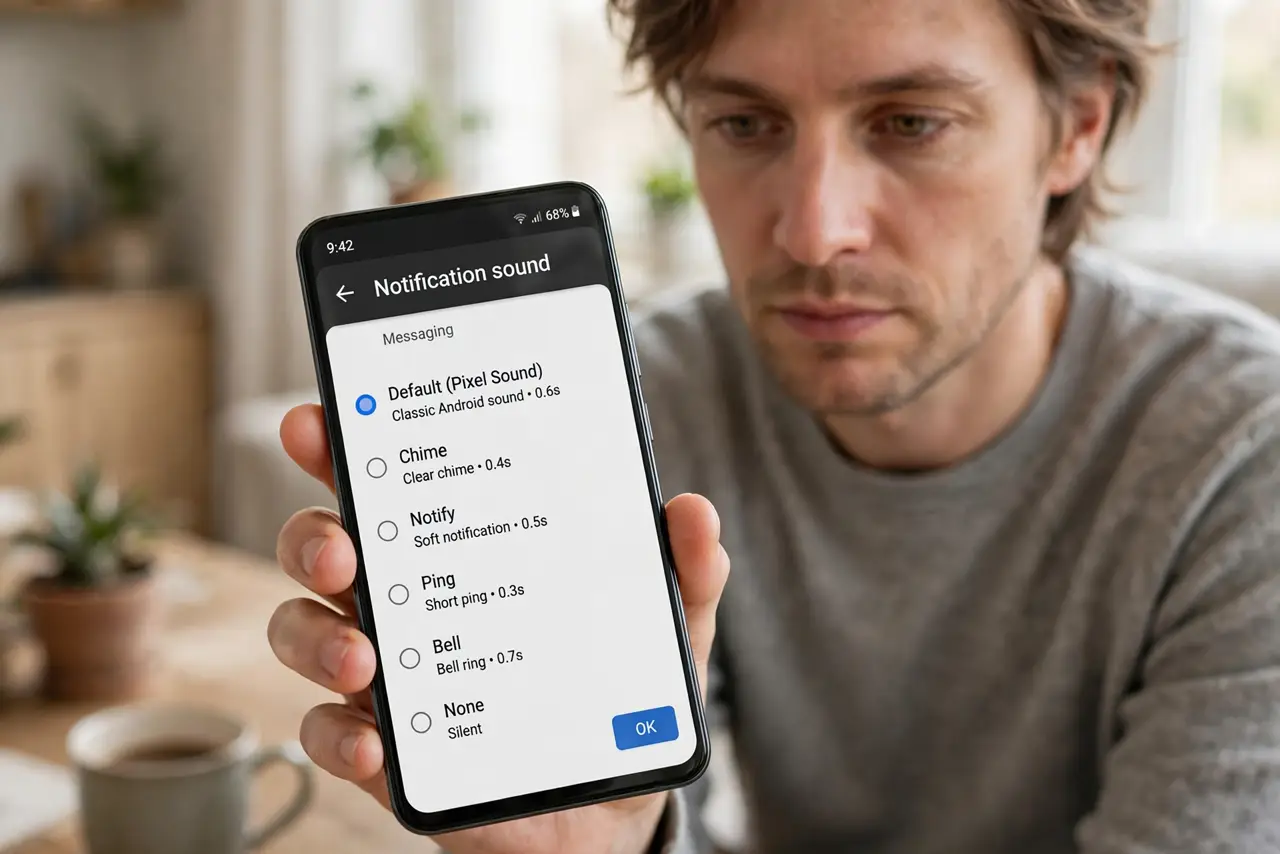
Quick fix: give important apps their own sounds to triage by ear. On Android: Settings > Apps > [app] > Notifications > channel > Sound > pick a tone. On iPhone: set custom tones per contact in Phone and Messages. One distinct sound for people, default for the rest.
Follow these steps
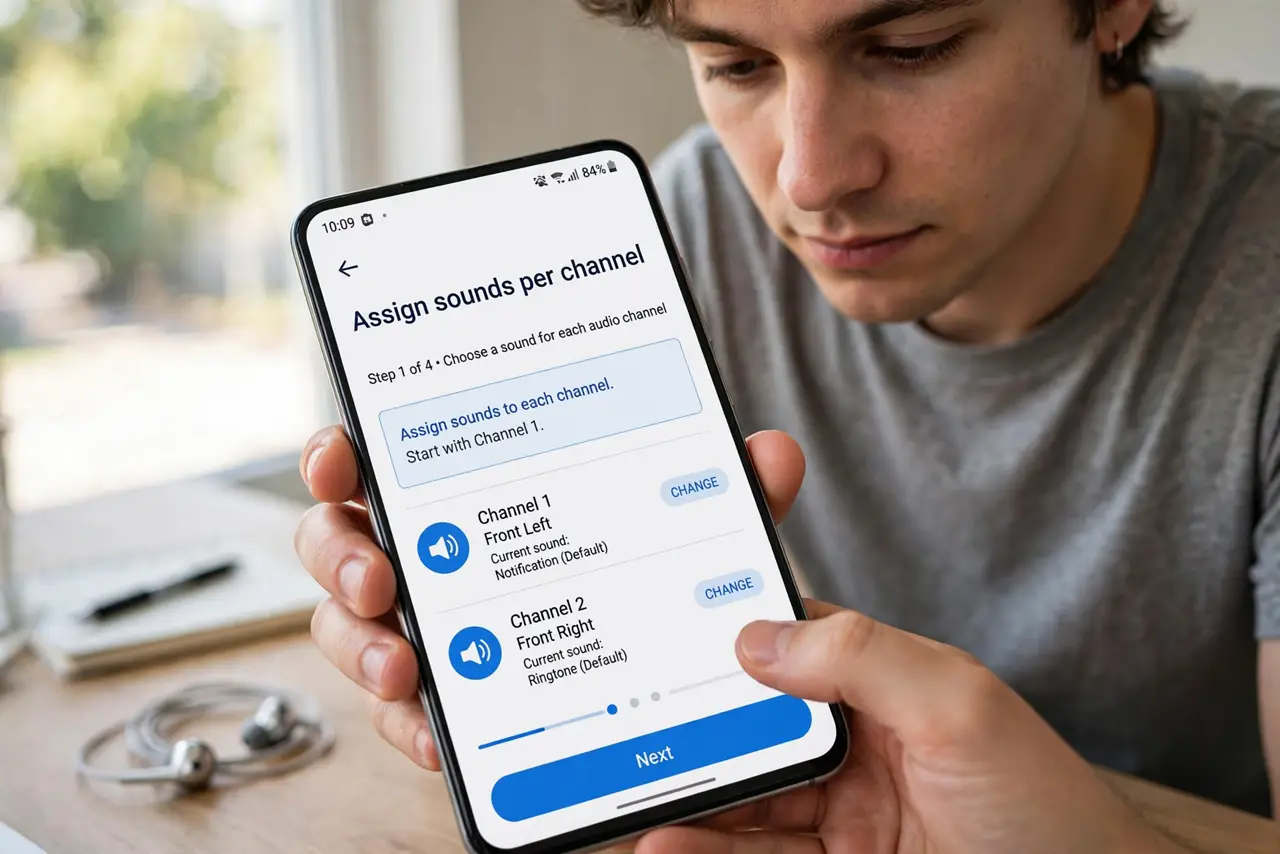
- Assign sounds per channel on Android. Open Settings > Apps > [app] > Notifications, tap a channel like Messages, then Sound. Pick a distinct tone. Repeat for the two or three apps that matter — not all forty.
- Use per-contact tones on iPhone. iPhone does not offer per-app notification sounds broadly. Instead, open a contact, tap Edit, and assign a custom Text Tone and Ringtone — your inner circle gets signature sounds.
- Pick sounds that mean something. People: warm and distinct. Work: neutral. Everything else: default or silent. The system works when each tier is instantly recognizable — three tiers max.
- Silence the noise tier entirely. Promotional and social channels do not need a sound at all — set them to Silent in their notification channels. Sound is a budget; spend it on people.
- Test each new sound once. After assigning, have someone trigger it — or use the preview. A tone that seemed distinct in the picker can vanish in a noisy room.
- Revisit when you change apps. New messaging app, new default sound blending into the noise. Assign its tone on day one, before your brain files it under 'ignore.'
What NOT to do
- Do not give ten apps ten sounds. Beyond three tiers, your brain stops distinguishing — you have built noise, not a system.
- Do not use startling sounds for frequent alerts. A klaxon for every email trains everyone around you to hate your phone.
- Do not forget vibration pairings. In silent environments the sound tier is moot — distinct vibration patterns are the parallel system.
- Do not expect iPhone per-app sounds. Apple limits this; per-contact tones plus Focus modes are the iPhone-native approach.
Frequently asked questions
Can I set a different sound for each app on iPhone?
Not broadly — iOS restricts per-app notification sounds. Use per-contact text tones and ringtones, plus Focus modes, for the same triage effect.
Why do all my apps sound the same?
Because you never changed them — every app ships with the system default. Ten minutes of assignment fixes it permanently.
Can I use my own audio as a notification sound?
On Android, yes — add audio files to the Notifications folder and they appear in the picker. On iPhone, custom tones need to be added as ringtones via a computer.