Reduce White Point? Dim Brights
At night the screen's brightness slider hits minimum and white pages still glare like a flashlight. That harsh blast comes from the brightest whites, and iPhone has a dedicated setting to dim just those — Reduce White Point. Android does not use the same name, but its Extra Dim feature does the same job. Here is where both live.
TL;DR / Quick Fix
Quick fix: on iPhone open Settings, Accessibility, Display and Text Size, turn on Reduce White Point, and drag its slider until bright whites stop glaring. On Android open Settings, Accessibility, and turn on Extra Dim. The screen stays readable while the harshest whites calm down.
Follow these steps
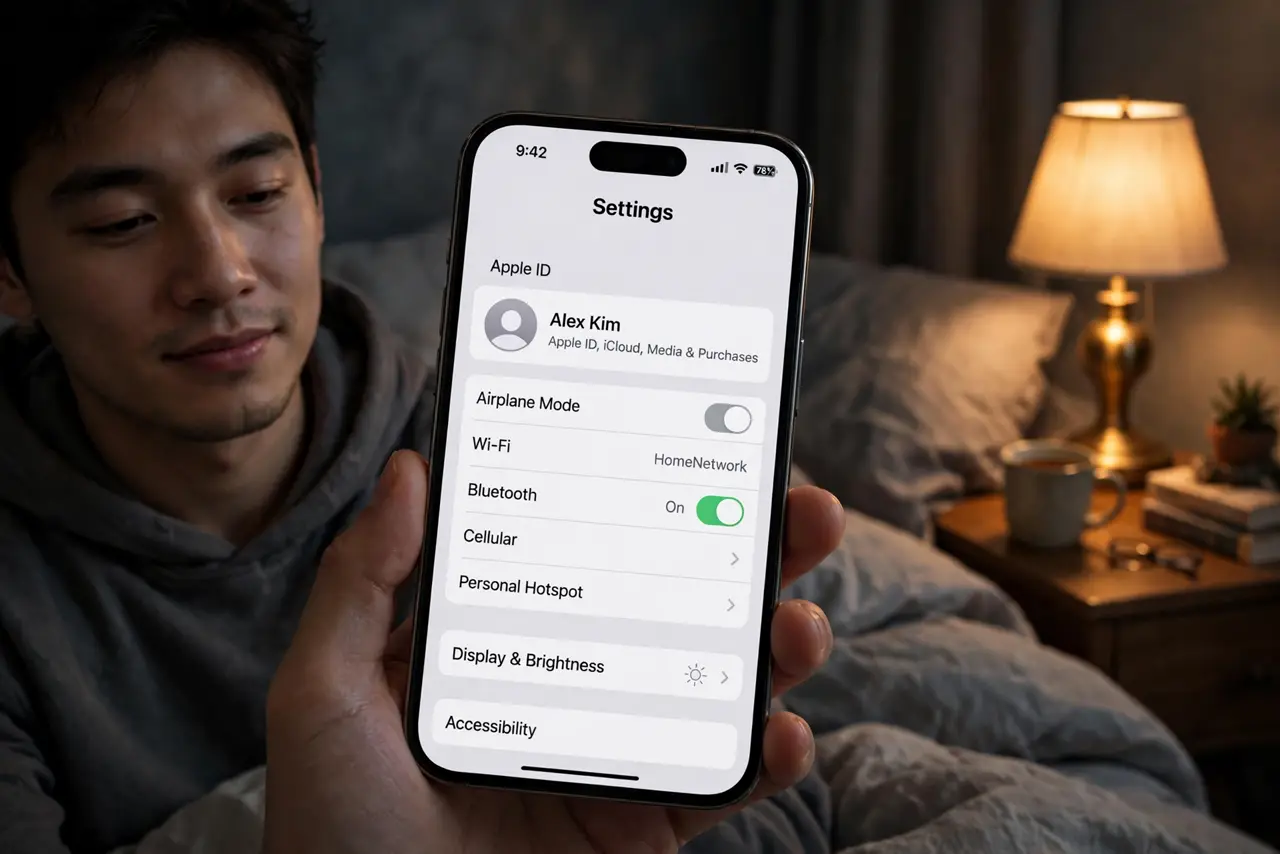
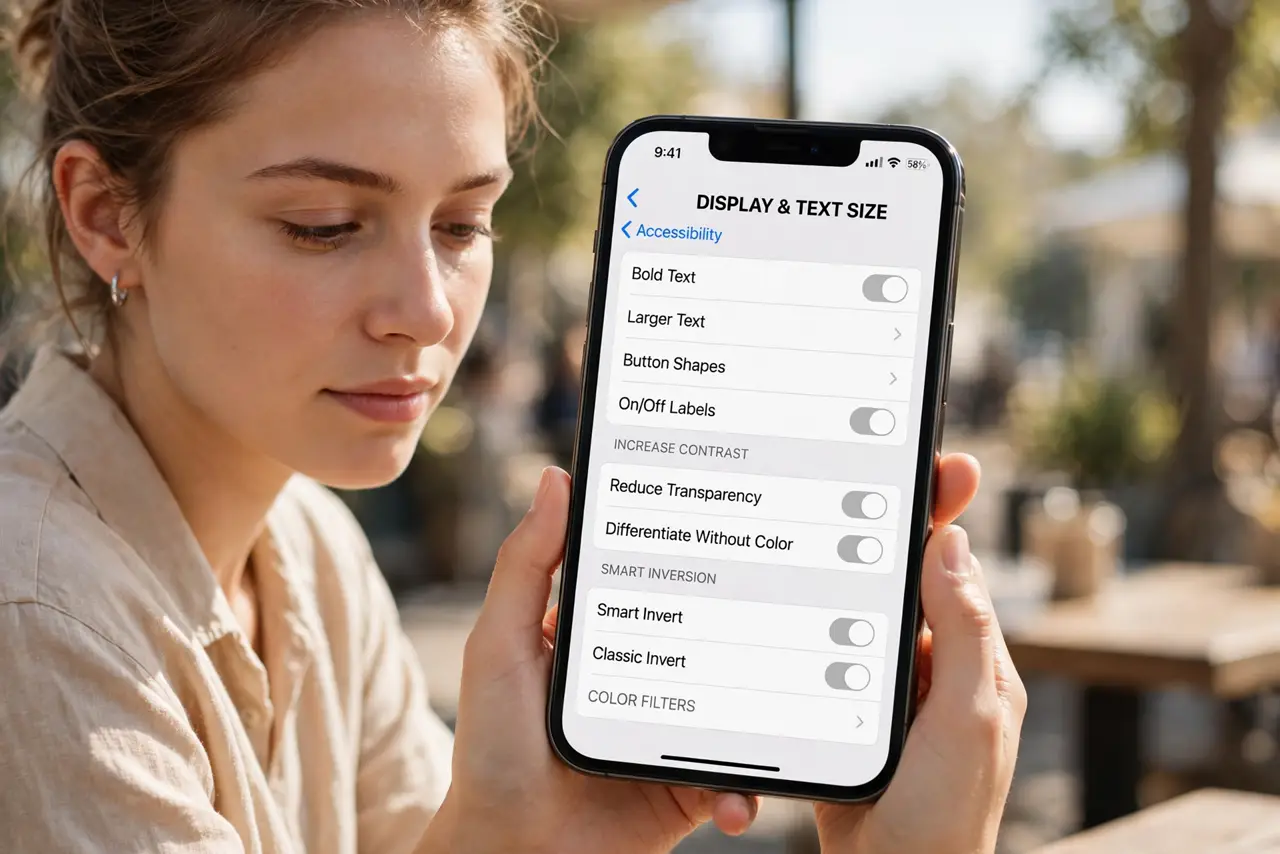
- Open the display accessibility page on iPhone. Go to Settings, then Accessibility, then Display and Text Size. Scroll until you see Reduce White Point — it sits below the brightness-adjacent options.
- Turn it on and tune the slider. Enable Reduce White Point, then drag its intensity slider. Lower values dim the brightest whites more. Aim for comfortable, not murky — whites should look soft, not gray.
- Find Extra Dim on Android. Open Settings, then Accessibility. On Pixel phones the toggle is called Extra Dim; other makers may label it Reduce bright colors or similar. Turn it on.
- Set it to stay on or toggle quickly. You can leave it always on, or add it to quick settings / the accessibility shortcut for one-tap toggling at bedtime.
- Pair it with Night Shift or Night Light. Reduce White Point handles brightness; the night color mode handles blue light. Together they make late-night reading genuinely comfortable.
- Turn it off for photo and video work. Dimmed whites lie about exposure. Disable the feature before editing photos or judging colors, then re-enable after.
What NOT to do
- Do not max the slider on the first try. Over-dimming makes the screen muddy and unreadable — nudge it down gradually.
- Do not leave it on while color-sensitive work matters. Photo editing and design need true whites; this feature deliberately lies about them.
- Do not confuse it with auto-brightness. Auto-brightness reacts to room light; Reduce White Point caps how bright whites can ever get.
- Do not install a screen-dimming overlay app instead. Built-in dimming is smoother and cannot be killed by the system mid-use.
Frequently asked questions
Is Reduce White Point the same as lowering brightness?
No. Brightness dims everything equally; Reduce White Point specifically tames the brightest whites, which are what glare at night.
Will it save battery?
On OLED screens, dimmer whites use slightly less power — a small bonus, not the reason to use it.
Why does everything look yellow now?
That is Night Shift or Night Light, a different feature. Reduce White Point only dims whites; yellowing comes from the blue-light filter.