Unblock a Number? How To
You blocked a number in the heat of the moment — or by fat-finger accident — and now you need to hear from them again. Numbers get reassigned, feuds end, and delivery drivers inherit old spam numbers. Unblocking takes seconds, and their calls and texts start flowing again immediately.
TL;DR / Quick Fix
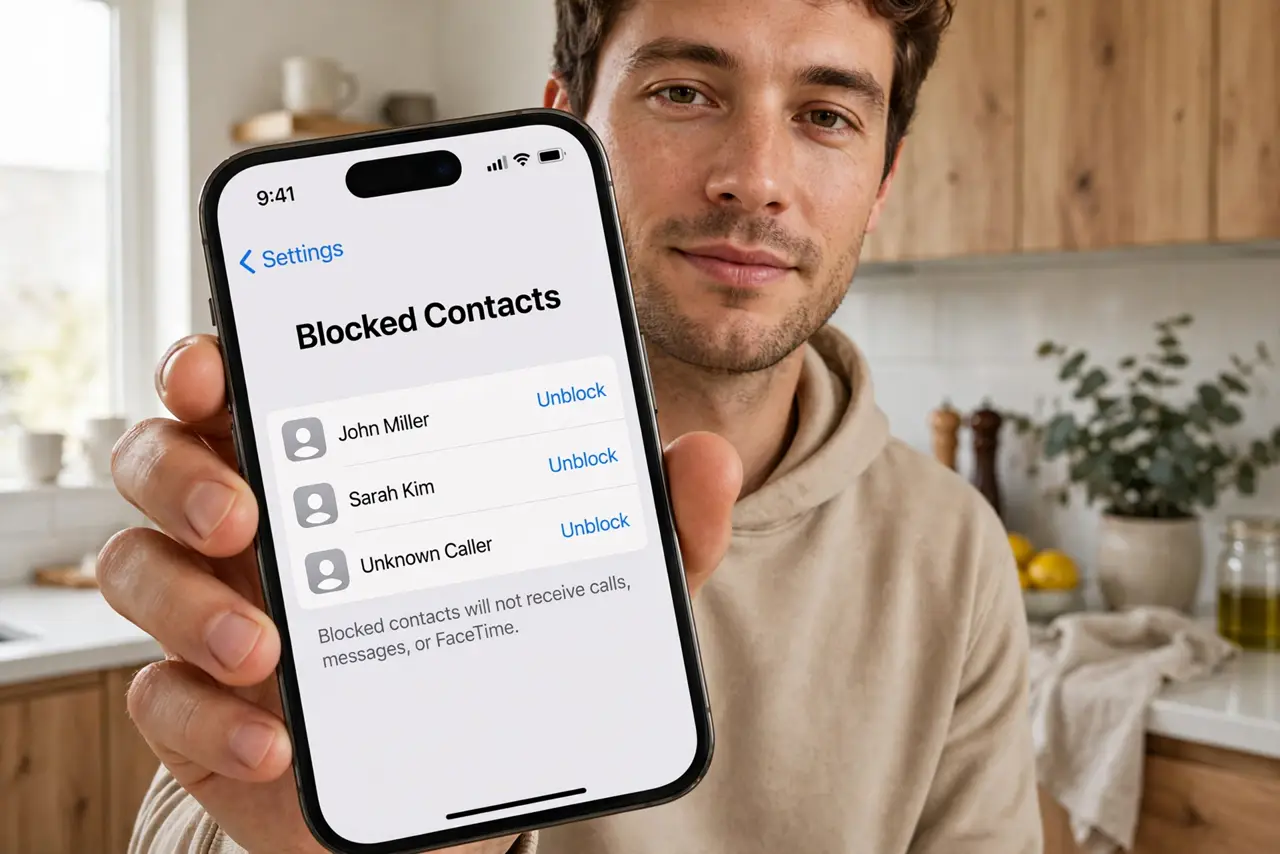
Quick fix: unblocking restores a number's calls and texts instantly. On iPhone, go to Settings > Phone > Blocked Contacts, swipe left on the number, and tap Unblock. On Android, open Phone > Settings > Blocked numbers and tap unblock. They're never notified it happened.
Follow these steps
- Find your block list on iPhone. Open Settings > Phone > Blocked Contacts. Every number you have ever blocked is here in one list — swipe left on any entry and tap Unblock.
- Find your block list on Android. Open the Phone app > Settings > Blocked numbers. Tap the X or unblock icon next to the number. Some Android skins put this under Call settings instead.
- Unblock from the contact too. If the number is saved as a contact, opening the contact also offers an unblock option. Both paths do the same thing — use whichever you find first.
- Confirm calls come through again. Have the person call or text you once. Unblocking is instant, but a quick test ends the 'did it work?' wondering — especially after blocking a number long ago.
- Check message filtering too. On iPhone, numbers blocked via message filtering live under Settings > Messages > Blocked Contacts as a separate list. Unblock in both places if you filtered texts separately.
- Re-block if the spam resumes. Unblocking a number that turns out to still be spam costs nothing to reverse. Re-block immediately — and this time consider reporting it instead.
What NOT to do
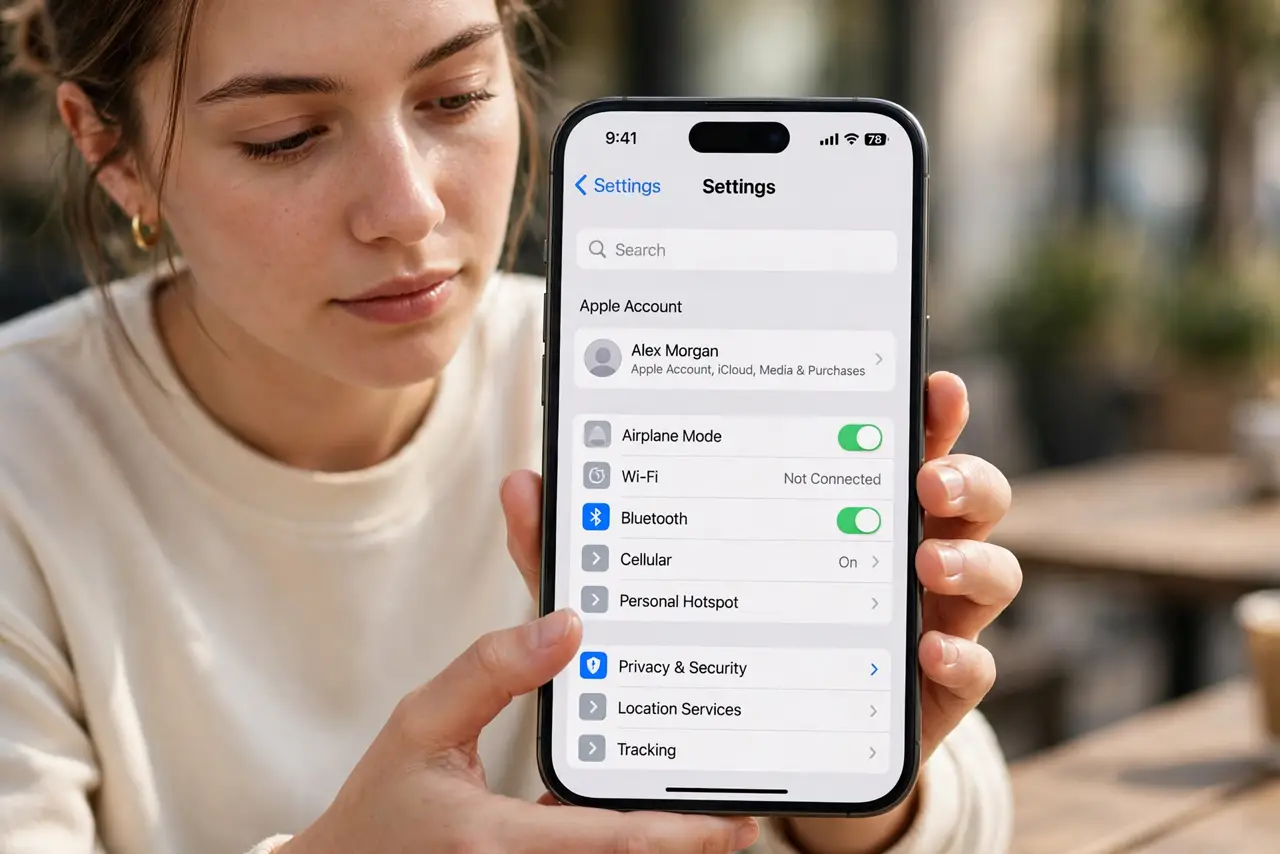
- Do not unblock a harasser out of curiosity. If you blocked for safety, keep it blocked — curiosity is not worth the risk.
- Do not expect missed messages to arrive. Texts sent while blocked are gone forever; they do not queue up and deliver later.
- Do not unblock every number at once during a cleanup. Review the list — some entries are spam you blocked for good reason.
- Do not forget carrier-level blocks. If you also blocked via your carrier's app, unblock there too or calls still will not arrive.
Frequently asked questions
Will they know I unblocked them?
No. There is no notification for blocking or unblocking. They will simply notice their calls go through again.
Do I get the messages sent while they were blocked?
No. Blocked texts are discarded, not stored. Only new messages sent after unblocking will arrive.
Why is the number still not getting through?
Check for a second block: carrier-level blocking, a spam-filter app, or Do Not Disturb can all still silence them.