Auto-Back Up Phone Photos
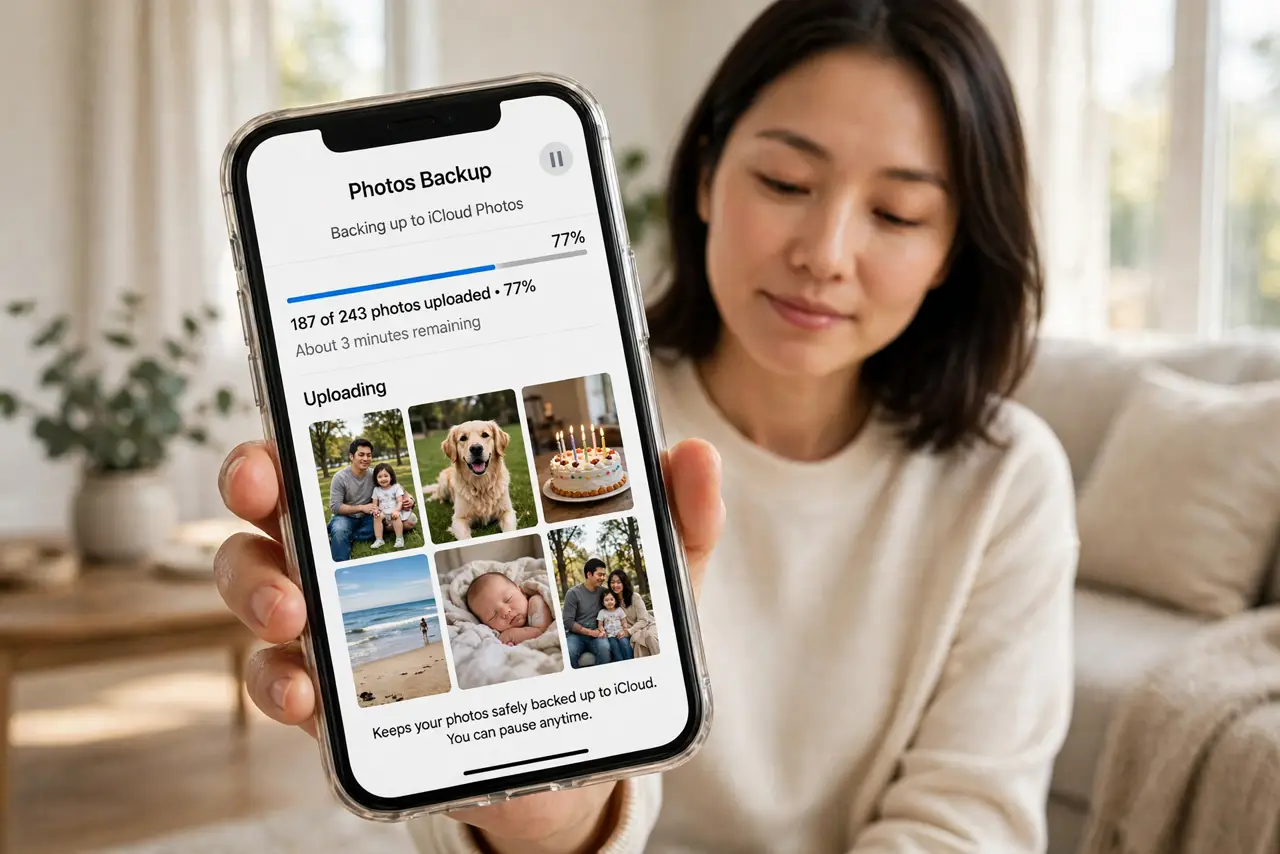
Your phone holds five years of birthdays, trips, and everyday moments — and it lives one drop, one theft, one dead battery away from taking them all. Automatic photo backup copies every picture to the cloud the moment you hit Wi-Fi. Set it once, and the 'I lost everything' story never happens to you.
TL;DR / Quick Fix
Quick fix: turn on automatic backup in Google Photos or iCloud — every picture uploads on Wi-Fi, so a lost phone no longer means lost memories. Check the backup status monthly. Keep a second copy on a computer or drive for irreplaceable shots.
Follow these steps
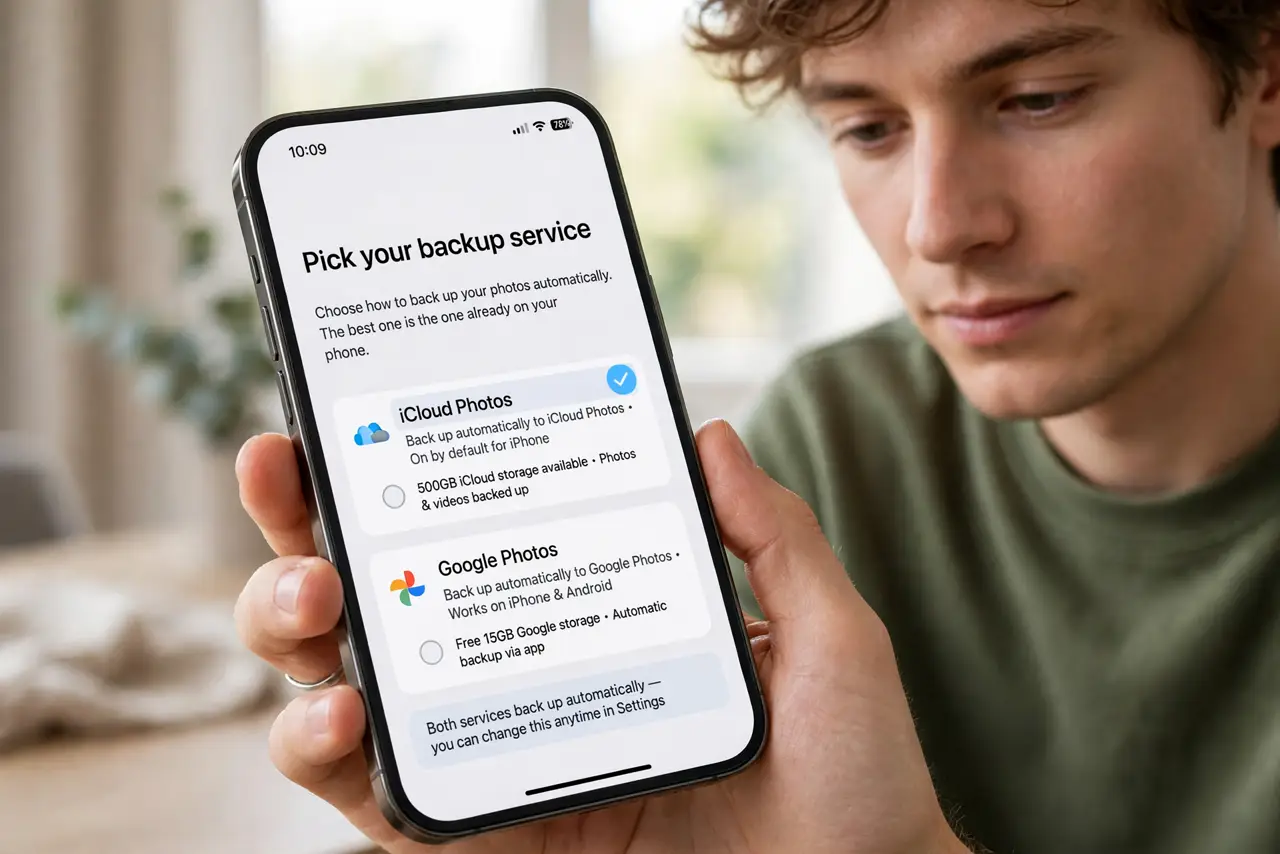
- Pick your backup service. Google Photos for Android (and iPhone too), iCloud Photos for iPhone. Both back up automatically — the best one is the one already on your phone.
- Turn on automatic backup. In the app's settings, enable Backup and choose Wi-Fi only so it never eats mobile data. Plug in overnight and let the first big upload finish undisturbed.
- Check the backup status. Open the app monthly and confirm it says backup is complete. A paused or stuck backup protects nothing — see photos not backing up if uploads stall.
- Free up phone space safely. Once backed up, use the app's 'free up space' feature to remove local copies. Only do this after verifying the cloud copies open correctly.
- Keep a second copy of the best. Cloud plus phone is good; add a yearly copy to a computer or external drive for the irreplaceable ones. That is the 3-2-1 backup rule in action.
- Protect the account itself. Your photos are only as safe as the account. Turn on two-factor authentication — a hacked cloud account loses the backup and the phone copies together.
What NOT to do
- Do not assume backup is on by default. New phones and fresh installs often leave it off — verify, do not assume.
- Do not back up over mobile data unintentionally. One vacation's photos can burn a month of data — keep it Wi-Fi only.
- Do not delete originals before verifying. Open a few cloud copies first — a 'backed up' badge with corrupted uploads is a trap.
- Do not share the cloud login with the family casually. Shared accounts mean shared deletions — use family sharing features instead.
Frequently asked questions
Is Google Photos backup really free?
A limited amount is free; beyond that needs a paid plan. Check your storage meter — photos add up faster than expected.
Will backup drain my battery?
Barely. Uploads happen on Wi-Fi while charging by default — you will not notice it.
What if I switch from iPhone to Android?
Both services work on both platforms. Install the app on the new phone, sign in, and your library follows you.