Strip Location Data Before Sharing a Photo
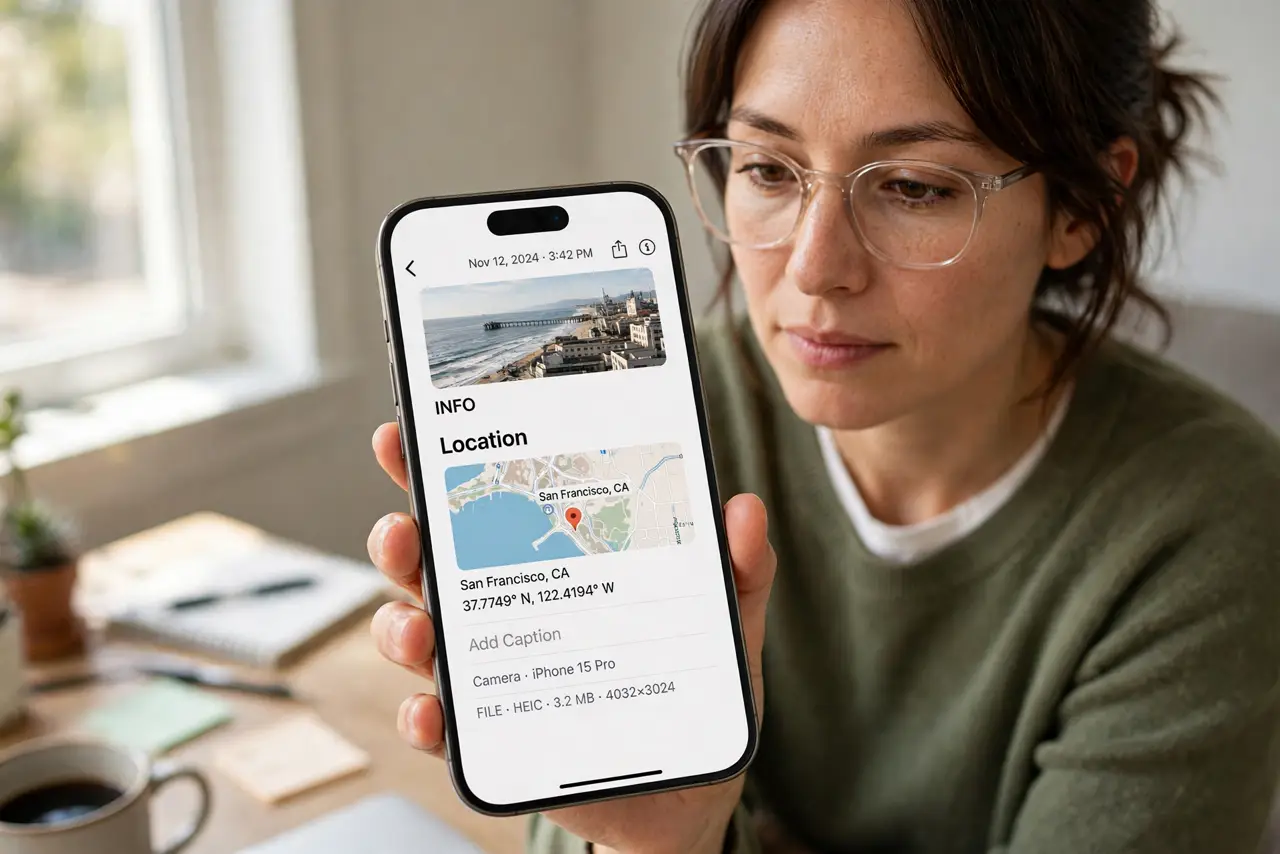
Every phone photo can carry hidden location data: the exact spot where you pressed the shutter. Share that photo online, and you may share your home address with strangers who know how to read it.

TL;DR / Quick Fix
Quick fix: before sharing, open the photo's details and remove the location, or turn off location tagging in the camera settings for everyday shots. Share through options that strip metadata when the destination does not need to know where you were.
Follow these steps
- Check what your photos carry. Open a photo's info or details screen and look for a map or coordinates. Most phones tag locations by default, so assume yours do until checked.
- Remove location before sharing. Use the share sheet's options or the photo's details to strip location for that share. One tap per share beats regretting a posted address.
- Turn off camera location tagging for daily life. In camera or location settings, disable location for the camera app. Photos stop collecting coordinates, and you re-enable it for trips if you want.
- Choose sharing routes that strip metadata. Some messaging apps strip metadata automatically while others preserve it. Know which of your apps does what before sending sensitive shots.
- Clean old photos before posting publicly. For photos headed to social media or marketplaces, strip location from the batch first. A home photo with coordinates is an invitation.
- Keep location for memories, not for strangers. Leave tagging on for personal albums if you like the map view, but strip it whenever the audience widens beyond family.
What NOT to do
- Do not post home photos with location intact. Coordinates plus a for-sale listing or a vacation announcement tell strangers exactly where and when.
- Do not assume screenshots are safe either. Screenshots carry less metadata, but the image itself can still reveal location visually.
- Do not leave camera tagging on forever by default. Decide per situation: trips maybe, daily life no.
- Do not trust every app to strip metadata. Verify with one test photo before assuming your sharing route protects you.
Frequently asked questions
How do I see a photo's location data?
Open the photo's info or details screen. A map pin or coordinates there means the location is embedded.
Does every shared photo include location?
Only if the camera tagged it and the sharing route preserved it. Stripping either link breaks the chain.
Should I turn location tagging off entirely?
For everyday shots, yes. Turn it back on for trips where the map memory is worth the small risk.