Open Ports for Game Servers
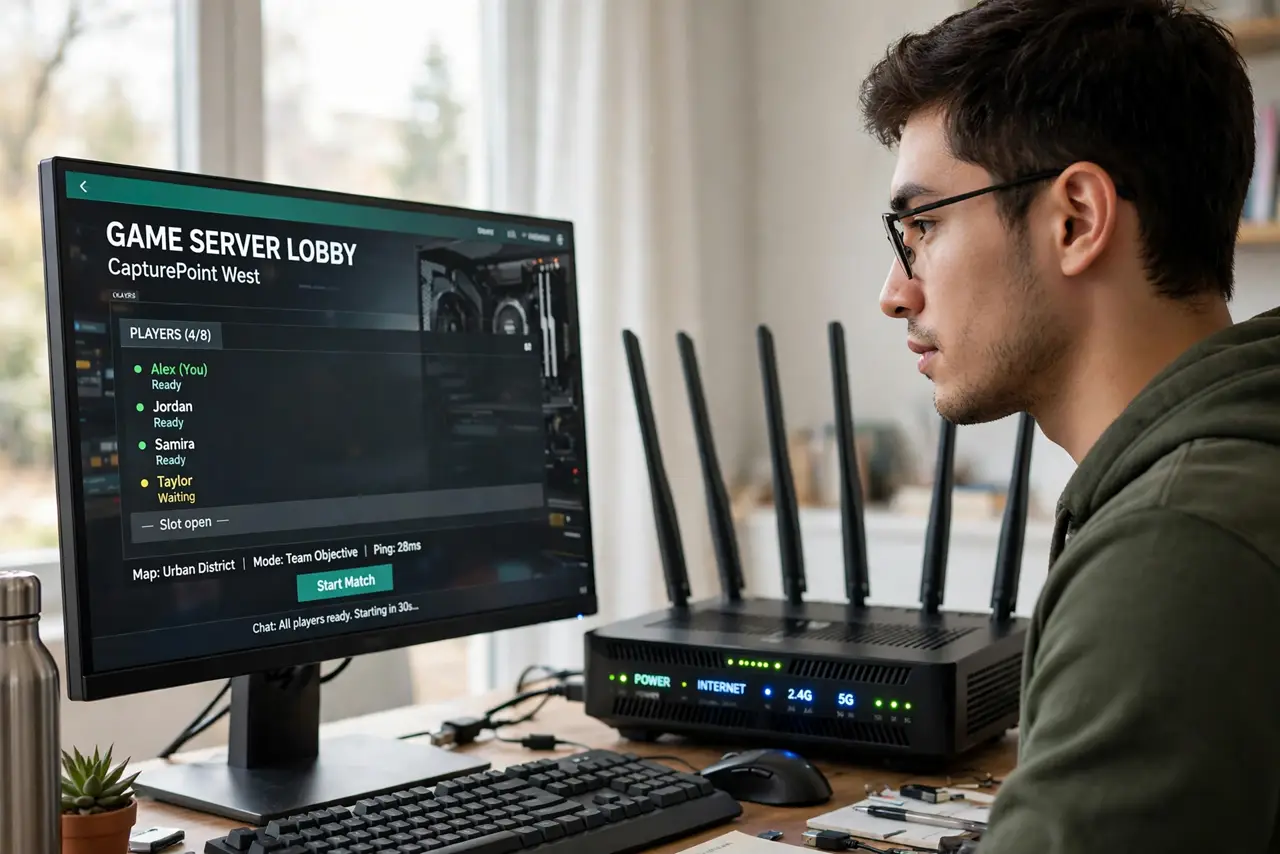
You started a game server on your home PC, it works perfectly for you, but your friends get connection-timed-out every time. Your router's firewall is doing its job — blocking unsolicited inbound traffic — and your server looks unsolicited. Port forwarding tells the router exactly which incoming traffic belongs to your game and where to send it.
TL;DR / Quick Fix
Quick fix: give your gaming PC a static local IP, log into your router, and forward the game's ports (TCP/UDP as the game requires) to that IP. Find the port numbers in the game's server documentation. If friends still cannot connect, your provider may use CGNAT, which blocks forwarding entirely.
Follow these steps
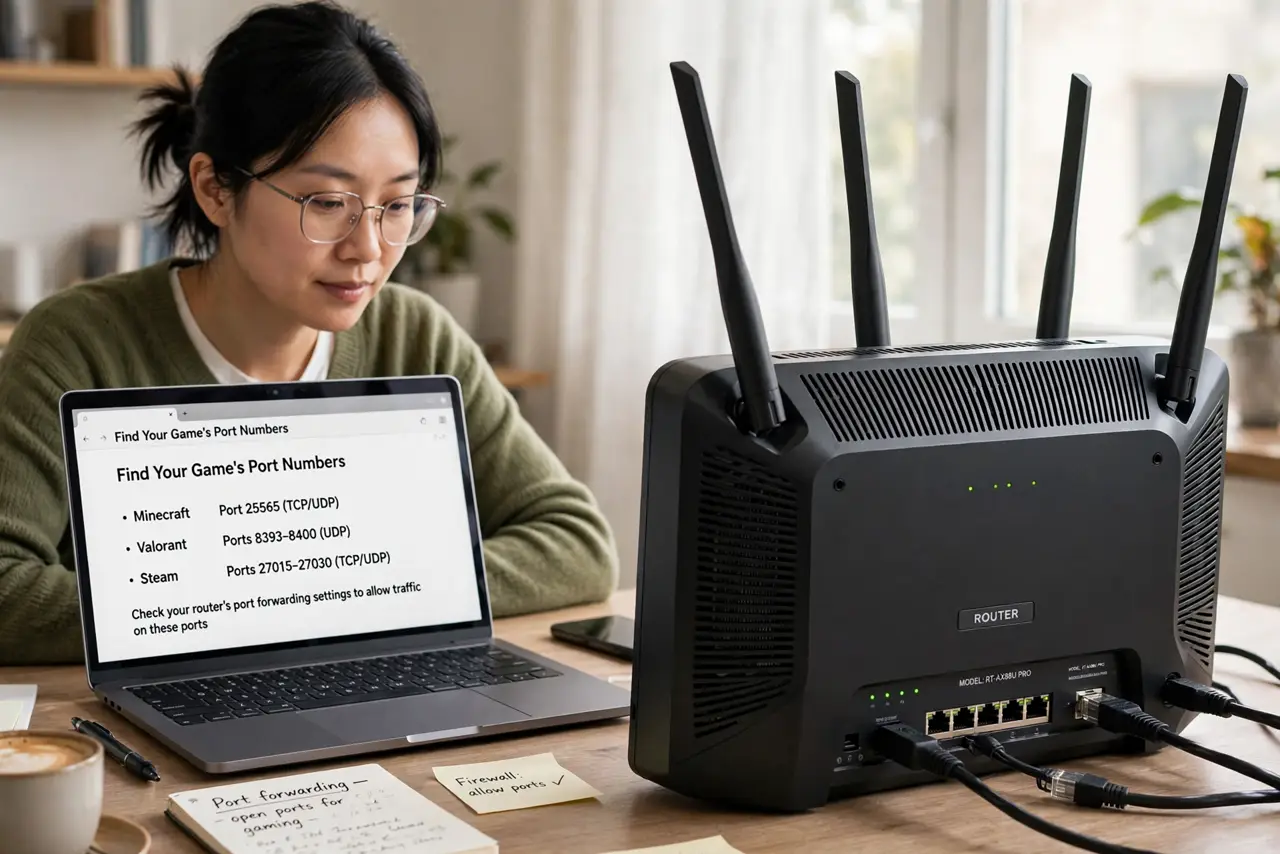
- Find your game's port numbers. Every game publishes which ports its servers need — check the game's official server setup docs. Forwarding the wrong ports is the most common reason this fails.
- Give your PC a static local IP. In your router's DHCP settings, reserve an address for your gaming PC's MAC address. Forwarding rules point at an IP — if it changes, the rule breaks silently.
- Log into your router. Open the router's admin page — the address is usually printed on the router's label — and find the Port Forwarding or Virtual Server section. The exact menu name varies by maker.
- Create the forwarding rule. Add a rule with the game's ports, the correct protocol (TCP, UDP, or both), and your PC's reserved IP. Save and apply — the router may need a few seconds.
- Test from outside your network. Have a friend try connecting, or test with your phone on mobile data (not Wi-Fi). Testing from inside your own network proves nothing — the rule only matters for outside traffic.
- Check for CGNAT if it still fails. If the rule is right but nobody can connect, your provider may use carrier-grade NAT, which makes home port forwarding impossible. The fix then is asking your provider for a public IP or using a tunnel service.
What NOT to do
- Do not forward ports you do not need. Every open port is a door — forward only the game's ports, nothing extra.
- Do not use DMZ as a shortcut. Putting your whole PC in the DMZ to make it work removes the firewall entirely.
- Do not skip the static IP step. DHCP will eventually reassign the address and your friends will mysteriously stop connecting.
- Do not test from your own Wi-Fi. Inside-the-network tests bypass the forwarding rule and give false confidence.
Frequently asked questions
Is port forwarding safe?
Forwarding a few game ports to a patched PC is low-risk. The danger is forwarding everything or running unpatched server software — keep the game updated.
Do I need to forward ports for every game?
No — only games where you host the server. Joining someone else's server needs no forwarding at all.
What is the difference between TCP and UDP here?
Games mostly use UDP for fast real-time traffic. Forward exactly what the game's docs specify — guessing the protocol is a classic failure.