Launch Apps with PowerToys Run
The Windows Start menu search feels sluggish, and you want a faster way to launch apps: press two keys, type a few letters, hit Enter. That's PowerToys Run — a free Microsoft launcher that pops up instantly. It takes five minutes to set up and you'll wonder how you lived without it.
TL;DR / Quick Fix
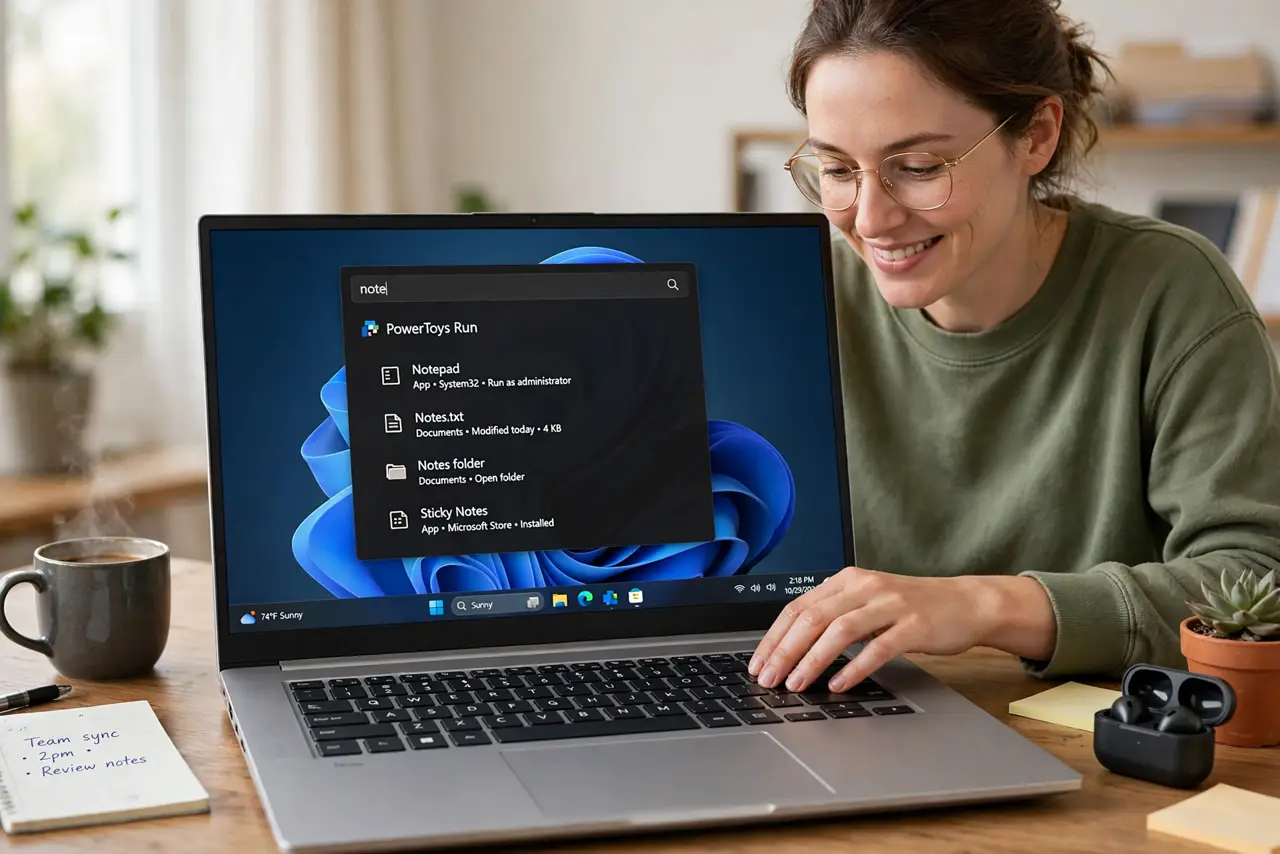
Quick fix: install PowerToys from the Microsoft Store, open it, and turn on PowerToys Run. Press Alt+Space anywhere, type a few letters of the app, and hit Enter. It also does quick math and unit conversions — type a calculation and the answer appears before you finish.
Follow these steps
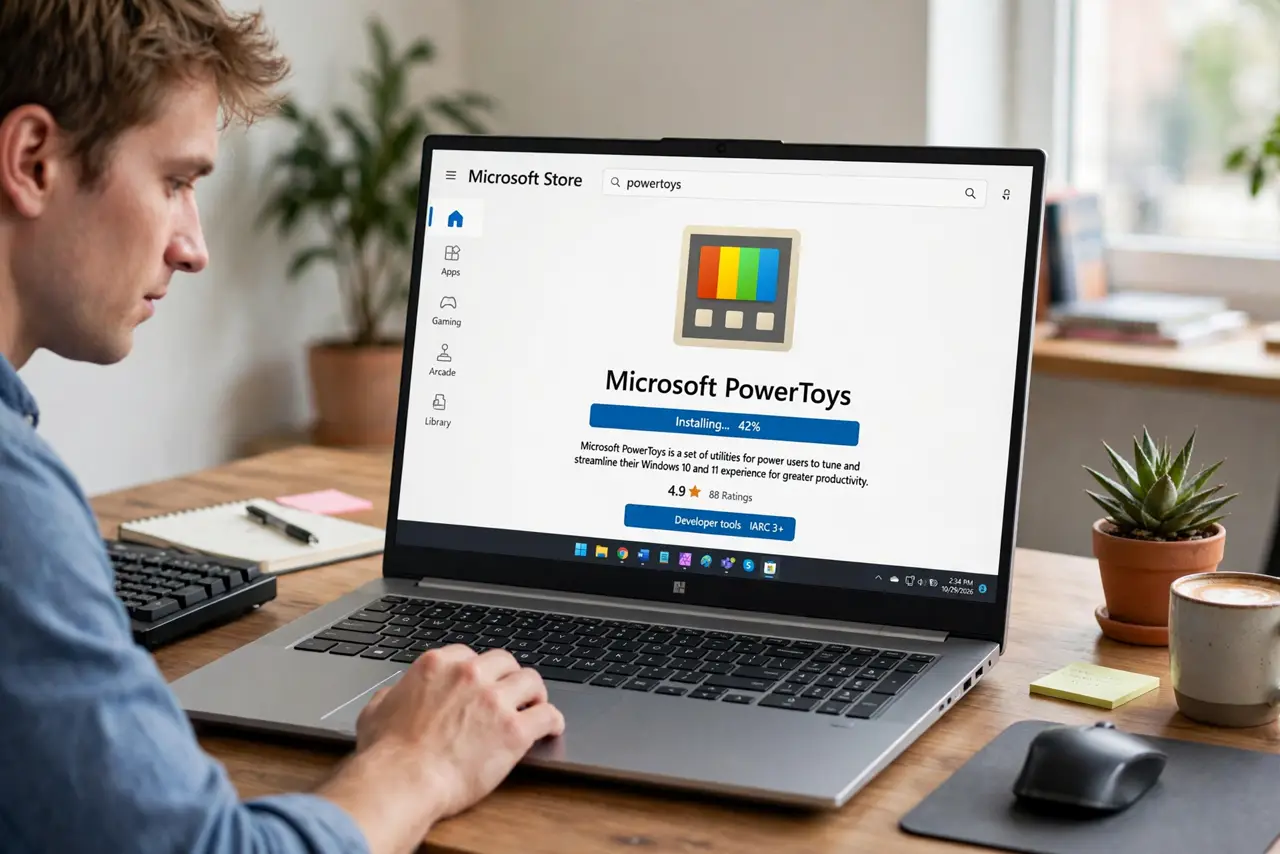
- Install PowerToys from the Microsoft Store. Search for PowerToys in the Microsoft Store and install it — it's Microsoft's own free utility pack. Avoid random download sites offering 'PowerToys Pro' or similar; there's no such thing.
- Open PowerToys and enable PowerToys Run. Launch PowerToys, find PowerToys Run in the sidebar, and switch it on. It's one toggle — everything else can stay default while you learn it.
- Press Alt+Space to summon it anywhere. The launcher appears over whatever you're doing. Start typing the app's name — two or three letters is usually enough — then press Enter to launch.
- Learn its built-in tricks. Type a calculation for instant math, or a unit conversion like a distance or currency amount. It also finds files, folders, and system settings — not just apps.
- Tune the hotkey if Alt+Space clashes. If another app already uses Alt+Space, change the activation shortcut in the PowerToys Run settings. Pick something your fingers can hit blind.
- Explore the other PowerToys while you're there. The same pack includes window-tiling and batch-rename tools. But master the launcher first — one great tool beats five half-learned ones. Pair it with keyboard shortcuts for full speed.
What NOT to do
- Do not download PowerToys from unofficial sites. Repackaged 'PowerToys' installers are a classic malware vector — Microsoft Store or the official GitHub only.
- Do not disable PowerToys Run and wonder why Alt+Space stopped working. The hotkey belongs to the feature; turning it off removes the launcher.
- Do not expect it to fully replace Start menu search. It's a launcher, not a settings browser — some deep Windows settings still live in Start search.
- Do not run an ancient PowerToys version. It updates often with real improvements — check for updates occasionally.
Frequently asked questions
Does PowerToys Run work on Windows 10?
Yes, PowerToys supports Windows 10 and 11. The launcher behaves the same on both.
Alt+Space does nothing — what's wrong?
PowerToys Run is probably disabled, or another app grabbed the hotkey. Check the toggle in PowerToys, then the hotkey setting.
Can it launch apps as administrator?
Yes — select the result and use the run-as-admin option. Handy for tools that need elevation without digging through menus.