Presentation Notes Missing in Presenter View? Fix It
Presenter view is supposed to show your notes while the audience sees only slides, so missing notes feel like losing your script. The notes are usually still there; the view is just not turned on, or the displays are arranged the wrong way.

TL;DR / Quick Fix
Quick fix: Confirm the notes actually exist on the slides. Turn presenter view on before you start. Check that two displays are detected. Swap the displays if the audience sees your notes. Test with the real projector setup. Keep a printed backup for important talks.
Follow these steps
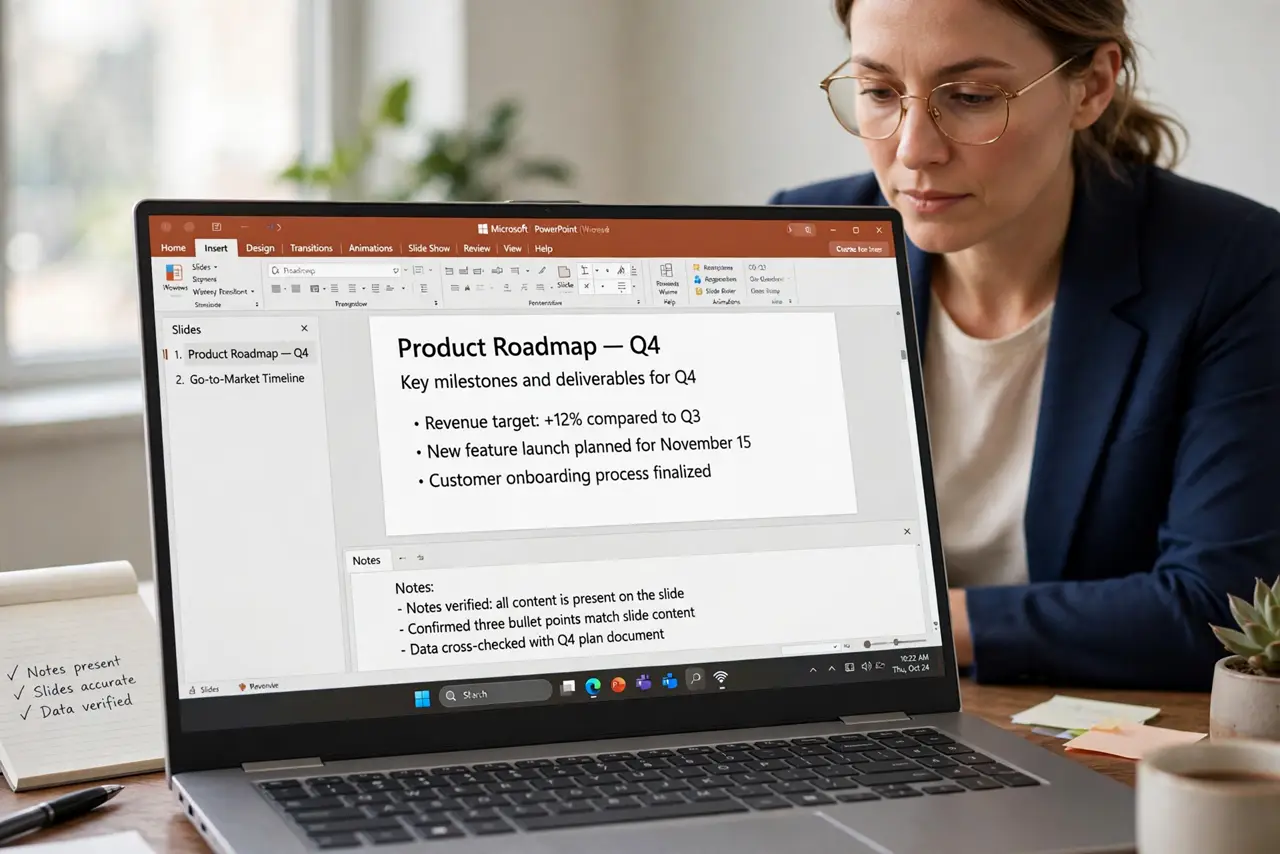
- Confirm the notes actually exist on the slides. Open a slide in editing view and look at its notes pane. If the pane is empty, there is nothing for presenter view to show, and you need to write the notes first.
- Turn presenter view on before you start. In the slideshow settings, enable presenter view explicitly rather than assuming it is on. Settings sometimes reset after an update or on a different computer.
- Check that two displays are detected. Presenter view needs the laptop screen plus the projector or second screen. If only one display is detected, the notes have nowhere separate to appear.
- Swap the displays if the audience sees your notes. If the audience screen shows notes and yours shows slides, swap which display is primary. This one setting fixes the most embarrassing version of this problem.
- Test with the real projector setup. Rehearse with the actual cable and projector, not just your laptop alone. Display detection behaves differently once the real second screen is connected.
- Keep a printed backup for important talks. Print your notes or keep them on your phone as a fallback. If a video will not play or the view fails, your backup keeps the talk on track.
What NOT to do
- Do not assume notes are lost because presenter view is blank. Check the notes pane first before rewriting anything.
- Do not start the show without a rehearsal on the real setup. Display settings are the part that surprises people.
- Do not put secret reminders only in presenter notes. Anything critical deserves a printed backup too.
- Do not swap cables mid-talk without checking which screen the audience sees. A quick swap can flash your notes to everyone.
Frequently asked questions
Why are my notes blank in presenter view?
Either the notes pane is empty, presenter view is off, or only one display is detected, so there is no separate notes screen.
Can I use presenter view with one screen?
Some apps allow it, but it is cramped and risky. A second display is the reliable setup.
What if the audience sees my notes?
Stop, swap the displays in the slideshow settings, and restart the show. Then keep a printed backup for safety.