Presentation Video Will Not Play? Fix It
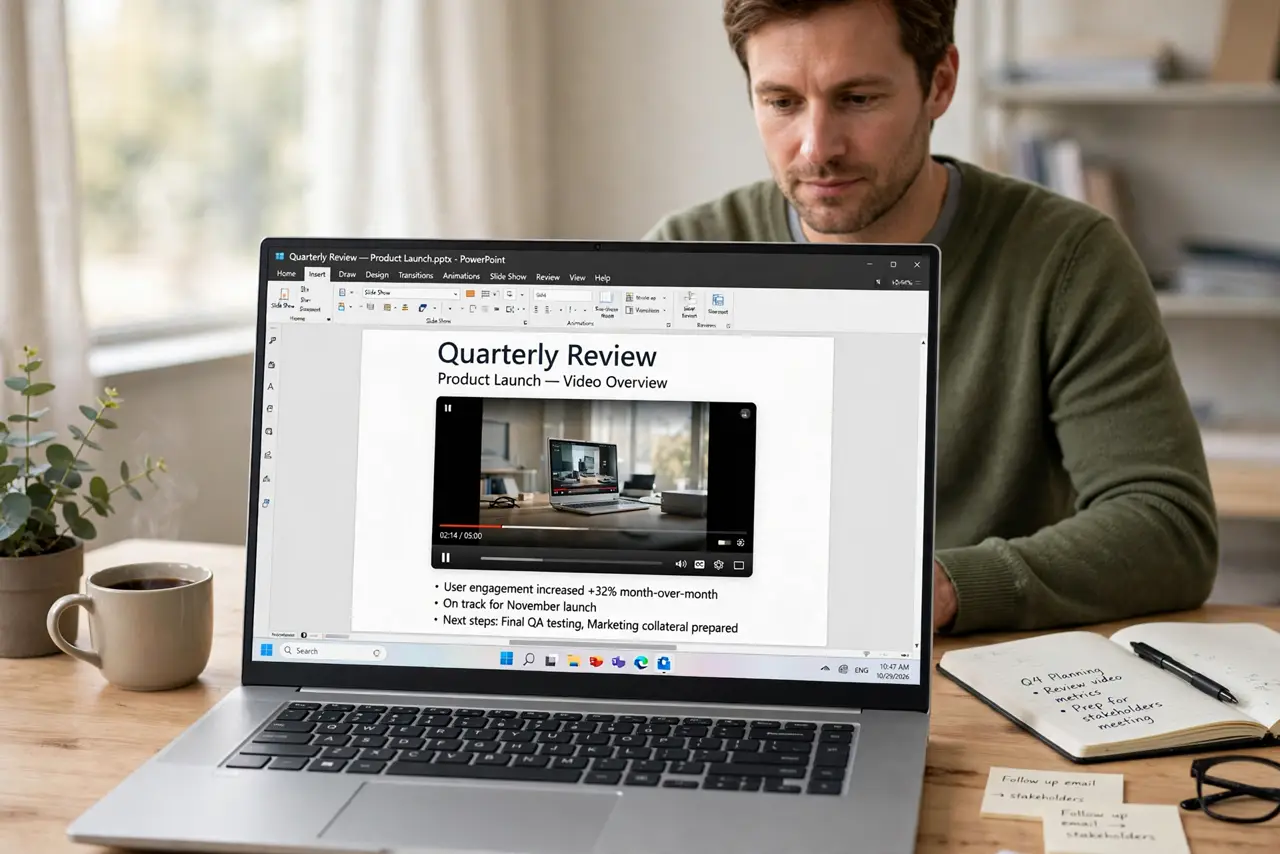
A video that plays fine at your desk but shows a black box in front of an audience is a classic presentation nightmare. The usual cause is a video that is linked rather than embedded, or a format the presenting computer cannot play.
TL;DR / Quick Fix
Quick fix: Find out whether the video is linked or embedded. Keep the video in the same folder as the deck. Use a widely supported video format. Test playback in slideshow mode, not just editing view. Check sound and fullscreen before the audience arrives. Then verify the result.
Follow these steps
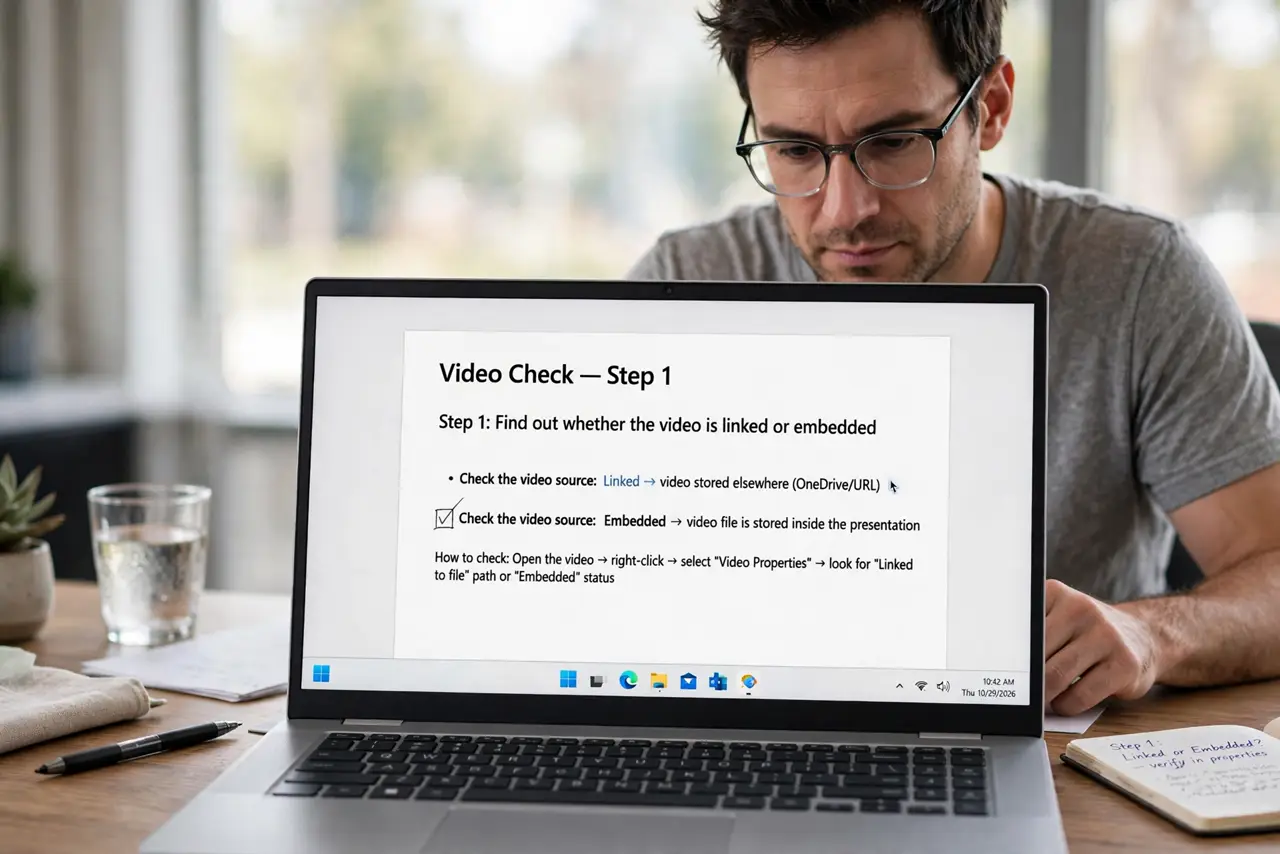
- Find out whether the video is linked or embedded. Open the slide and check whether the video lives inside the file or points to a file elsewhere. A linked video breaks the moment the deck moves without its video file.
- Keep the video in the same folder as the deck. Put the video file in the same folder as the presentation before you insert it, and move the folder as a whole. Never move the deck alone and leave the video behind.
- Use a widely supported video format. Convert unusual formats to a common one such as MP4 before inserting. An exotic format may play on your computer and fail on the one connected to the projector.
- Test playback in slideshow mode, not just editing view. Start the slideshow and play the video from the slide itself. Editing view can be misleading, since it does not always use the same playback path.
- Check sound and fullscreen before the audience arrives. Play the video with sound at presentation volume and confirm it fills the slide as expected. Fixing audio in front of an audience is stressful and avoidable.
- Carry a backup copy of the video. Keep the video file on a USB drive as well, so you can play it directly if the slide fails. If the presenter view hides your controls, the backup still saves the moment.
What NOT to do
- Do not insert a video from a web link and assume it will play offline. No connection means no video.
- Do not test only the first second of the video. Play it through to catch mid-video freezes.
- Do not rely on the venue computer having your codecs. A common format and your own laptop remove that gamble.
- Do not leave the video on a drive you will not bring. If the file is not with the deck, the slide is empty.
Frequently asked questions
Why does the video show a black box?
Usually the video file is missing, linked from another location, or in a format the presenting computer cannot decode.
Should I embed or link videos?
Embed when you can, so the video travels inside the deck. If you must link, move the whole folder together.
What if the venue has no internet?
Use a local video file, not a web video, and test it fully offline before you present.