Slides Look Different on Another Computer?
Slides look different on another computer when fonts are missing, images are linked instead of embedded, or the screen size differs. Embedding fonts and checking the file on the other machine before presenting prevents surprises.
TL;DR / Quick Fix
Quick fix: embed the fonts in the presentation, confirm images are embedded rather than linked, and export a PDF backup. Then open the file on the presenting computer early and check every slide before the audience arrives. Last, carry a PDF backup to confirm it.
Follow these steps
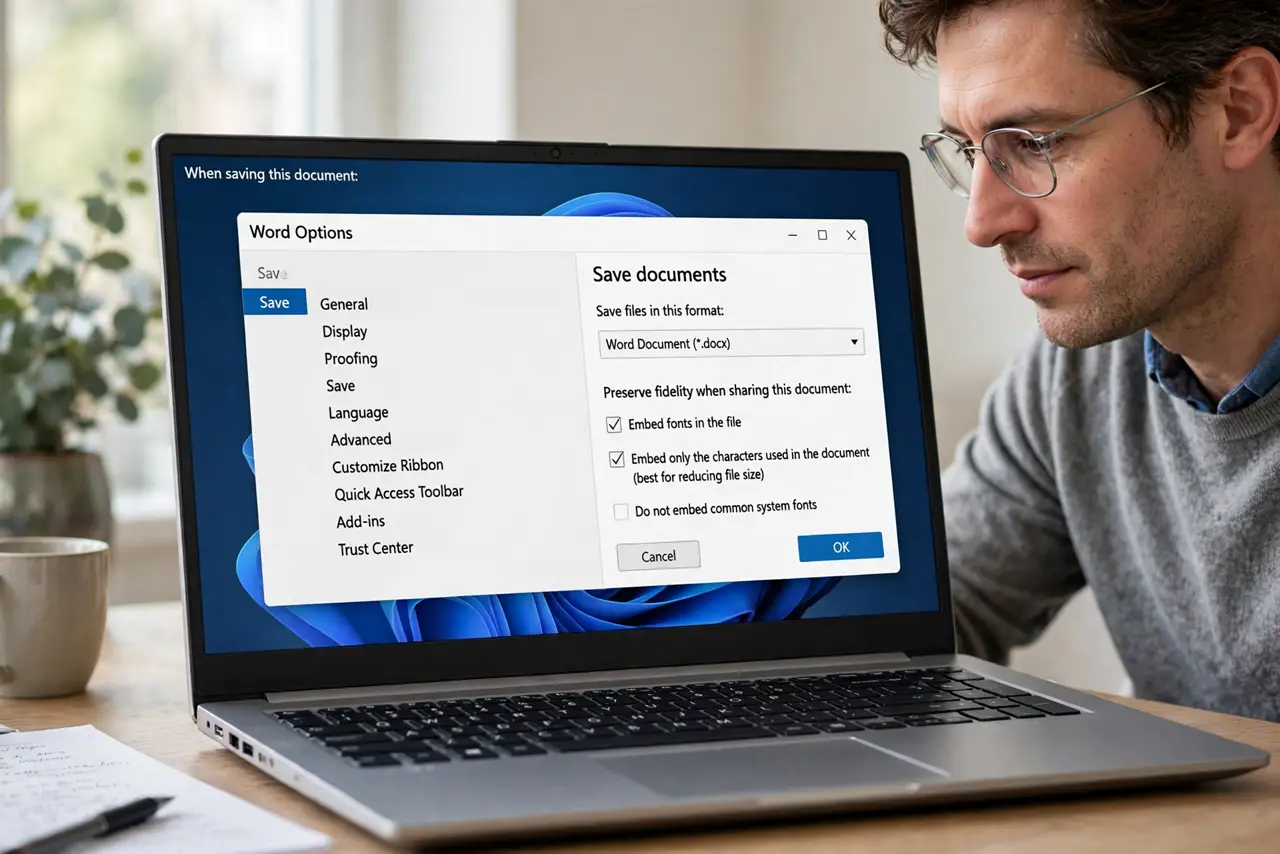
- Embed the fonts in the file. Open the save options and turn on font embedding, then save. Embedded fonts travel with the file, so missing fonts on another computer no longer substitute different ones.
- Use common fonts for critical text. Set headings and body text in widely available fonts. A common font looks the same almost everywhere, even if embedding fails.
- Confirm images are embedded, not linked. Check that pictures are inserted into the file, not linked to files on your computer. Linked images show as blanks on a computer that lacks those files.
- Check the slide size and layout. Confirm the slide size matches the presenting screen, and check layouts that reflow. A widescreen deck on a square screen can stretch or crop slides.
- Test the file on the presenting computer. Open the file on the actual presenting computer before the event, and click through every slide. A live test catches font, image, and layout shifts early.
- Carry a PDF backup. Export a PDF of the final deck and carry it on the same drive. A PDF looks identical everywhere, and it saves the presentation if the slide file still shifts.
What NOT to do
- Do not use a rare decorative font for body text. Rare fonts are the first thing to substitute on another computer.
- Do not link images from your desktop. Linked images break the moment the file moves to another computer.
- Do not test the deck only on your own computer. Your computer has your fonts and files, so it cannot reveal the problem.
- Do not make last-minute edits on the presenting computer without rechecking. A quick edit can reintroduce a missing font or a broken layout.
Frequently asked questions
Why do fonts change on another computer?
The other computer lacks your fonts, so it substitutes the closest available font, which shifts sizes and layouts.
Does embedding fonts always work?
Usually, for fonts that allow embedding. Some licensed fonts restrict it, so common fonts remain the safer choice.
Is a PDF enough on its own?
A PDF is a reliable backup, but keep the slide file too, in case you need to edit during the event.