Print Borderless Photos
Your photo prints with an ugly white frame even though the image fills the screen. Borderless printing stretches the print to the paper's very edge, but it needs the right paper size setting, the right paper type, and a printer that actually supports it. Three settings stand between you and edge-to-edge prints.

TL;DR / Quick Fix
Quick fix: in the print dialog, choose your exact paper size and enable Borderless printing. Use photo paper, since borderless on plain paper looks bad. Expect the printer to slightly enlarge the image to bleed past the edges. Not all printers support borderless on every paper size.
Follow these steps
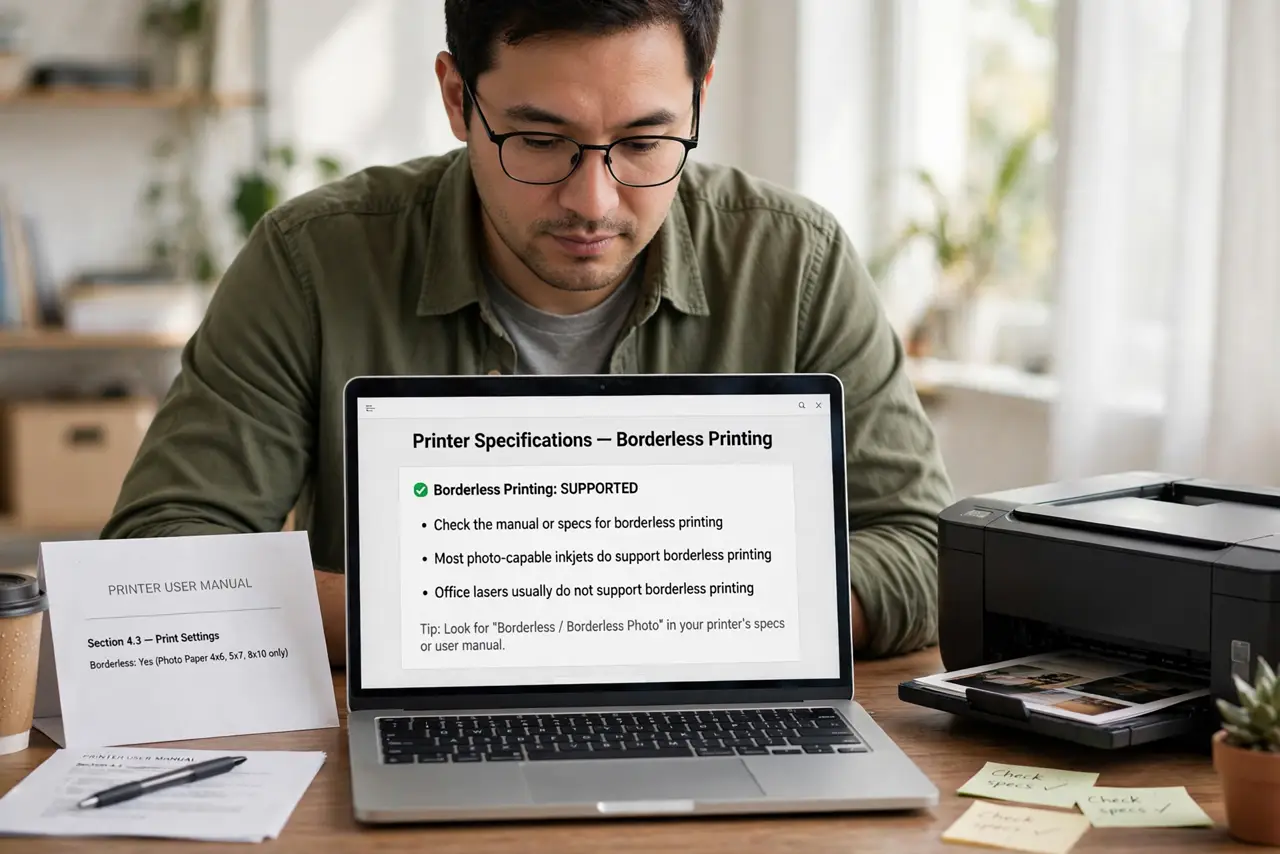
- Confirm your printer supports borderless. Check the manual or specs for borderless printing. Most photo-capable inkjets do; office lasers usually do not.
- Load the right photo paper. Use actual photo paper in the photo tray. Borderless on plain paper oversprays ink past the sheet — the photo paper guide explains the types.
- Set the exact paper size. In the print dialog, match the size to the loaded paper — 4x6, 5x7, A4. A mismatch reintroduces the white border you are trying to kill.
- Enable Borderless in the dialog. Look for Borderless, Edge-to-Edge, or a bleed checkbox in the printer settings. It often hides under Paper Handling or Layout.
- Accept the slight enlargement. Borderless works by printing slightly larger than the page. Edges get cropped a hair — keep important details away from the very edge.
- Print one test first. Run a single test print before a batch of twenty. One misaligned test beats twenty ruined sheets.
What NOT to do
- Do not enable borderless on plain paper. Ink overspray stains the printer interior and the back of your prints.
- Do not forget borderless enlarges the image. Faces near the edge can lose a chin — compose with margin.
- Do not assume every size supports it. Many printers do borderless 4x6 but not borderless A4 — check per size.
- Do not use borderless for documents. Text near edges gets clipped; borderless is for photos, not contracts.
Frequently asked questions
Why is there still a thin white line?
Usually a paper-size mismatch or the wrong tray. Confirm the dialog size matches the loaded paper exactly.
Does borderless use more ink?
Yes, slightly — the overspray past the edges is ink spent on nothing. Worth it for photos, wasteful for drafts.
Can laser printers do borderless?
Rarely. The fuser needs grip margins, so most lasers keep a minimum border. Inkjets own this feature.