Set Up AirPrint
You want to print from your iPhone, but the printer does not appear in the share sheet. AirPrint is Apple's zero-setup printing — no drivers, no apps — but it only works when the printer and the phone share the same Wi-Fi network and the printer actually supports it. Two minutes of checks fix most cases.
TL;DR / Quick Fix
Quick fix: put your iPhone and printer on the same Wi-Fi network, then tap Share, Print, and choose the printer. If it does not appear, restart both devices and confirm the printer supports AirPrint. Keep printer firmware updated. For printers without AirPrint, the maker's app is the usual workaround.
Follow these steps
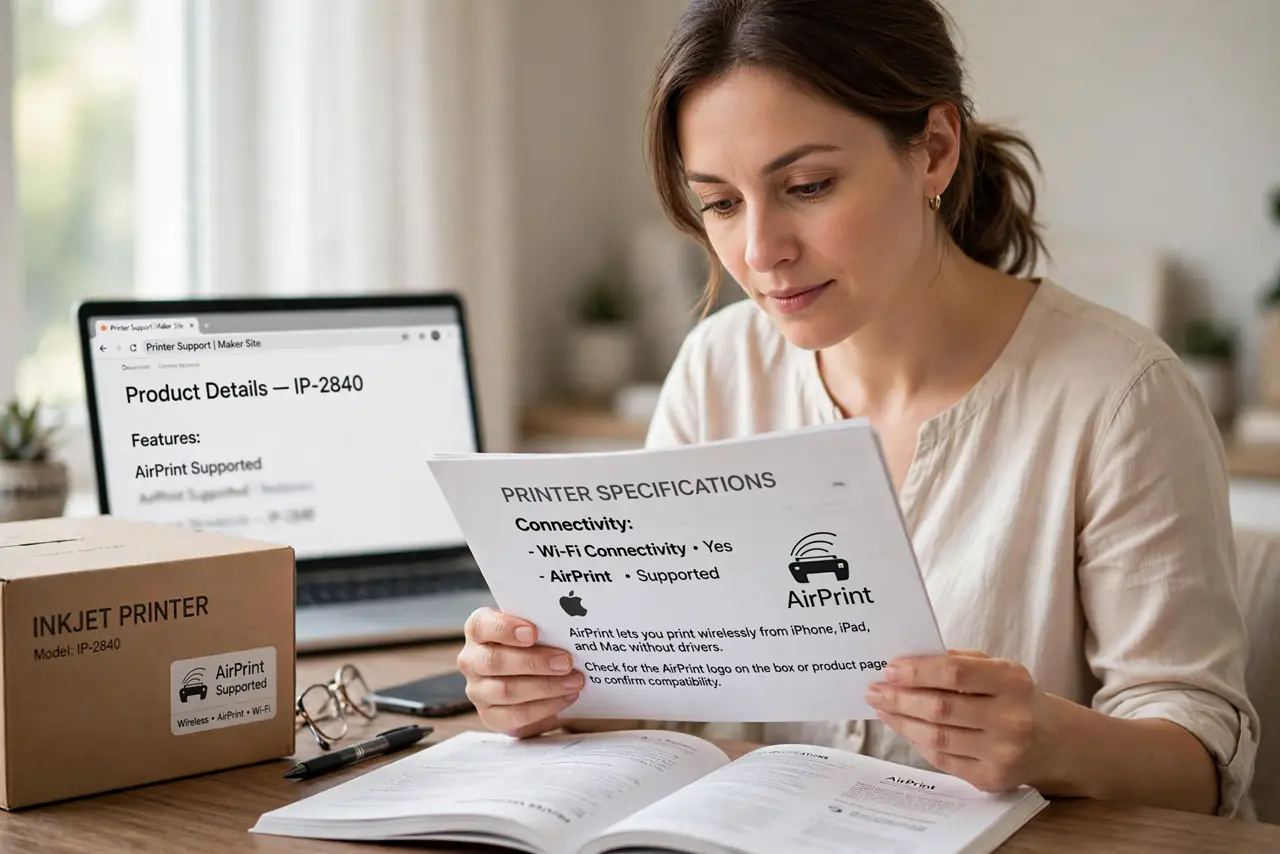
- Confirm the printer supports AirPrint. Check the box, the manual, or the maker's site for the AirPrint logo. Most printers sold in the last decade include it — very old or very cheap models may not.
- Put both devices on the same Wi-Fi. AirPrint discovers printers over the local network only. If the phone is on the guest network and the printer on the main one, they will never see each other — see guest network printer issues if that is your setup.
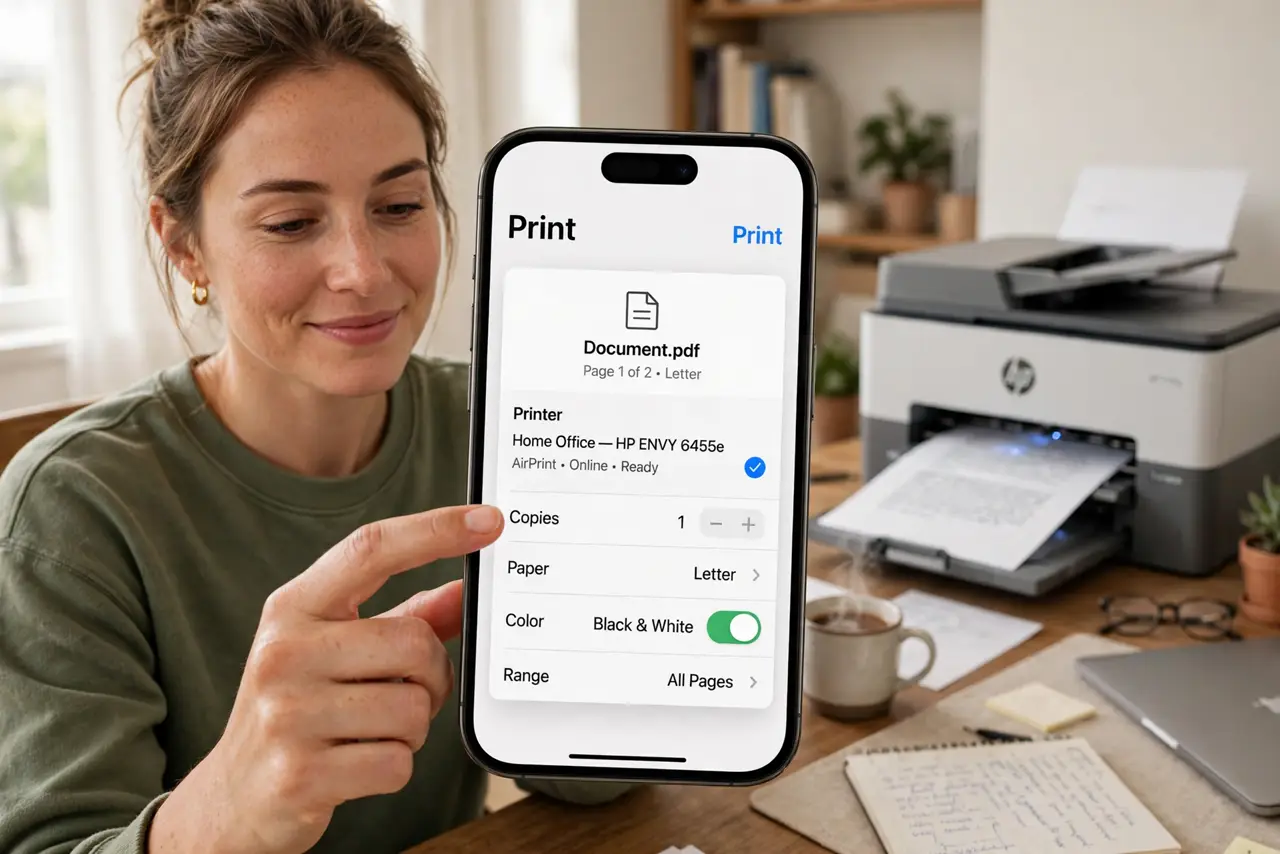
- Print from the share sheet. Open the photo or document, tap Share, then Print. Select the printer, pick copies and page range, and tap Print. No drivers install — that is the whole point.
- Restart both if the printer is missing. Power-cycle the printer and toggle the iPhone's Wi-Fi off and on. Discovery glitches clear with a restart more often than any setting change.
- Update the printer firmware. Makers fix AirPrint bugs in firmware updates. Check the printer's settings menu or app for updates — a printer that drops off Wi-Fi will also drop out of AirPrint.
- Use the maker app as a fallback. No AirPrint support? The printer maker's app prints over the network anyway. It is clunkier than AirPrint but works on almost everything.
What NOT to do
- Do not print over cellular and expect AirPrint. Discovery needs the local Wi-Fi network — mobile data cannot see your printer.
- Do not forget VPNs break discovery. A VPN on the iPhone hides the local network; disconnect it to print.
- Do not assume every printer on the network is AirPrint-ready. Some need an AirPrint firmware update before they appear.
- Do not ignore the paper size mismatch. AirPrint defaults can pick Letter on A4 trays — check the options before printing a 40-page document.
Frequently asked questions
Can I print from a Mac with AirPrint too?
Yes — macOS uses the same discovery. The Mac printer setup guide covers adding it there.
Why does AirPrint work sometimes and not others?
Usually the printer slept off the network or the phone switched networks. A static IP via DHCP reservation makes discovery far more reliable.
Does AirPrint work with USB-connected printers?
Only if the printer is also on the network. A printer plugged into a Mac via USB is invisible to your iPhone. Share it with printer sharing or connect it to Wi-Fi.