Paper Jams Keep Happening? Fix It
One paper jam is bad luck; repeated jams are a pattern with a cause. Worn rollers, overfilled trays, humid paper, or a stray scrap hiding in the path keep the cycle going. This guide finds the real cause so you can stop fishing paper out of the printer.
TL;DR / Quick Fix
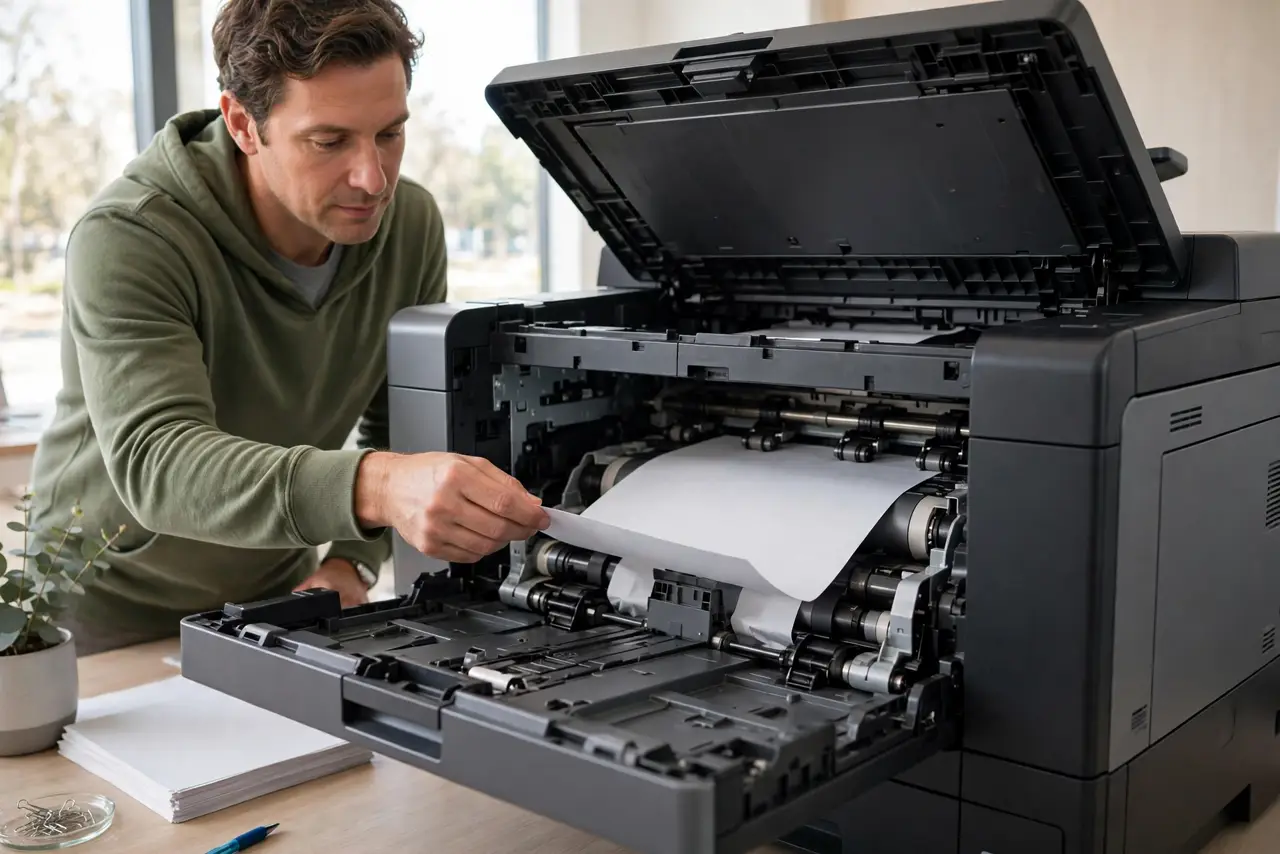
Quick fix: remove the jammed paper slowly along the paper path — never yank against it. Fan the stack before loading, keep the tray under the max line, and clean the pickup rollers. If jams happen at the same spot every time, a roller or flap there is worn.
Follow these steps
- Remove the jam the slow way. Power the printer off, open every access door, and pull the sheet gently along the paper path, not against it. Tearing leaves scraps that cause the next jam.
- Fan and load the paper correctly. Fan the stack to separate sheets, tap it flat, and load it under the max fill line. Overfilled trays and stuck-together sheets are the top causes of repeat jams.
- Check for hidden scraps. Shine a light into the paper path and feel for torn corners or labels hiding inside. One small scrap redirects every following sheet.
- Clean the pickup rollers. Wipe the rubber pickup rollers with a damp lint-free cloth to restore their grip. Dusty rollers slip, and slipping rollers misfeed sheets straight into a jam.
- Adjust the paper guides. Slide the tray guides snug against the stack — not tight, not loose. Loose guides let sheets skew, and skewed sheets jam at the first tight turn.
- Store paper dry and flat. Keep paper in its wrapper in a dry place. Humid paper curls and sticks, and a curled sheet jams far more often than flat, dry paper.
What NOT to do
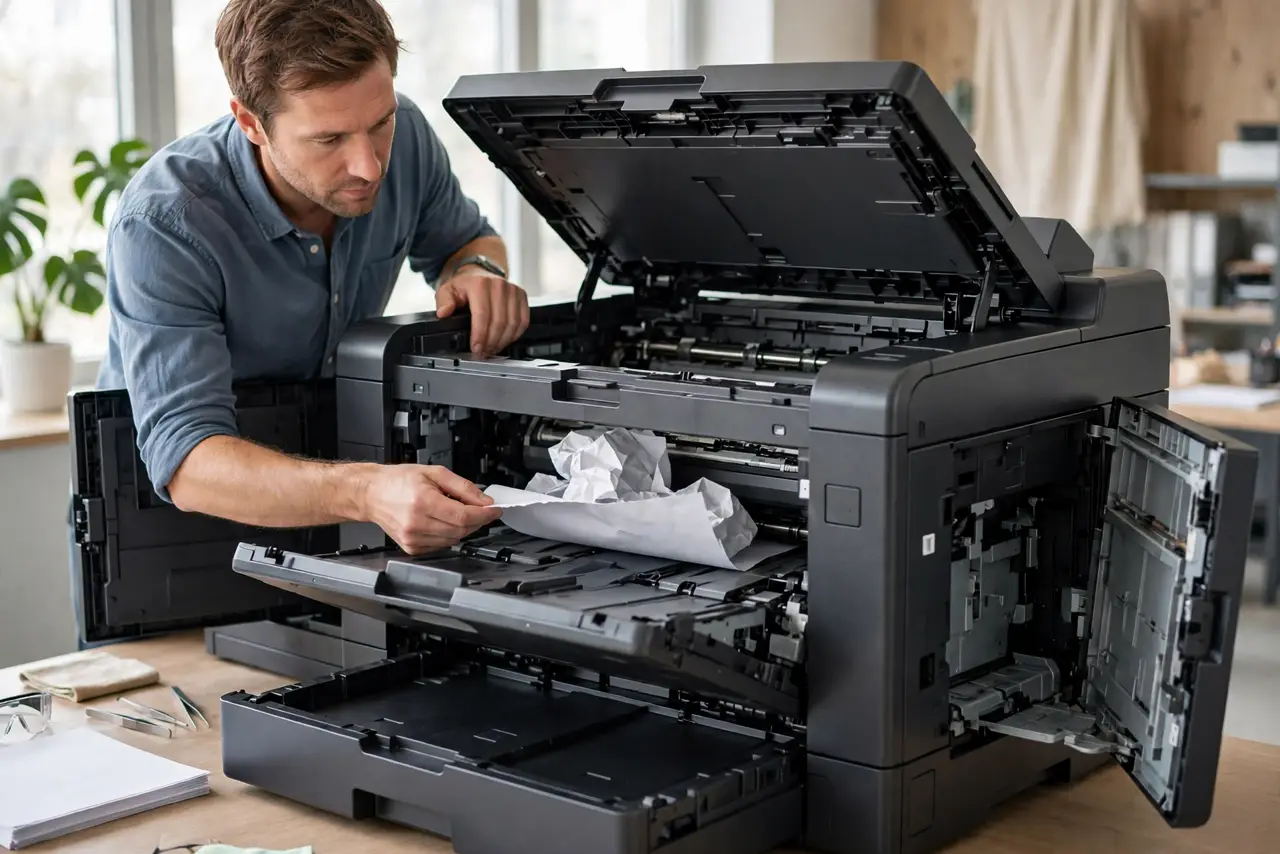
- Do not yank a jammed sheet backward. Pulling against the paper path tears the sheet and can break the small plastic flaps and sensors inside.
- Do not force the tray past the max line. The printer is designed for a specific stack height; more paper means more pressure and more misfeeds.
- Do not print on damaged, curled, or stapled paper. Every imperfection is a jam waiting for a tight turn in the path.
- Do not keep reprinting the same jammed job without checking. If the printer jams the same page twice, the file or the paper for that page is the problem, not bad luck.
Frequently asked questions
Why does my printer jam every time?
Almost always a cause that repeats: overfilled tray, worn rollers, a hidden scrap, or humid paper. Fix the cause once instead of clearing the symptom weekly — and if the printer will not print at all, start with the printer not working guide.
Can I use tweezers to remove paper?
Yes, carefully, for small scraps — power off first and avoid scratching rollers or sensors. For the main sheet, your hands are gentler than tools.
Is it worth replacing the rollers?
On a good printer, yes — roller kits are cheap and restore like-new feeding. On a very old cheap printer, the kit can cost more than the printer is worth.