Printer Prints Streaks? Clean the Heads
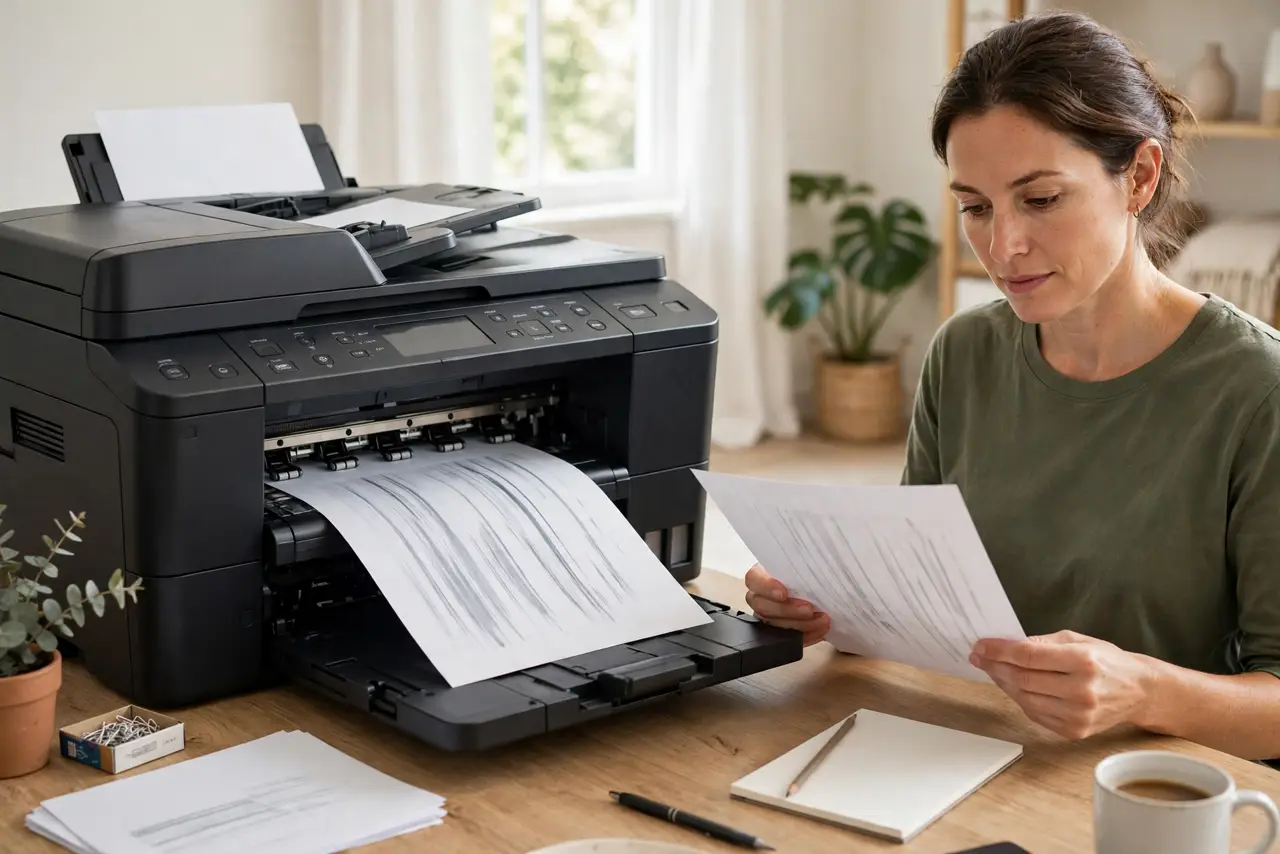
White lines across your prints mean the printer is skipping ink or toner in bands. On inkjets the usual culprit is a clogged printhead; on lasers it is a worn roller or dirty corona wire. This guide shows how to identify your printer type's cause and clean it without wasting a full cartridge.
TL;DR / Quick Fix
Quick fix: run the printer's built-in nozzle check, then its head cleaning cycle once or twice. Most streaks clear after one pass. Use paper settings that match the loaded paper — wrong [[paper settings|printer-paper-size-mismatch]] starve ink flow. If streaks persist after two cleanings, the head is badly clogged.
Follow these steps
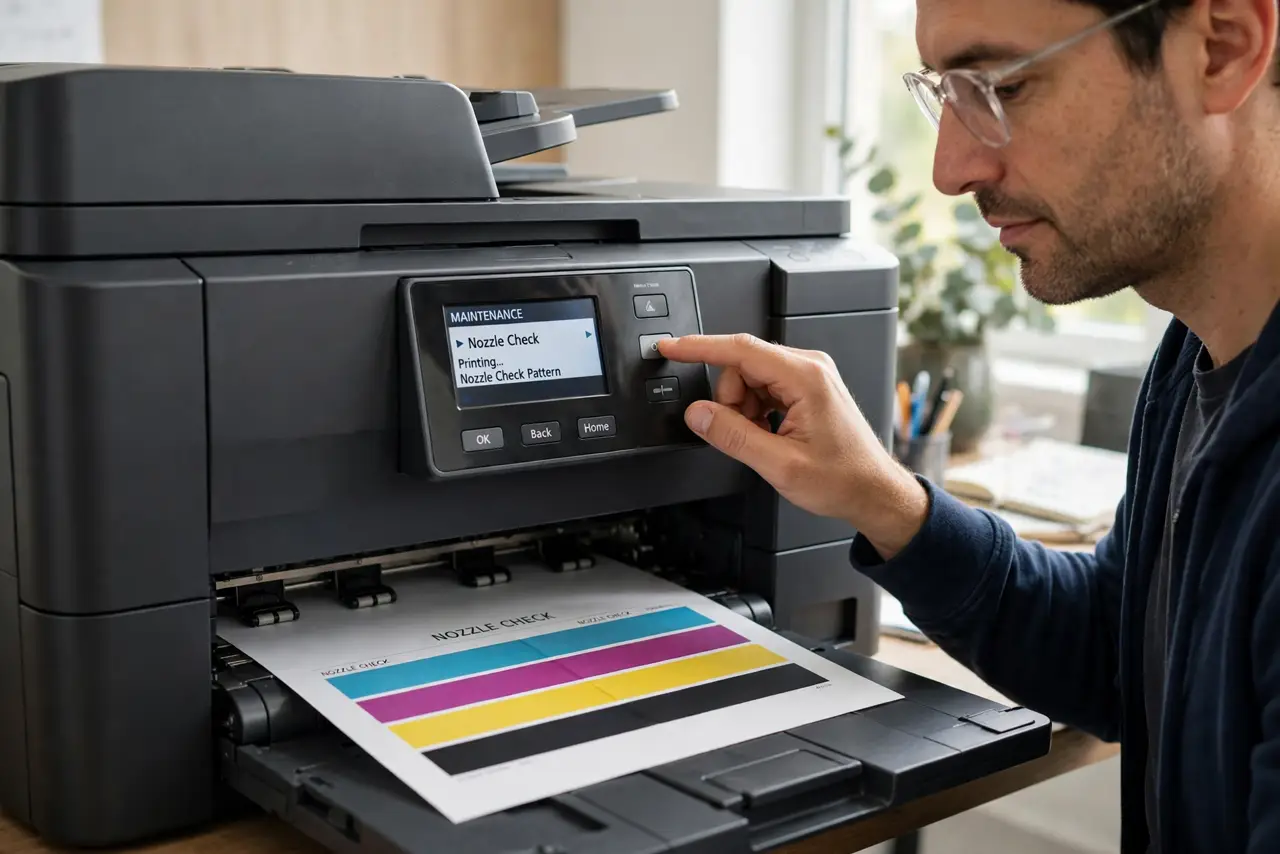
- Print a nozzle check first. Use the printer's maintenance menu to print a nozzle check pattern. It shows exactly which color channels are missing, so you clean with evidence instead of guessing.
- Run one head cleaning cycle. Run the built-in cleaning cycle once, then reprint the nozzle check. One cycle clears most light clogs; resist the urge to run five in a row, since cleanings burn through ink.
- Match the paper type setting. Set the paper type in the print dialog to match what is loaded — the paper size mismatch guide explains why settings matter. Plain paper on a photo-paper setting lays down too much ink and smears into bands.
- Shake and reseat the cartridges. Remove each cartridge, gently rock it to redistribute ink, and reseat it firmly. An aging cartridge with settled ink prints pale streaks even when the gauge still shows ink left.
- Clean the contacts and encoder strip. Wipe the cartridge contacts with a dry lint-free cloth, and clean the thin clear encoder strip inside the printer with a damp cloth. Dried ink on either one produces repeating streak patterns.
- Know when it is a laser problem. On laser printers, streaks usually mean a worn drum or dirty corona wire, not a clog. Run the printer's calibration, and if streaks repeat at the drum's circumference, the drum needs replacing.
What NOT to do
- Do not run head cleaning ten times in a row. Each cycle drinks ink, and repeated cycles rarely beat one cycle plus a rest — let the printer sit overnight and retest before cleaning again.
- Do not use third-party refill kits as the first fix. Refills can introduce air bubbles that cause worse streaks; diagnose the clog on genuine cartridges first.
- Do not touch the copper contacts with your fingers. Skin oil on the contacts interrupts the electrical signal and creates new streaks where there were none.
- Do not print important documents on a printer that is still streaking. Run test pages on plain paper until the output is clean, then print the real thing.
Frequently asked questions
Why do I get white lines in my prints?
The printhead is skipping ink in bands — a partial clog in an inkjet, or a worn drum or dirty wire in a laser. A nozzle check tells you which channels are affected.
Does head cleaning waste a lot of ink?
Yes — each cycle flushes ink through the nozzles. That is why you run one cycle, retest, and rest overnight instead of chaining cleanings.
Will printing more fix a clogged head?
Sometimes. Regular printing keeps ink flowing and prevents clogs, but printing through an existing clog just wastes paper — clean first, then print regularly.