Prints Look Faded? Fix It Before Buying Ink
Your prints come out pale and washed-out even though the ink levels look fine. Faded output is usually a settings problem — draft mode, wrong paper type — or a cartridge that is older than its gauge suggests. This guide restores full color before you spend money on new ink.

TL;DR / Quick Fix
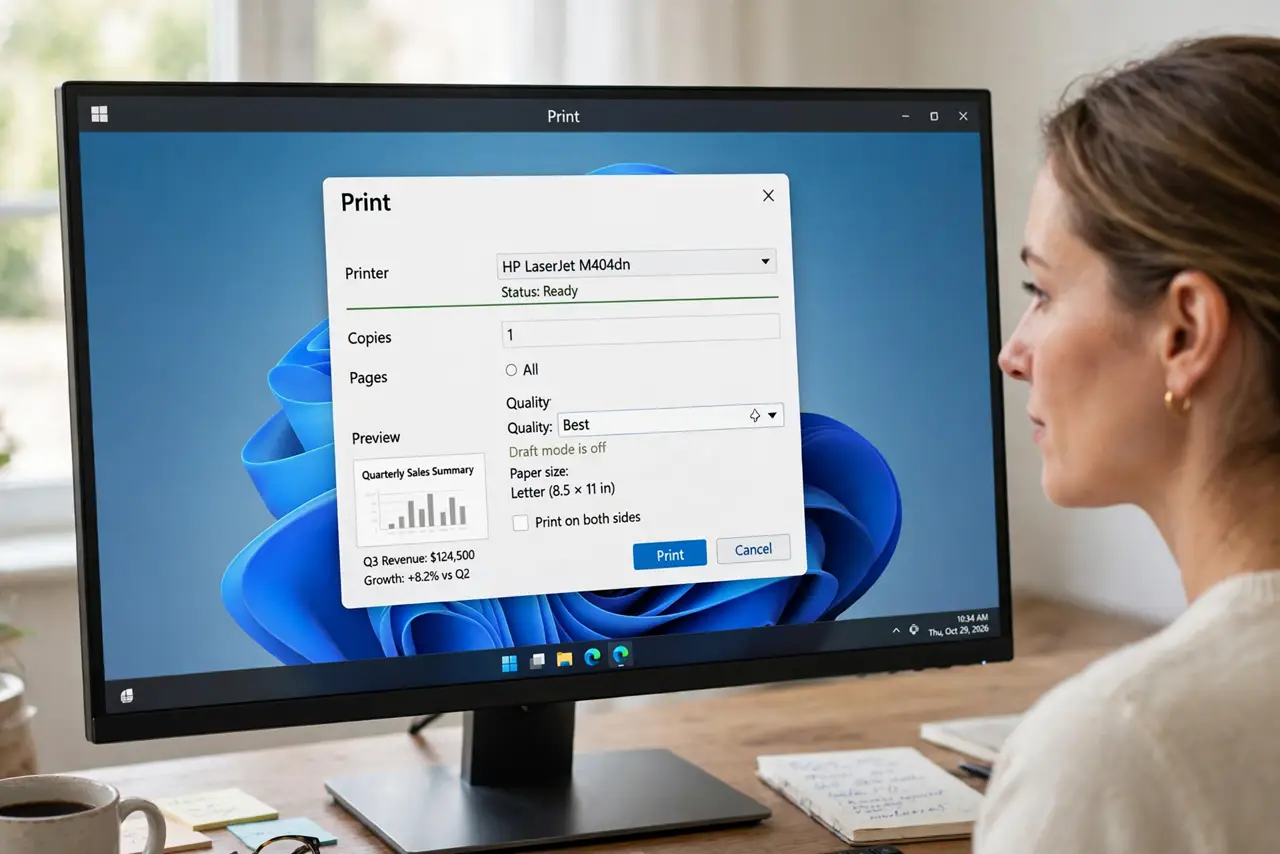
Quick fix: switch the print quality from Draft to Normal or Best, and make sure the paper type matches the loaded stock. Run one head cleaning cycle. If prints stay pale after that, the cartridge is spent or dried — replace it, since no setting revives dead ink.
Follow these steps
- Check the quality setting. Open the print dialog and confirm the quality is Normal or Best, not Draft or Fast. Draft mode lays down less ink by design — the most common cause of 'faded' prints that are not faded at all.
- Match the paper type setting. Set the paper type to what is actually loaded, as in the size mismatch guide. A photo-paper setting on plain paper — or the reverse — changes how much ink the printer lays down.
- Print a nozzle check. Run the nozzle check from the maintenance menu. Missing channels show up pale or absent, and the pattern tells you whether this is a clog or an empty cartridge.
- Run one cleaning cycle. If channels are missing, run one head cleaning cycle and retest. Light drying on the nozzles causes exactly this pale output, and one cleaning usually restores it.
- Check the cartridge's real age. Look at the cartridge's install date or expiration, not just the ink gauge. An old cartridge reads as half-full while its ink has thickened or dried — age beats the gauge.
- Replace only when proven empty. Swap the cartridge only after settings and cleaning are ruled out. When you do replace it, print a test page immediately so you know the new cartridge is good.
What NOT to do
- Do not buy new ink as the first step. Settings and a cleaning cycle fix most faded prints for free, and a new cartridge will not fix a Draft-mode setting.
- Do not print in 'grayscale' or 'ink save' mode for color documents. Those modes deliberately limit ink, and they hide in driver defaults.
- Do not shake a laser toner cartridge violently. A gentle side-to-side rock redistributes toner; hard shaking can crack the cartridge and spill toner everywhere.
- Do not leave the printer unused for months and expect full color. Ink dries in idle nozzles — print one color page a week to keep them clear.
Frequently asked questions
Why are my prints faded but ink levels are fine?
Because the gauge measures estimated use, not ink condition. Old, settled, or partially dried ink prints pale while the gauge still shows ink left.
Does draft mode really make that much difference?
Yes — Draft can use half the ink of Normal mode. For text handouts it is fine, but it looks faded next to anything printed at Normal quality.
How do I know if the cartridge is truly empty?
Run a nozzle check after cleaning. If channels stay missing or pale across cleanings and fresh settings, the cartridge is spent.