Printer Shows Offline After Restart? Fix It
A printer that goes offline after a restart is frustrating, because it worked yesterday. The cause is often a paused queue, a sleep setting, or a connection that drops, and each has a simple check.
TL;DR / Quick Fix
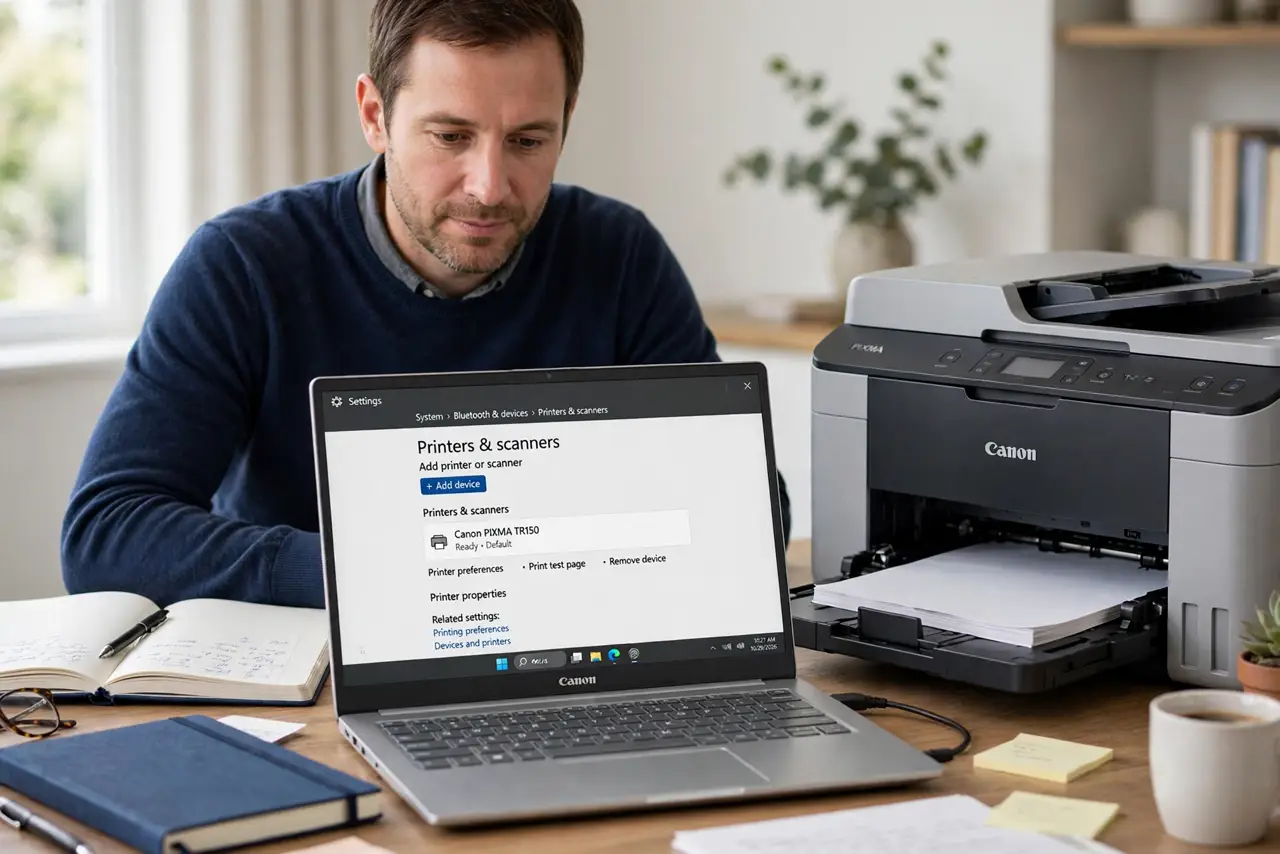
Quick fix: open Settings, then Bluetooth and devices, then Printers and scanners, and check whether your printer shows as offline. Restart the printer, wait until it is ready, then open the print queue and resume printing. If jobs are stuck, cancel them and try one test page.
Follow these steps
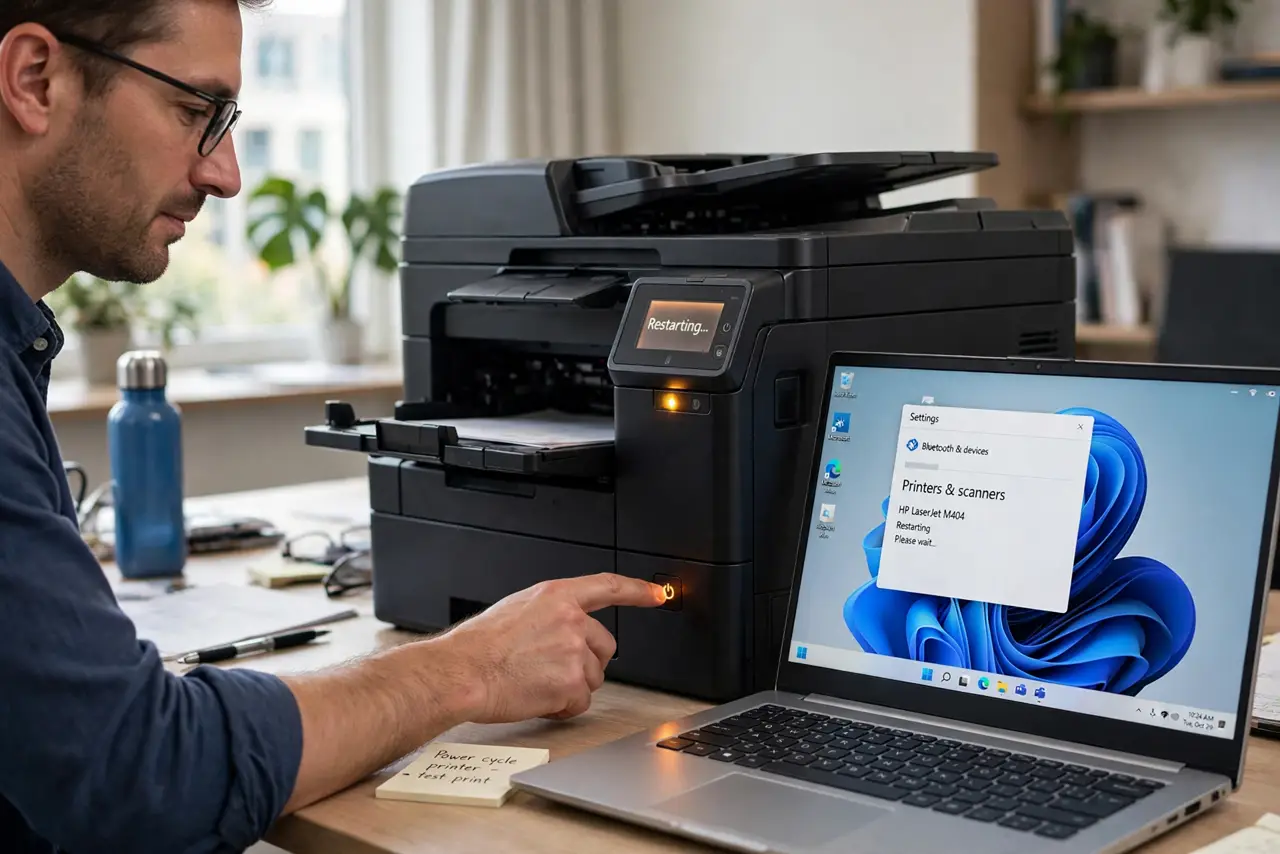
- Restart the printer and wait. Turn the printer off, wait thirty seconds, and turn it back on. Wait until it finishes warming up before you print, because a half-ready printer often reports as offline.
- Check the cable or Wi-Fi connection. For a USB printer, unplug and replug the cable firmly. For a Wi-Fi printer, check that it is on the same network as the computer.
- Open the print queue and resume. Open Settings, then Bluetooth and devices, then Printers and scanners, choose your printer, and open the print queue. If printing is paused, resume it.
- Cancel stuck jobs and test one page. In the same queue, cancel old jobs that never printed. Then print a single test page, so a stuck job cannot block every new job behind it.
- Set the printer as default if it keeps switching. In Printers and scanners, make sure your printer is set as default, or turn off the setting that lets Windows manage the default printer automatically.
- Remove and re-add the printer only if needed. If the printer still shows offline after a restart, remove it in Printers and scanners and add it again. Keep the printer on and nearby during setup.
What NOT to do
- Do not delete and reinstall the printer driver at the first sign of offline. A paused queue or a sleeping printer is far more common.
- Do not print the same document ten times in a row. Each copy queues behind the stuck job, and you will get a pile of pages when it finally resumes.
- Do not change the printer IP address by hand unless you know the network setup. A wrong address can take the printer offline for every computer.
- Do not force the printer lid or tray while it warms up. Let it finish its start-up cycle, or it may report an error that looks like an offline problem.
Frequently asked questions
Why does the printer work, then go offline after a restart?
Often the printer slept, the queue paused, or the network connection dropped during the restart. Restarting the printer and resuming the queue usually fixes it.
Should I set the printer as default?
Yes, if you mainly use one printer. It stops Windows from switching the default to the last-used printer, which can look like an offline problem.
What if only one computer sees it offline?
Check that computer's queue and connection. If other computers print fine, the problem is on that computer, not the printer.