Set Up a PS5 the First Time
Unboxing a PS5 is the fun part; the hour of updates, accounts, and settings that follows is less fun. Doing the setup in the right order — network first, system update second, then accounts and storage — saves you from redoing steps. Here is the smooth path from box to first game.
TL;DR / Quick Fix
Unbox the PS5, connect HDMI and power, then join Wi-Fi so the day-one system update downloads. Sign into your PlayStation account, enable two-step verification, check storage, and turn on automatic updates. If online play later fails, check for a strict NAT type.
Follow these steps
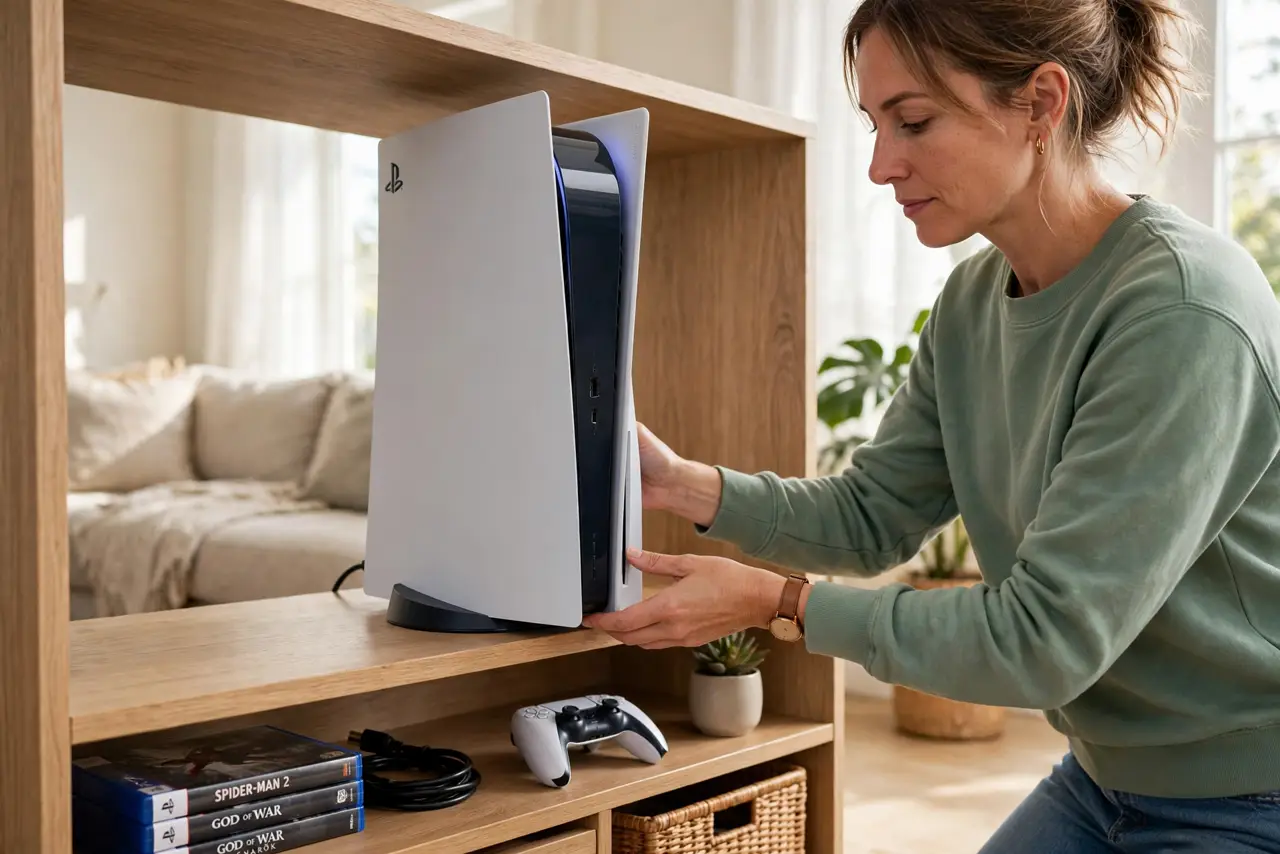
- Place it with room to breathe. Stand the PS5 vertically or horizontally with several inches of clearance on all sides. Consoles throttle and get loud when they overheat in enclosed cabinets.
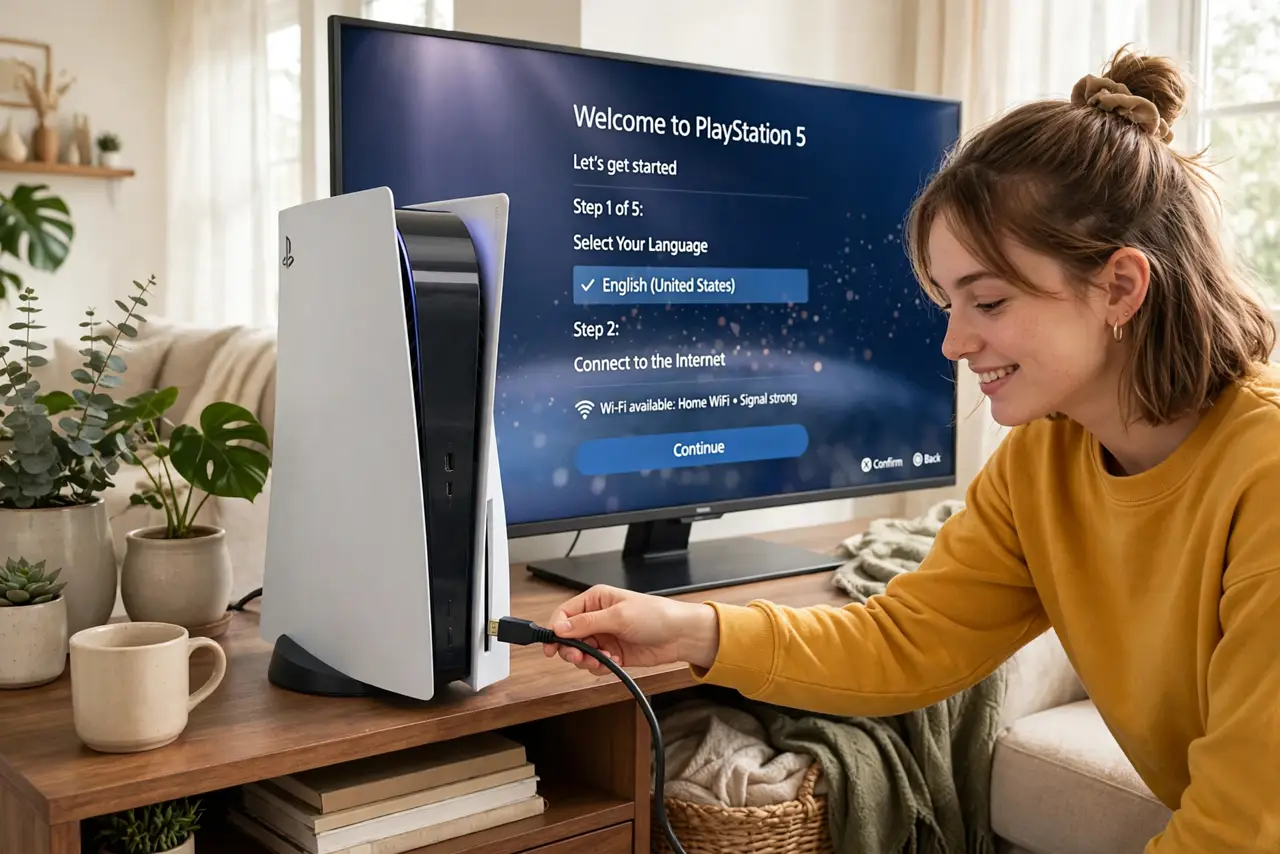
- Connect HDMI and power, then the network. Plug into the TV's HDMI port and connect to Wi-Fi (or ethernet for the most stable gaming). Network first matters because the system update downloads immediately.
- Install the day-one system update. Accept the update prompt before creating accounts or installing games. Skipping it causes weird errors later that the update would have fixed.
- Sign in and secure your PlayStation account. Create or sign into your account, then enable two-step verification in the account security settings. Game libraries are worth real money — protect them like it.
- Check storage and install one game. Look at available storage in Settings, then install a single game first to confirm everything works before filling the drive. The internal SSD fills faster than you expect.
- Enable automatic updates and rest mode downloads. Turn on automatic system and game updates so the console patches overnight. Your future self, wanting to play right now, will be grateful.
What NOT to do
- Do not skip the system update to 'play faster'. You will hit errors and update prompts mid-game — the update always wins eventually.
- Do not block the vents in a media cabinet. Heat is the enemy of console lifespan; give it open air or expect fan noise and throttling.
- Do not buy storage expansions before checking compatibility. The PS5 needs specific fast SSDs with heatsinks — a random drive may not work or may overheat.
- Do not share your account password with friends. Games can be shared properly through console sharing settings; password sharing risks the whole library.
Frequently asked questions
How much storage does the PS5 really have?
About 667 GB usable of the advertised 1 TB (825 GB on the original model). Large games eat 50-150 GB each, so plan for an expansion SSD sooner rather than later.
Should I use Wi-Fi or ethernet?
Ethernet for competitive or stutter-free online play; Wi-Fi is fine for downloads and casual gaming. If only Wi-Fi is possible, use the 5 GHz band near the router.
Can kids have their own accounts?
Yes — create child accounts under family management with age-appropriate restrictions and spending limits. It keeps purchases and content filters sane.