Upgrade PS5 Storage
Modern games are enormous — a handful of titles can fill the PS5's built-in storage, and deleting games to make room gets old fast. The PS5 has an expansion slot for a standard M.2 SSD, and adding one effectively doubles or triples your space. This guide covers what to buy and how to install it without voiding anything.
TL;DR / Quick Fix
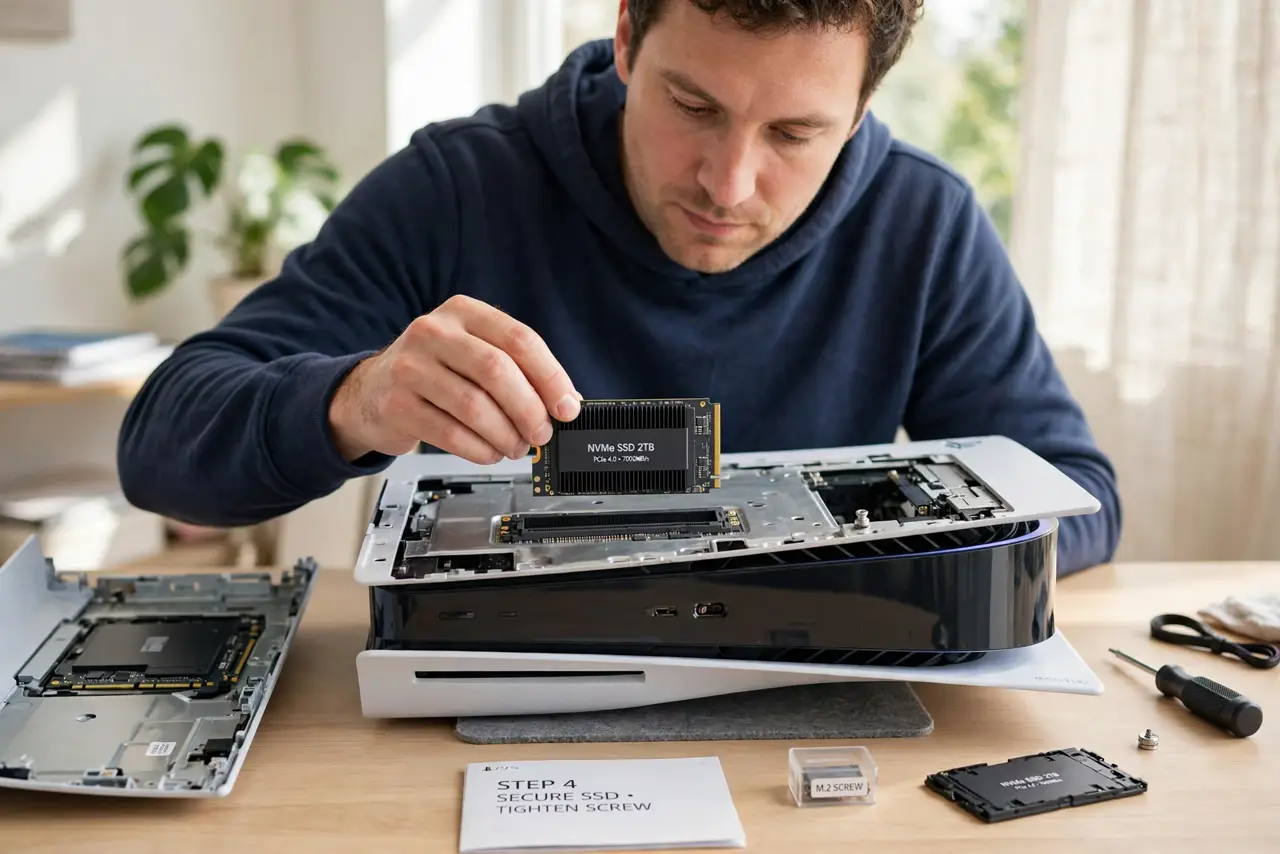
Quick fix: buy an M.2 NVMe SSD that meets Sony's speed requirement with a heatsink. Power off the PS5 fully, remove the side panel and slot cover, insert the SSD, and secure it with the screw. Format it when the PS5 prompts on next boot, then install games there directly.
Follow these steps
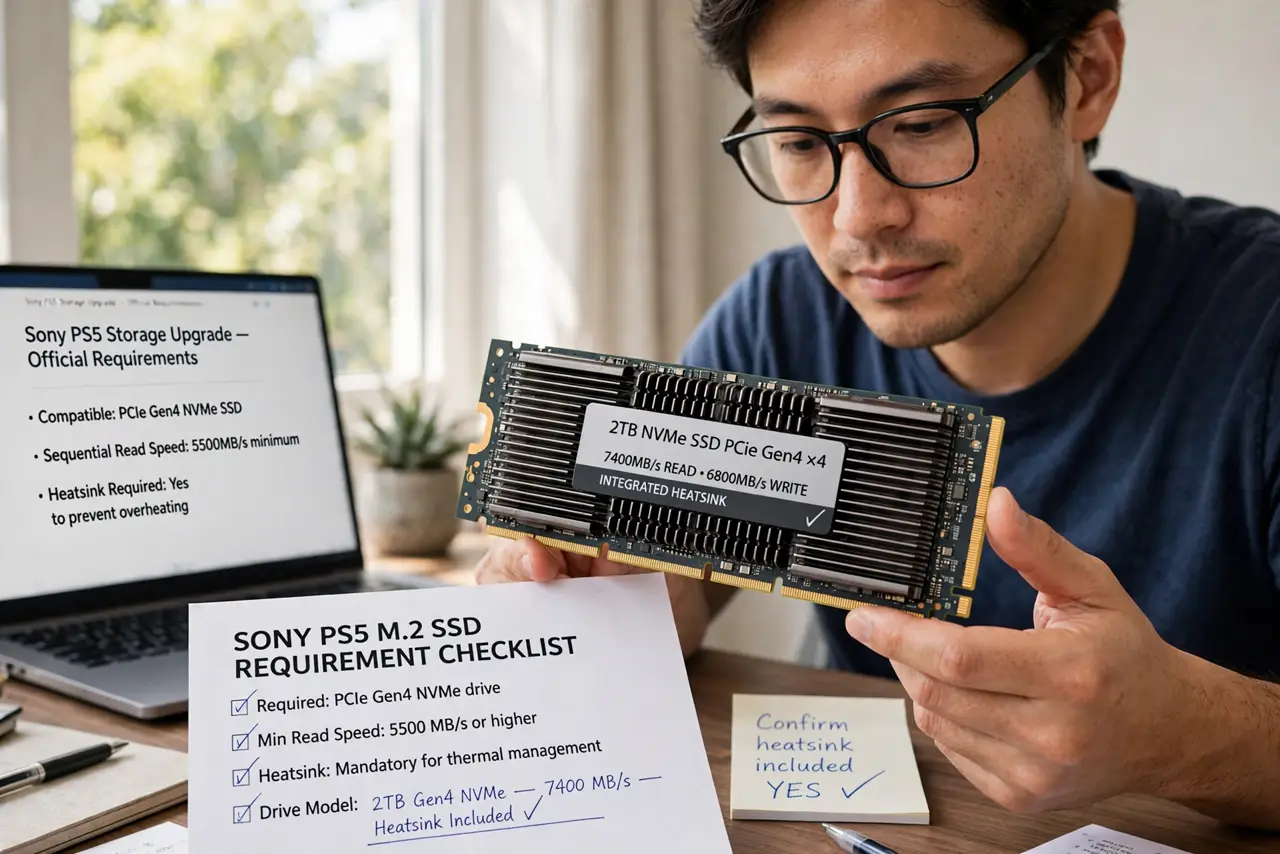
- Buy a compatible M.2 SSD with a heatsink. Sony requires a fast PCIe Gen4 NVMe drive, and a heatsink is mandatory — the slot runs hot. Check the drive's spec sheet for the speed requirement and confirm a heatsink is included or buy one.
- Power the PS5 fully off and unplug it. Hold the power button until it beeps twice, then unplug. Never open the console in rest mode — the drive slot is only safe to touch with power fully cut.
- Remove the side panel and slot cover. Slide the PS5's side panel off, then unscrew the small metal cover over the M.2 expansion slot. Keep the tiny screw somewhere safe.
- Insert the SSD and secure it. Slide the drive into the slot at an angle, press it flat, and fasten it with the screw and spacer. It should sit firmly — no wobble.
- Reassemble and format on boot. Replace the covers and panel, plug in, and power on. The PS5 detects the new drive and offers to format it — accept, and the space is ready.
- Set it as the install location. In Storage settings you can choose where new games install. Point installs at the new drive so the built-in storage stays free for system use.
What NOT to do
- Do not buy a slow SATA or Gen3 SSD. The PS5 requires Gen4 speeds — a slower drive will be rejected or perform badly.
- Do not skip the heatsink. The expansion slot runs hot under load, and an uncooled drive throttles or degrades.
- Do not open the console in rest mode. Fully power off and unplug first — the slot is not hot-swappable.
- Do not force the drive in. M.2 drives seat at an angle then lie flat; forcing it straight down can crack the connector.
Frequently asked questions
How much storage can I add?
The slot accepts large M.2 drives — 1TB and 2TB are the popular picks. Bigger is fine if the drive meets the speed spec.
Can I move existing games to the new SSD?
Yes — the PS5 lets you move games between internal and expanded storage in the Storage settings, no re-downloading needed.
Does adding an SSD void the warranty?
No — Sony designed the slot for user upgrades. Just follow the official steps and do not damage anything in the process.