RAM Full With Nothing Open? Fix It
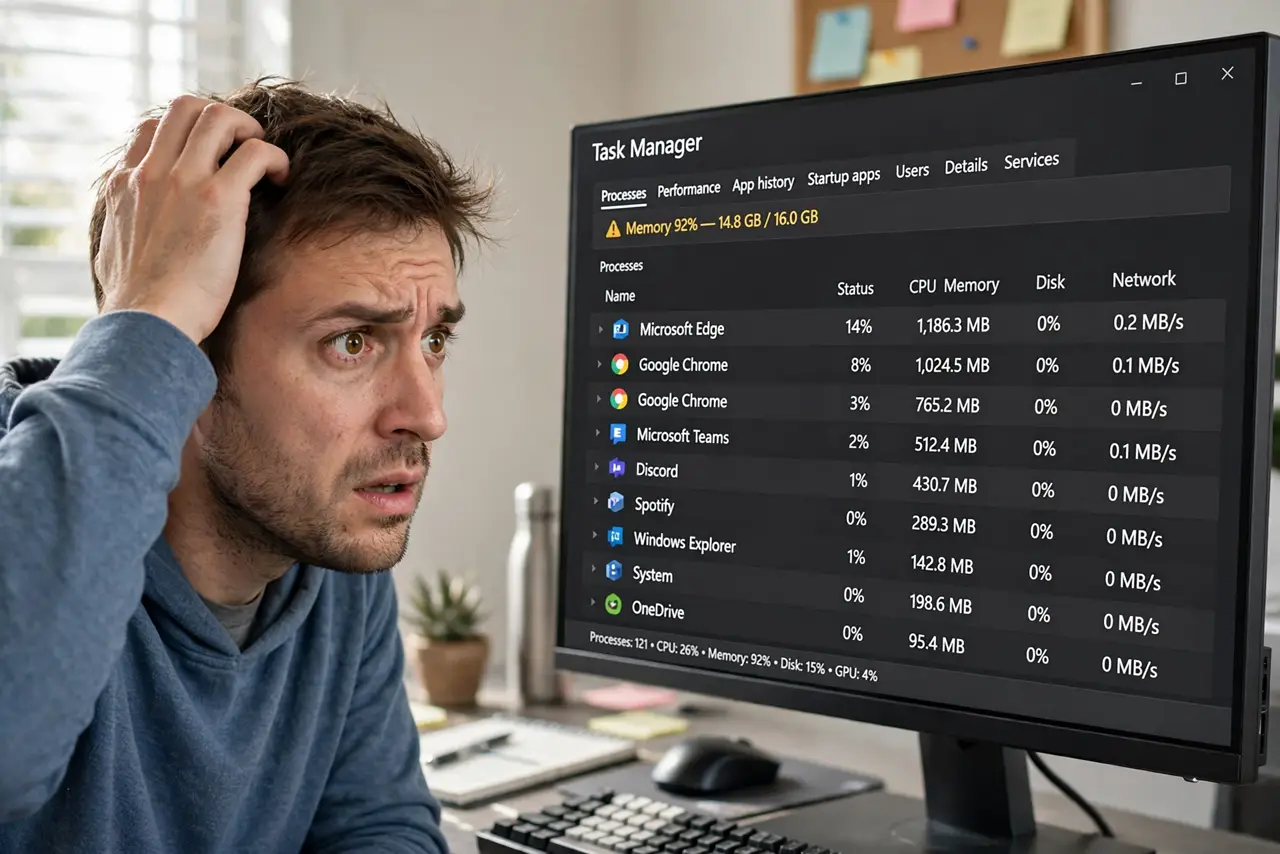
Task Manager shows 80 percent memory used, but you barely have anything open. Modern systems use RAM aggressively — caching, background services, and browser processes you forgot about. This guide finds what is actually eating the memory.
TL;DR / Quick Fix
Quick fix: open Task Manager, sort by memory, and identify the top consumers — browsers with dozens of tabs are the usual suspect. Some high usage is normal caching, not a problem. If a single unknown process eats gigabytes, investigate it before buying more RAM.
Follow these steps
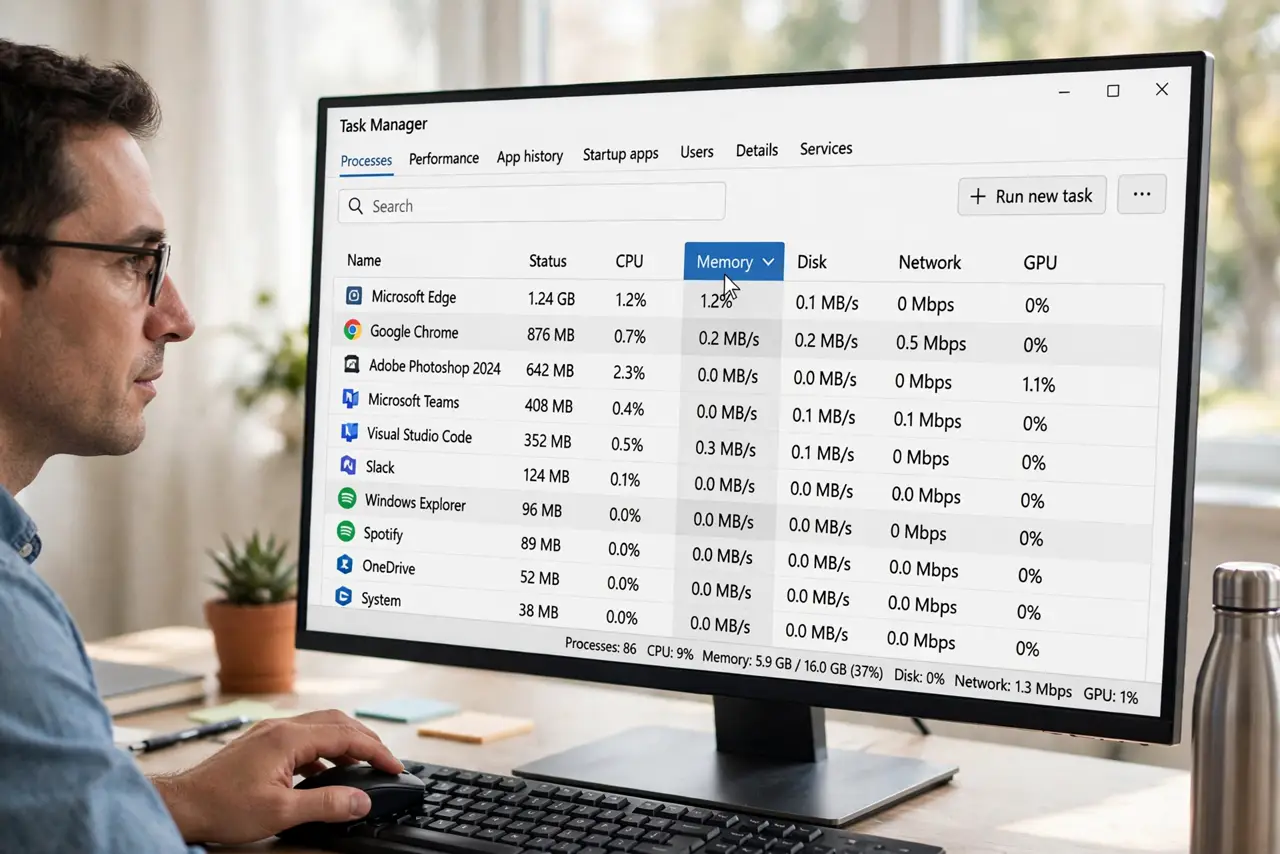
- Sort Task Manager by memory. Open Task Manager, click the Memory column, and see exactly which processes top the list. Guessing wastes time; the sorted list names the culprit in seconds.
- Check your browser tabs. Browsers are the biggest memory users on most PCs. Dozens of tabs, especially with video or web apps, can eat gigabytes — the RAM cleaner myth does not apply here, but closing tabs does.
- Understand that caching is not a problem. Operating systems fill free RAM with cached files to speed things up, and release it when apps need it. High 'used' memory with a responsive PC is healthy, not broken.
- Look for a memory leak. If one process grows without bound over hours, that is a leak. Restart the app, update it, and if it persists, look for a patched version or alternative.
- Disable unnecessary startup programs. Trim the startup list to what you actually use. Every auto-starting app reserves memory from boot, and most of them do not need to be there.
- Decide if you need more RAM. If usage stays above 85 percent during your normal work even after trimming, more RAM is the honest fix. Check your motherboard's max and buy a matched kit.
What NOT to do
- Do not buy RAM before checking Task Manager. Half of 'full RAM' cases are a runaway browser or a leak, not a capacity problem.
- Do not use RAM 'optimizer' tools on a PC. They force out the cache the system built deliberately, making the PC slower, not faster.
- Do not kill system processes you do not recognize. Ending the wrong service can crash the PC — research a process before terminating it.
- Do not panic at 70 percent usage. Modern systems aim to use RAM, not hoard it empty; slowness plus high usage is the problem, not the number alone.
Frequently asked questions
Is it normal for RAM to be 70 percent used idle?
Often yes. The system caches files in free memory for speed. Worry when the PC is slow, not when the number looks high.
Why does Chrome use so much RAM?
Each tab and extension runs as a process for stability. It is by design — the tradeoff for a tab crash not killing the whole browser.
Will more RAM speed up my PC?
Only if you are actually running out. If usage never exceeds 70 percent, more RAM changes nothing; find the real bottleneck.