RAM Stick Not Detected After Cleaning? Fix It
Cleaning a PC is good care, but a blast of air or a bumped stick can leave memory half-seated or a slot full of dust. The PC may then boot with less memory, or not boot at all. The fix is a careful reseat and a one-stick test, not new memory. The safe reseat guide covers the hands-on steps in full.
TL;DR / Quick Fix
Quick fix: Check how much memory the PC now sees. Unplug the PC and ground yourself. Then work through the remaining steps in order, checking one change at a time, and stop for a technician if you see damage, swelling, or a burning smell.
Follow these steps
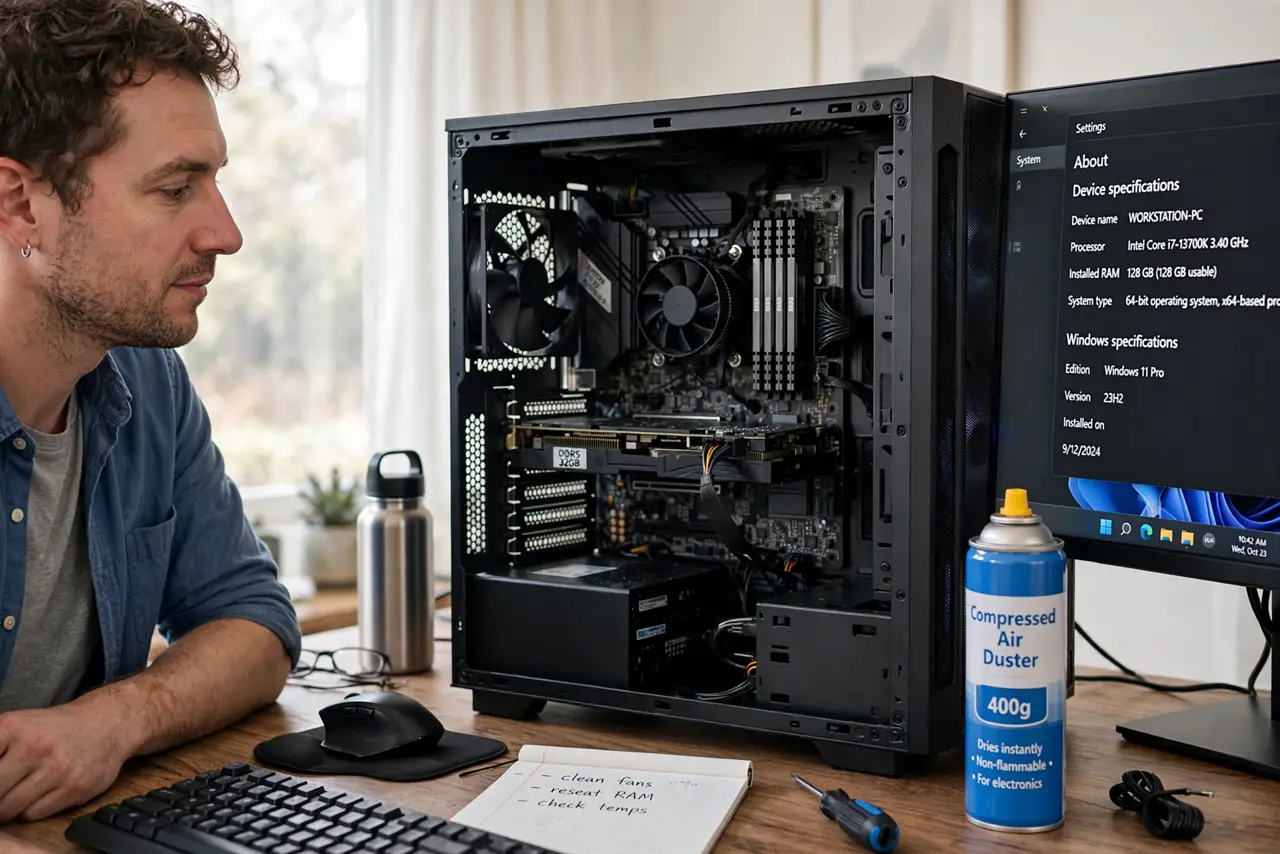
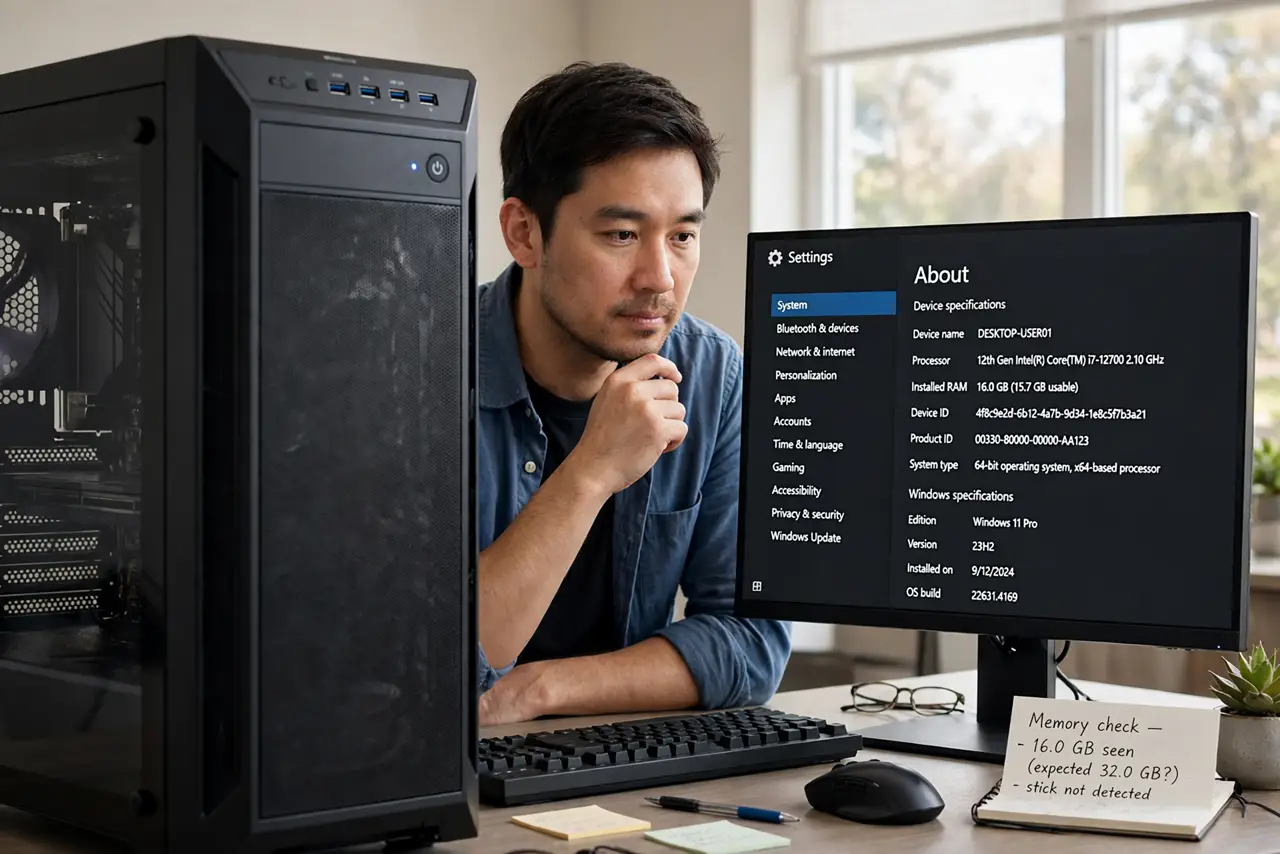
- Check how much memory the PC now sees. Open System settings or the BIOS setup and note the memory total. If it dropped by exactly one stick size, one stick is not detected, which narrows the search at once.
- Unplug the PC and ground yourself. Shut down, unplug the power cable, press the power button to drain charge, and touch bare metal on the case. Cleaning already disturbed the sticks, so do not add static damage.
- Reseat every stick you touched while cleaning. Open the clips, lift each stick out, and press it back until both clips click. A stick that looks seated can still be a fraction short on one end.
- Blow dust out of the slots, gently. Use short bursts of compressed air held upright, from a short distance, to clear dust from the slots. Do not use a vacuum inside the case, and do not blow with your mouth, which adds moisture.
- Test one stick at a time. Boot with a single stick, then swap sticks and slots. If one stick is never detected in any slot, that stick is faulty; if no stick works in one slot, that slot is faulty.
- Check the contacts for damage. Look at the gold contacts for scratches or dark marks, and at the slot for bent pins or debris. Damaged contacts mean the stick needs replacing, not another reseat.
What NOT to do
- Do not spray compressed air upside down. Liquid propellant can come out and damage parts, so keep the can upright and use short bursts.
- Do not vacuum inside a PC case. A vacuum builds static and can pull small parts loose, which is the opposite of a careful clean.
- Do not touch memory contacts with bare fingers. Skin oils harm contacts over time, so hold sticks by the edges only.
- Do not buy new memory before the one-stick test. A dusty slot or a half-seated stick is free to fix, while new parts may not fix the real fault.
Frequently asked questions
Why would cleaning make memory disappear?
Cleaning moves sticks, pushes dust into slots, and can unseat a stick by a fraction. The PC then cannot see that stick at all, or sees less memory.
Can dust really block a memory stick?
Yes. Dust in a slot can sit between contacts and break the connection, especially after a strong air blast pushes dust deeper.
What if the stick works in one slot but not another?
That slot is the fault, not the stick. Use the working slots, and ask a technician if you need the full slot count back.