Recent Files List Is Empty? Bring It Back Fast
You open File Explorer and the recent files list is empty, even though you worked on files yesterday. The list may be turned off, cleared, or simply waiting for a new file. Check the setting, then create a fresh entry.
TL;DR / Quick Fix
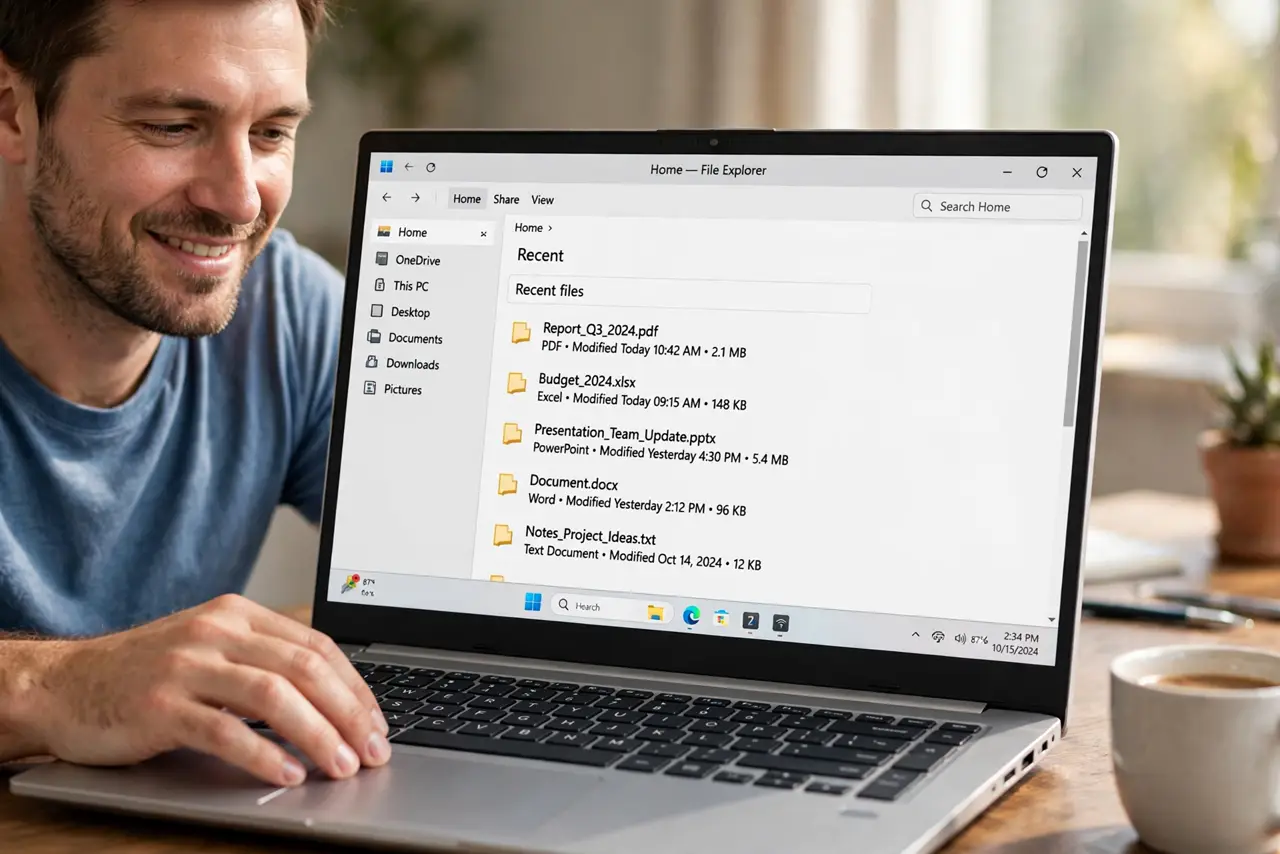
Quick fix: open File Explorer, open any document, then return to Home and check Recent. If it stays empty, confirm recent items are enabled in folder settings, restart File Explorer, and open two more files to seed the list again.
Follow these steps
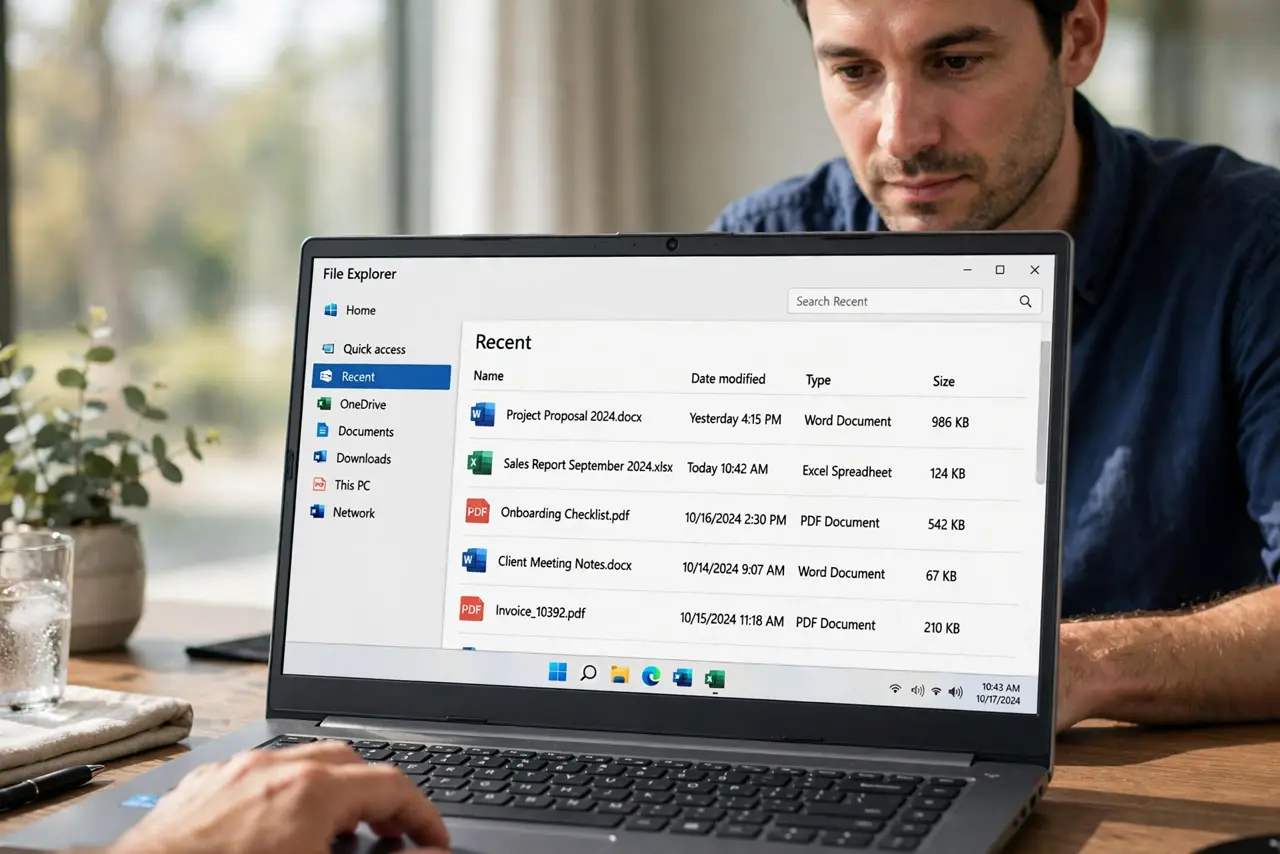
- Open a file, then check Recent. Open any document, close it, then open File Explorer Home and look at Recent. A list cleared by a cleanup needs a fresh file before it shows anything again.
- Confirm recent items are enabled. In File Explorer, open Folder Options, and confirm the option to show recently used files is checked. If it is off, Windows never records the list.
- Check the Home view. Make sure you are looking at Home, not a single folder. Recent files live in the Home view, and a folder view will never show them.
- Restart File Explorer. Open Task Manager, find Windows Explorer, right-click it, and choose Restart. A stuck Explorer can show an empty list even when recent files exist.
- Open two more files. Open two different files, close them, and return to Home. Two fresh entries prove the list is recording again, while one file alone can be easy to miss.
- Check for a cleanup app. If the list empties again overnight, check whether a cleanup or privacy app clears recent items. A scheduled cleanup explains a list that refills by day and empties by morning.
What NOT to do
- Do not assume your files are deleted because Recent is empty. Recent is only a shortcut list; your files remain in their original folders.
- Do not clear recent items again while testing. Clearing during the test erases the very entries you are trying to create.
- Do not search the whole drive for recent files. Open a known file first, then check Home, because that is the fastest proof the list works.
- Do not ignore a cleanup schedule. A list that empties every night points at a scheduled cleanup, not at a broken File Explorer.
Frequently asked questions
Are my files gone if Recent is empty?
No. Recent only lists shortcuts to files. Your files stay in their folders even when the list is empty or cleared.
Why is Recent empty after a cleanup?
Cleanup tools can clear the recent list. Open files again and the list refills as you work.
How do I turn Recent back on?
In File Explorer Folder Options, check the option to show recently used files, then open a file and return to Home.