Who Deleted That Shared File? Find Out
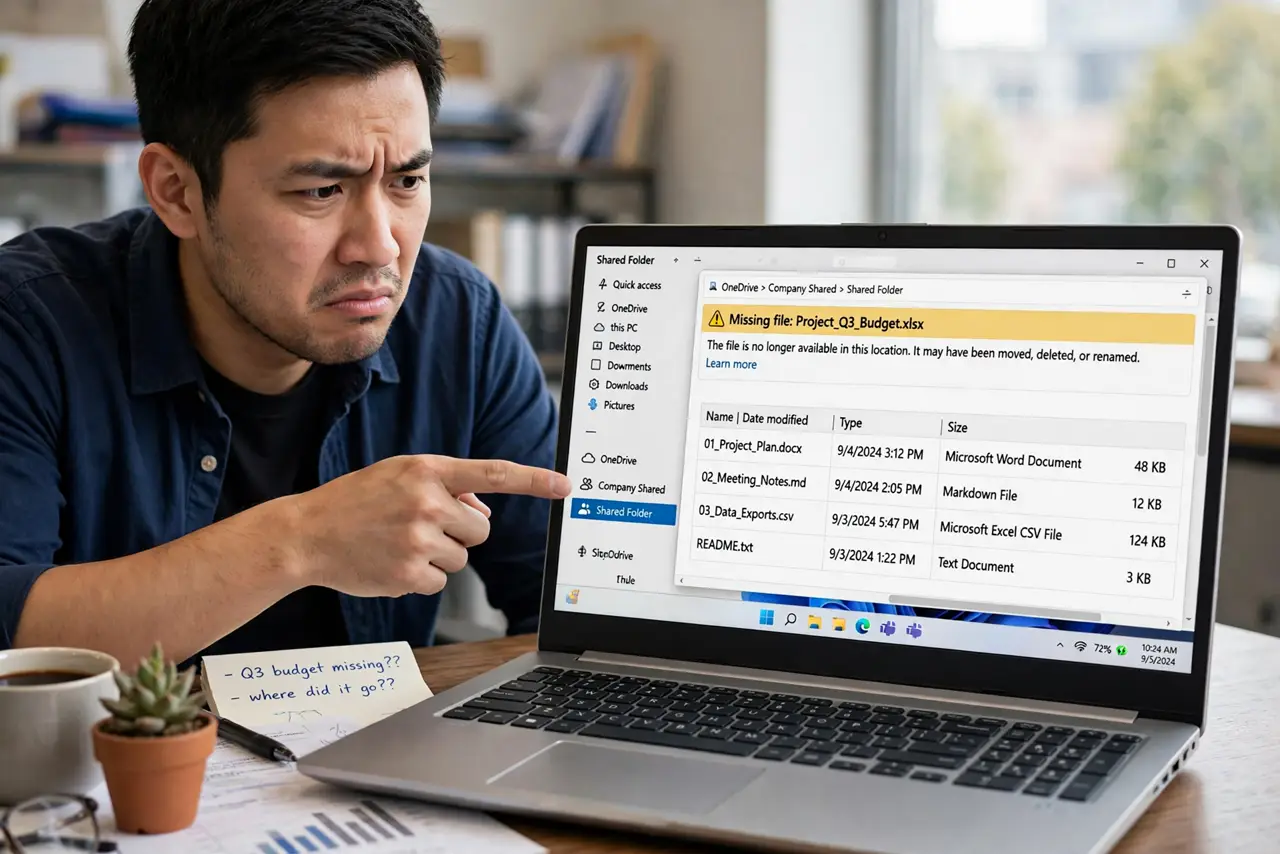
A file disappears from a shared folder and nobody admits to deleting it. Most cloud drives record who deleted what, so you can find the answer in the activity log instead of guessing. This guide shows where to look in a shared folder and how to get the file back.
TL;DR / Quick Fix
Quick fix: open the shared drive's trash or activity log to see who deleted the file — deletions are logged with a name. Restore it from the trash, then tell the team so it does not happen again. For old deletions, ask the folder owner or check the admin console.
Follow these steps
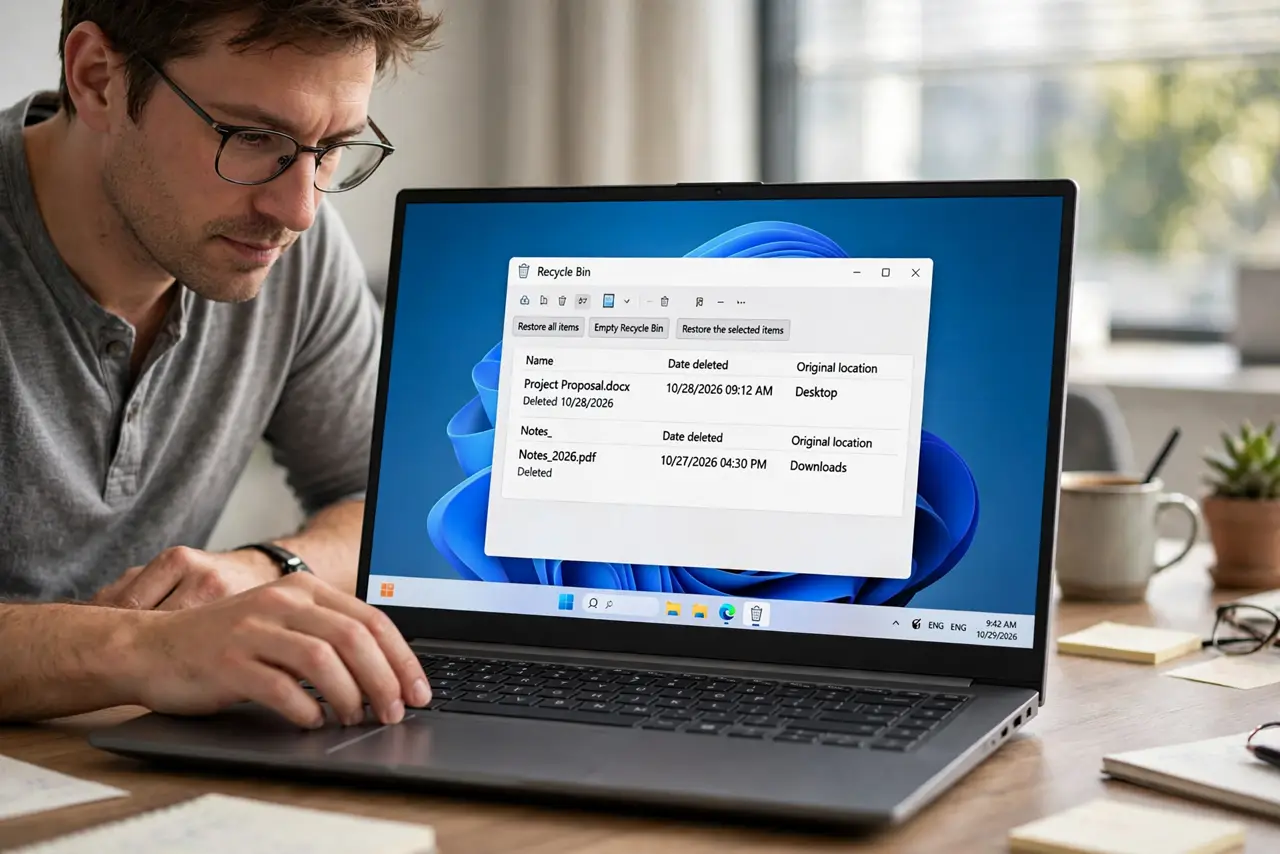
- Check the trash first. Open the trash or recycle bin of the shared drive. Deleted shared files usually sit there for 30 days, and you can see the deletion date and often the name of the person who deleted them.
- Open the activity dashboard. In Google Drive, right-click the folder and choose View details, then Activity. In OneDrive and Dropbox, the file or folder history shows who made each change, including deletions.
- Search for the file name. Use the drive's search box with the file name. A file that looks deleted may have been moved to another folder by a teammate, and search will find it wherever it went.
- Restore the file from trash. Select the file in the trash and click Restore. It returns to its original folder with its sharing settings intact, so nobody needs a new link.
- Ask the team once you know the facts. With the name and date in hand, ask that person what happened instead of blaming the group. Most shared deletions are accidents, like someone cleaning up what they thought was their own copy.
- Prevent the next disappearance. Move files nobody should delete into a view-only folder, or limit who can delete in the shared folder. A short team rule — ask before deleting shared files — stops most repeats.
What NOT to do
- Do not accuse anyone before checking the log. The activity record gives you the name and date, and guessing wrong creates bad feelings for nothing.
- Do not re-upload your own copy over the shared file. A re-uploaded copy breaks existing shared links and version history, so restore the original instead.
- Do not empty the trash while investigating. Emptying it permanently deletes the file and removes your easiest recovery path.
- Do not assume the file was deleted if it simply moved. Search the drive first, because moved files are the most common false alarm.
Frequently asked questions
Can I see who deleted a file in Google Drive?
Yes. Open the trash, right-click the file, and choose View details, or check the folder's activity panel. Drive shows who deleted it and when.
What if the file is not in the trash?
It may be past the retention window, or it was moved rather than deleted. Search the whole drive for the file name, then ask the folder owner or admin to check the admin console.
Does restoring keep the sharing links working?
Yes, if you restore the original file from the trash. The file returns to its folder with its links and permissions intact.