Recycle Bin Icon Missing? Bring It Back
The Recycle Bin icon can vanish after a settings change or a desktop cleanup, even though your deleted files are still inside it. Restoring the icon is a setting, not a recovery job, and it takes under a minute.
TL;DR / Quick Fix
Quick fix: open Settings, then Personalization, then Themes, then Desktop icon settings, and tick Recycle Bin. Click Apply, then check the desktop. If the icon still hides, turn off tablet mode or check whether desktop icons are hidden. Test it once more after a restart to confirm the fix holds.
Follow these steps
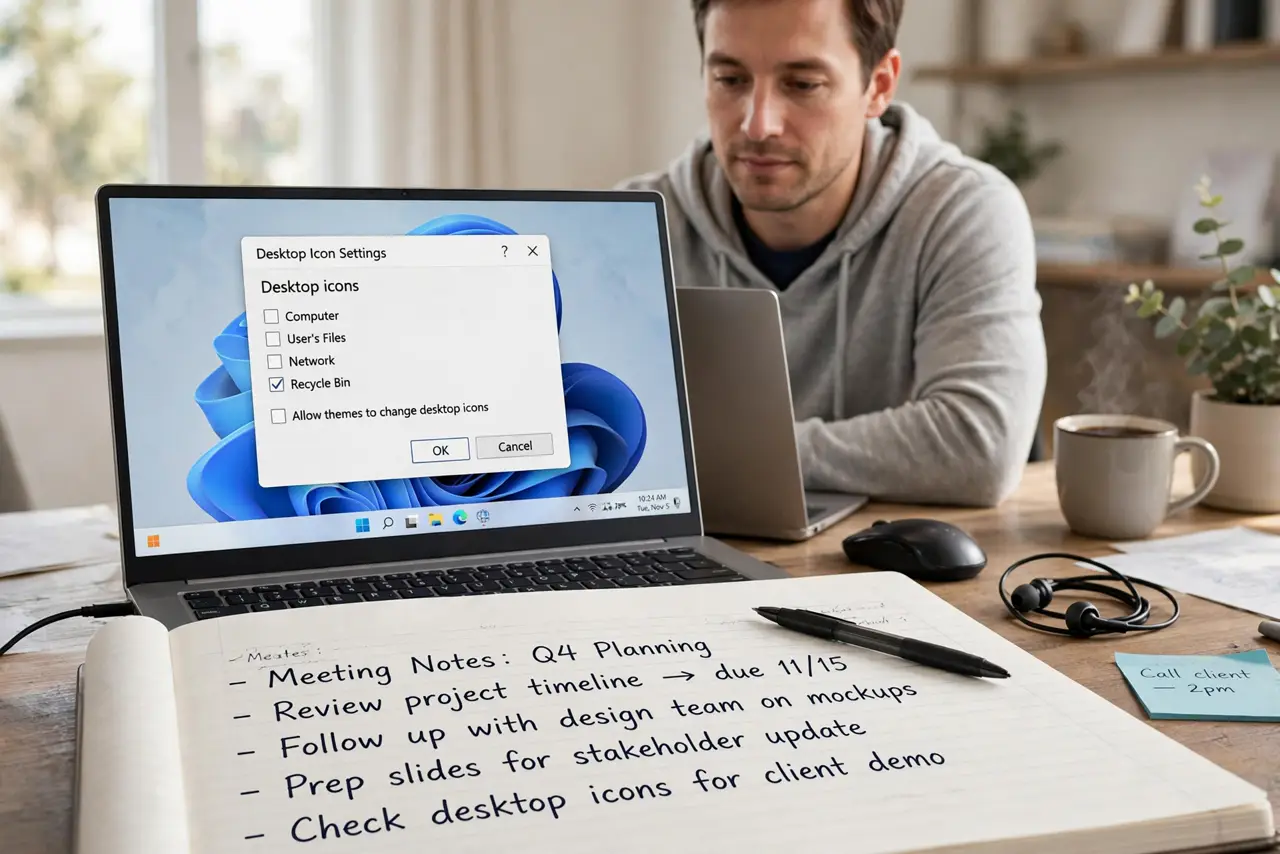
- Open Desktop icon settings. Open Settings, then Personalization, then Themes, then Desktop icon settings. This panel controls which system icons appear on the desktop.
- Tick Recycle Bin and apply. Tick the Recycle Bin box, then click Apply and OK. Check the desktop right away, because the icon should return at once.
- Check that desktop icons are not hidden. Right-click an empty part of the desktop, point to View, and make sure Show desktop icons is ticked. If it is off, every desktop icon hides at once.
- Turn off tablet-style layout if it is on. On a touch device, check that the layout is not hiding desktop icons. Switch back to the normal desktop view and check again.
- Try a different desktop icon position. If the icon returns but sits off screen, right-click the desktop, point to View, and uncheck Auto arrange icons, then drag the icon to a visible spot.
- Confirm the Bin still holds your files. Double-click the restored Recycle Bin and check that your deleted files are listed. Restoring the icon does not delete or restore files by itself.
What NOT to do
- Do not empty the Recycle Bin to fix a missing icon. Emptying deletes the files inside, and that has nothing to do with whether the icon shows.
- Do not delete the Recycle Bin from a cleanup tool. The icon is a system shortcut, and removing it with a tool can make restoring it harder.
- Do not restore every file just to test the icon. Restoring is a separate action, and doing it by accident can clutter folders you just tidied.
- Do not change display scaling to find the icon. Scaling changes text size everywhere and will not bring back a hidden system icon.
Frequently asked questions
Are my deleted files gone if the icon is missing?
No. The files stay in the Recycle Bin until you empty it. Restoring the icon only makes the Bin visible again.
Why did the icon disappear by itself?
Usually a settings change, a desktop cleanup, or hidden desktop icons. The Desktop icon settings panel is the first place to check.
Can I open the Recycle Bin without the icon?
Yes. Open File Explorer and type Recycle Bin in the address bar, or search for it, while you restore the icon.