Set Roblox Parental Controls
Roblox is a universe of millions of player-made games — and millions of strangers playing alongside your child. The parental controls let you lock chat, filter games by age, and set a PIN so settings cannot be quietly undone. Fifteen minutes of setup buys real peace of mind.
TL;DR / Quick Fix
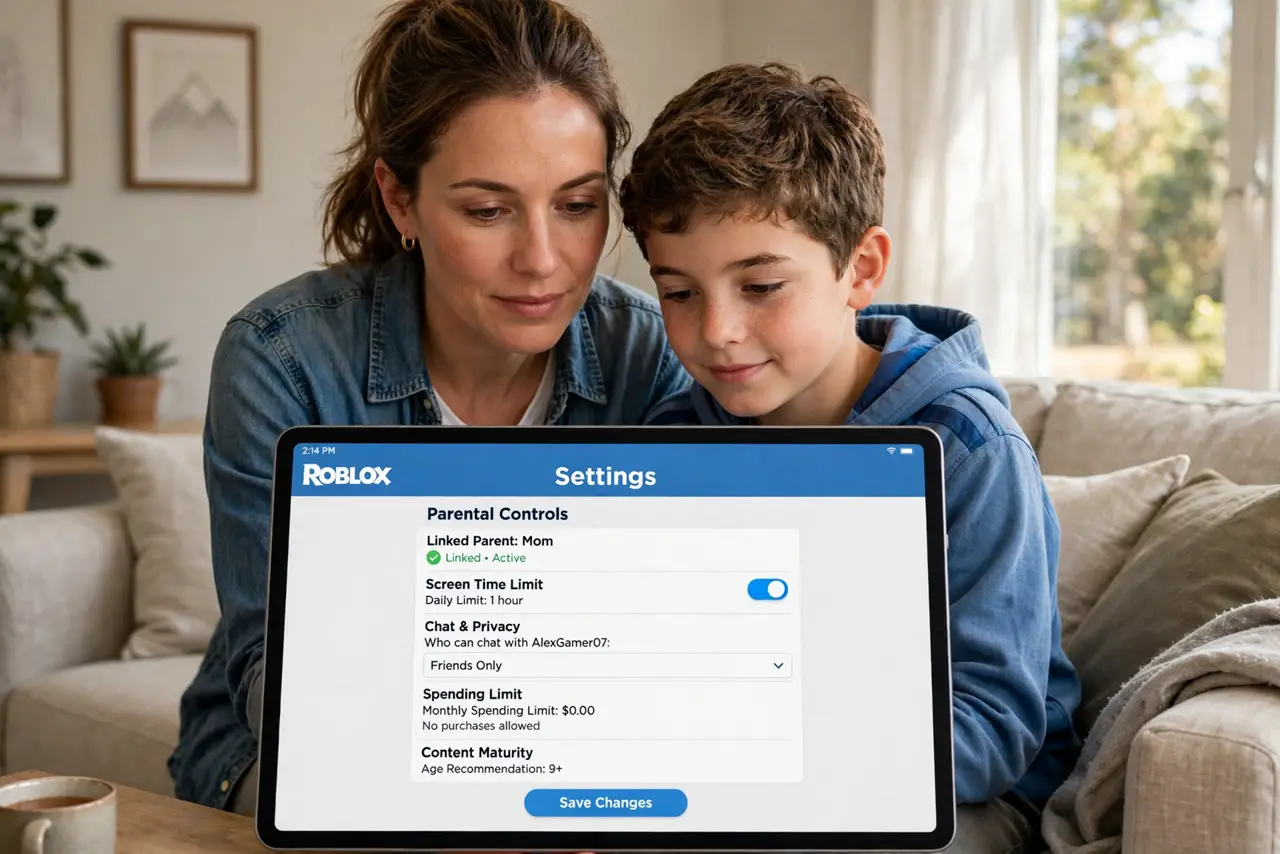
Quick fix: in Roblox, open Settings > Parental Controls and set a PIN only you know — then lock the account restrictions for under-13 settings. Turn off chat or limit it to friends, and review the allowed-experiences age settings together. Check in monthly; updates and new games can loosen things.
Follow these steps
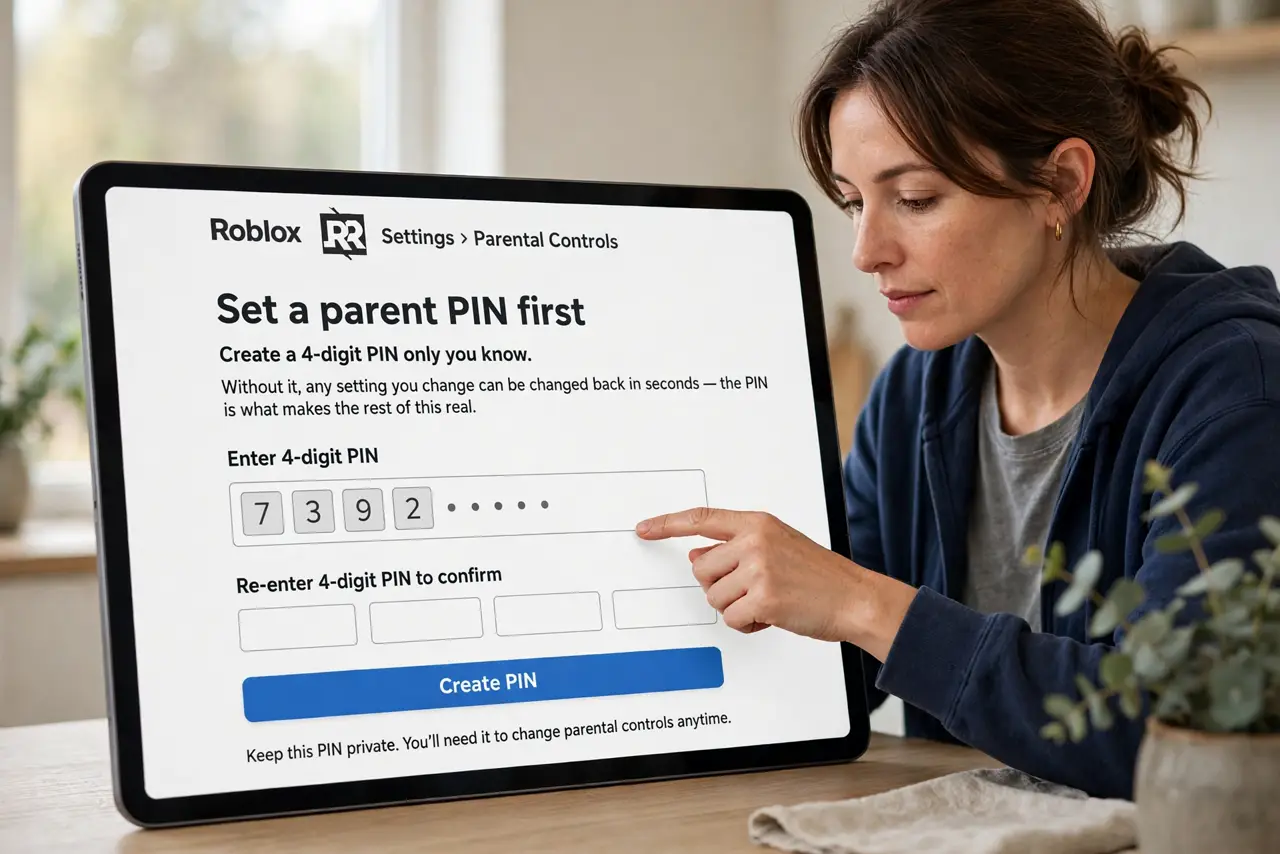
- Set a parent PIN first. In Roblox Settings > Parental Controls, create a 4-digit PIN only you know. Without it, any setting you change can be changed back in seconds — the PIN is what makes the rest of this real.
- Enable account restrictions. Turn on Account Restrictions to lock the account to age-appropriate content. For under-13 accounts this is largely automatic, but verify it — birthdays entered wrong at signup weaken everything downstream.
- Lock down chat. Set chat to No One or Friends only. Open chat with strangers is the main risk vector in Roblox — this one toggle removes most of it. Review the friends list together while you are here.
- Filter experiences by age. Check the allowed-experiences settings so only age-appropriate games appear. Roblox rates experiences; make sure the filter matches your child’s actual age, not the account’s optimistic one.
- Review spending controls. Turn off or limit in-game purchases and remove saved payment methods. Robux spending surprises are the second most common Roblox parent complaint — after chat.
- Schedule a monthly check-in. New games, updates, and curious kids all drift settings over time. Once a month, sit together for five minutes and review — and pair this with Minecraft safety if they play both.
What NOT to do
- Do not skip the PIN. Every other setting is decorative without it — kids learn menus faster than parents do.
- Do not assume ‘friends only’ means safe. ‘Friends’ can be anyone accepted in-game; review the actual friends list, not just the setting.
- Do not leave payment methods saved. One-click Robux purchases are designed to be frictionless — add the friction back.
- Do not set controls and disappear. The monthly conversation matters more than the settings — controls are the excuse, the talk is the point.
Frequently asked questions
Can my child bypass parental controls?
Without the parent PIN, no — that is what the PIN is for. With the PIN kept secret, the settings hold; guard it like a password.
What age is Roblox for?
Roblox rates experiences by age, and the platform is designed for a wide range. The controls let you match the experience to your child — use them actively rather than trusting defaults.
Does Roblox have voice chat?
Some experiences do, with age-gated access. Check the voice settings in parental controls and disable it if you are not comfortable — text chat limits do not automatically cover voice.