Update Router Firmware
Your router quietly runs the software it shipped with — sometimes for years — while security holes get discovered and fixed upstream. Updating firmware patches vulnerabilities, fixes bugs, and occasionally adds features like WPA3. It takes ten minutes and a little care. Here is the safe way to do it.
TL;DR / Quick Fix
Quick fix: update your router's firmware from its admin page — usually under Administration or Advanced settings — to patch security holes and fix bugs. Check quarterly, back up your settings first, and don't unplug the router mid-update. Ten minutes of prevention beats a compromised network.
Follow these steps
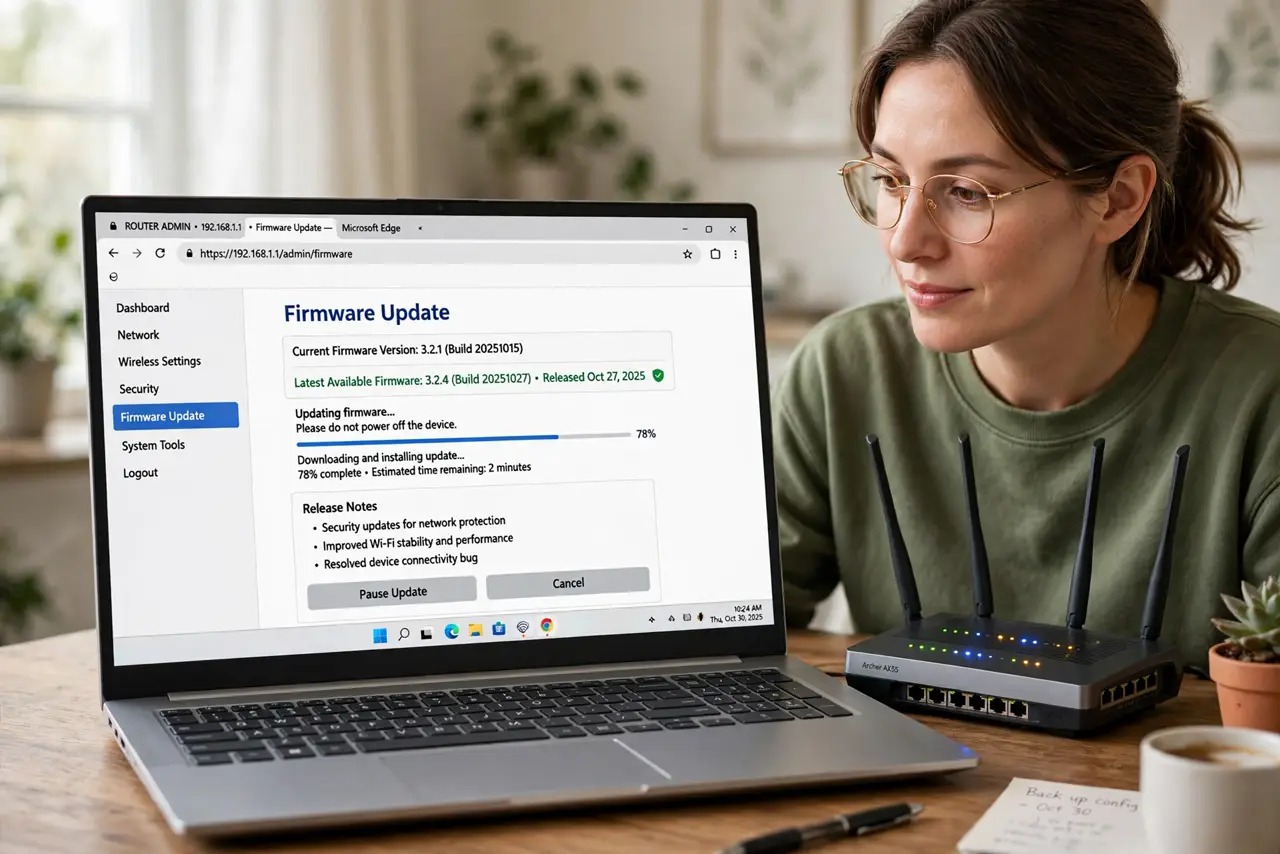
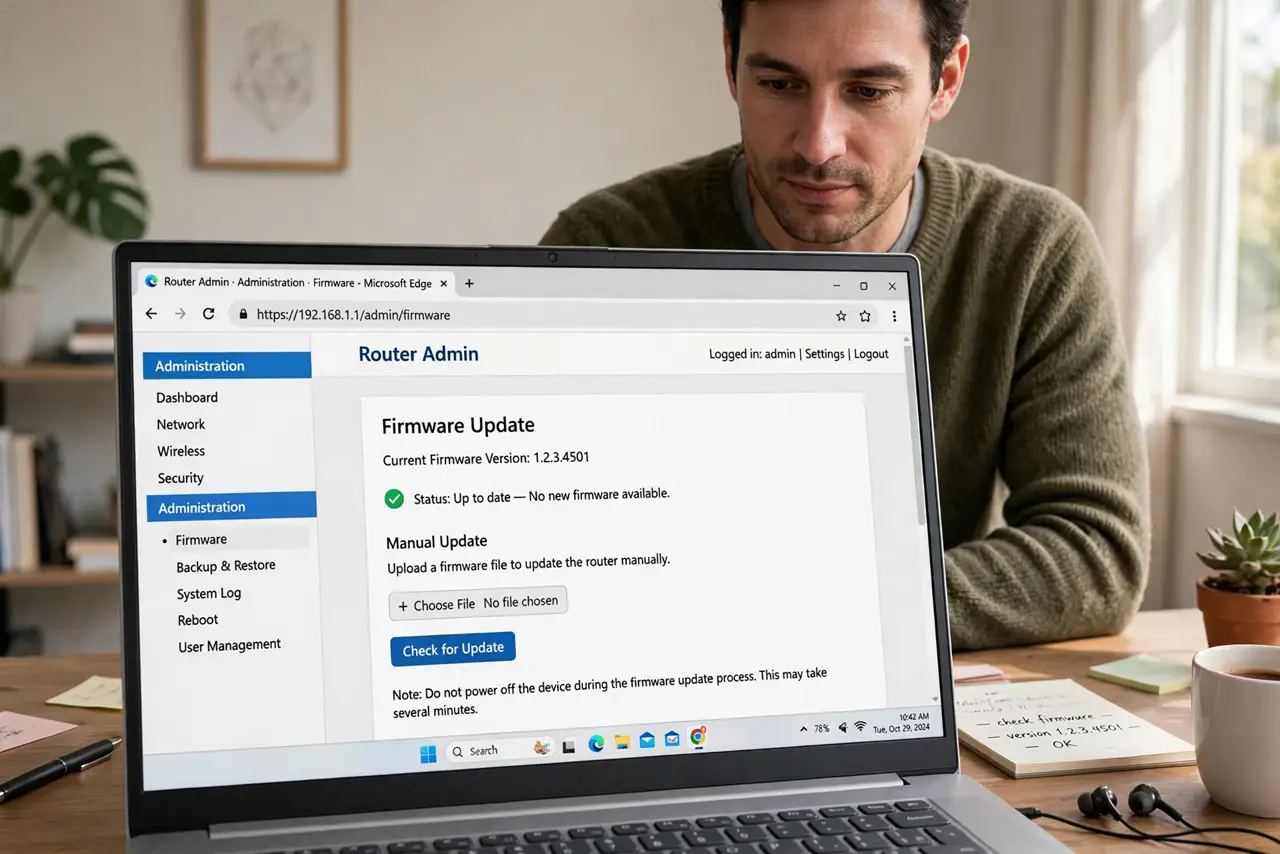
- Find the firmware section. Log in to your router's admin page and look for Administration, Advanced, or System — the firmware update lives there. Many modern routers also offer it in their phone app, which is often the easier path.
- Check the current version first. Note the installed version before updating. If anything misbehaves afterward, knowing the 'before' version helps support — and you — understand what changed. The firmware update troubleshooting starts here too.
- Back up your settings. Export or screenshot your configuration — Wi-Fi names, passwords, port rules, reservations. Updates rarely wipe settings, but 'rarely' is not 'never,' and rebuilding from memory is miserable.
- Run the update and wait. Start the update and leave the router alone — no unplugging, no rebooting, no refreshing the page frantically. Most updates take 5–15 minutes including the reboot. Patience is the entire skill.
- Verify the new version. After the reboot, log back in and confirm the version number changed. Then spot-check: Wi-Fi connects, speeds look right, your custom settings survived. See the router firmware basics if the version scheme confuses you.
- Schedule it quarterly. Put a recurring reminder every three months. Router makers do not always auto-update, and the unpatched months are when the known vulnerabilities pile up.
What NOT to do
- Do not unplug the router mid-update. Interrupting a firmware flash can brick the device — the single most important rule of this whole guide.
- Do not update over Wi-Fi if you can avoid it. A dropped wireless connection mid-flash is the classic brick cause — use an Ethernet cable for the update session.
- Do not skip the settings backup. Updates that reset to factory defaults are rare but real, and they always happen to people without backups.
- Do not install firmware from random forums. Use the maker's official site or the router's built-in updater — third-party firmware is a separate, advanced decision.
Frequently asked questions
Will updating reset my settings?
Usually not — settings normally survive. But 'usually' is why the backup step exists; it takes a minute.
My router says no updates available — am I safe?
If the maker still supports the model, yes. If the model is years past support, 'no updates' means abandoned — consider replacing it.
Should I enable auto-update?
Yes, if your router offers it and you trust the maker. Auto-update closes the gap between patch release and your installation to zero.