Parental Controls Block a School Site? Fix It
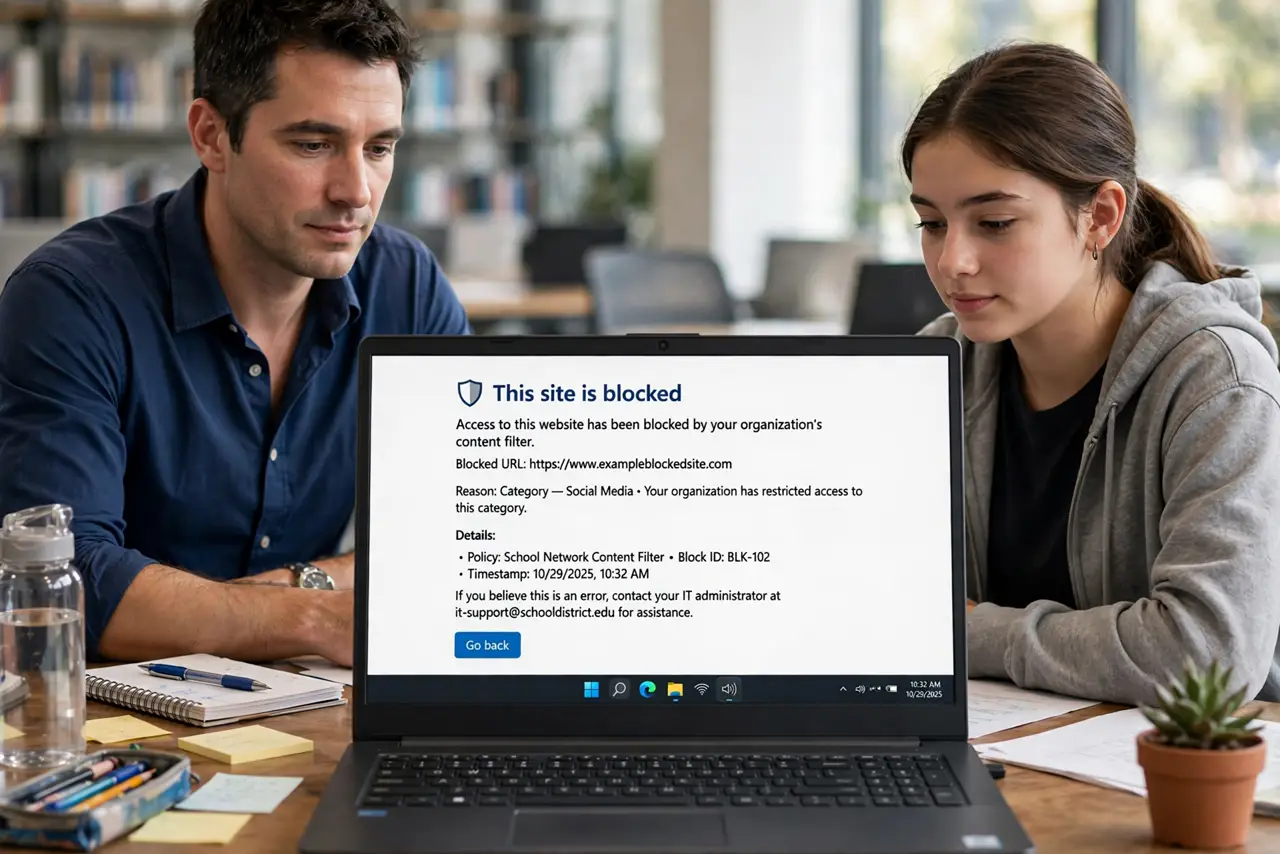
A school site will not load, while other sites work fine, and the block page names a filter or category. The router filter, a device filter, or a time rule is blocking the school domain, often because its category is too broad.
TL;DR / Quick Fix
Quick fix: find which filter shows the block, whether router or device, and add the exact school site to its allowed list. Then check time rules and categories, and test the site again on the blocked device. Write down what worked for next time.
Follow these steps
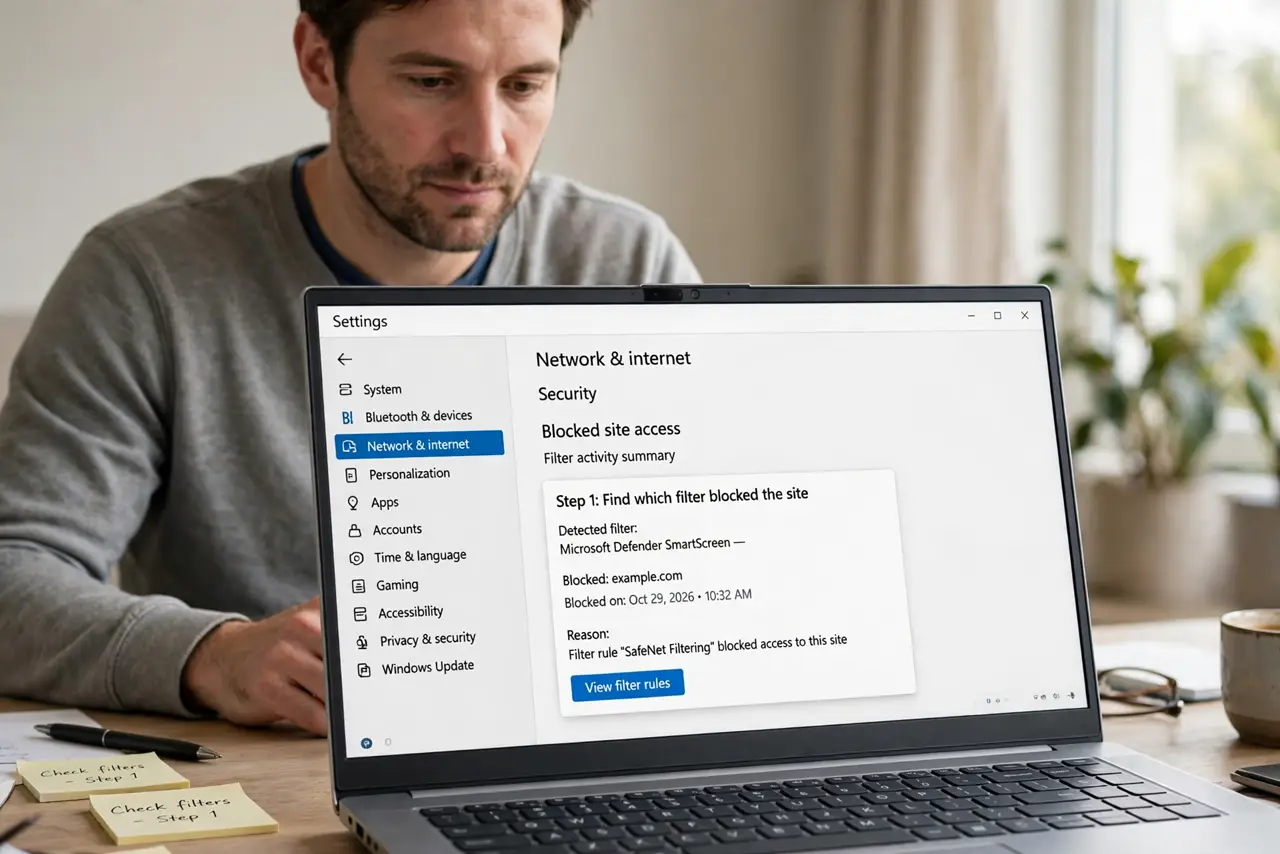
- Find which filter blocked the site. Read the block page and check whether the router filter or a device app blocked it. Fixing the wrong filter leaves the real block in place.
- Add the exact school site to the allowed list. In the blocking filter, add the school site address exactly as the school gives it, including any subdomain. A close but different address will still be blocked.
- Check the category filter. If the filter blocks by category, check which category caught the school site, such as video or games. Narrow the category or allow the site, rather than turning the whole filter off.
- Check time and schedule rules. Confirm no time rule blocks the site at homework time. A schedule that blocks evenings can look like a site ban, when it is really a clock rule.
- Test on the blocked device. Test the school site on the exact device and account that was blocked. Filters differ by device and account, so a fix on one device may not apply to another.
- Ask the school or account holder if stuck. If you do not control the filter, ask the account holder or the school IT contact for help. Only the filter owner can allow a site on a filter you do not control.
What NOT to do
- Do not turn off all parental controls to reach one school site. Allowing that one site keeps protection for everything else.
- Do not use a proxy or bypass trick to reach a blocked school site. Bypasses break the household rules and can expose the device to unsafe sites.
- Do not allow a lookalike school address. Confirm the exact address with the school, since a similar address may not be the school at all.
- Do not change filter settings on a device you do not own. Ask the account holder, since changing someone else's filter without permission breaks trust.
Frequently asked questions
Why is only the school site blocked?
A filter category or allowed-list gap caught that one domain, while other sites pass. Allowing the exact school address fixes it.
Should I turn off parental controls for homework?
No. Allow the school site inside the filter, so homework works and protection stays on.
What if I do not control the filter?
Ask the account holder or the school IT contact. Only the filter owner can change its allowed list.