Prioritize Gaming Traffic
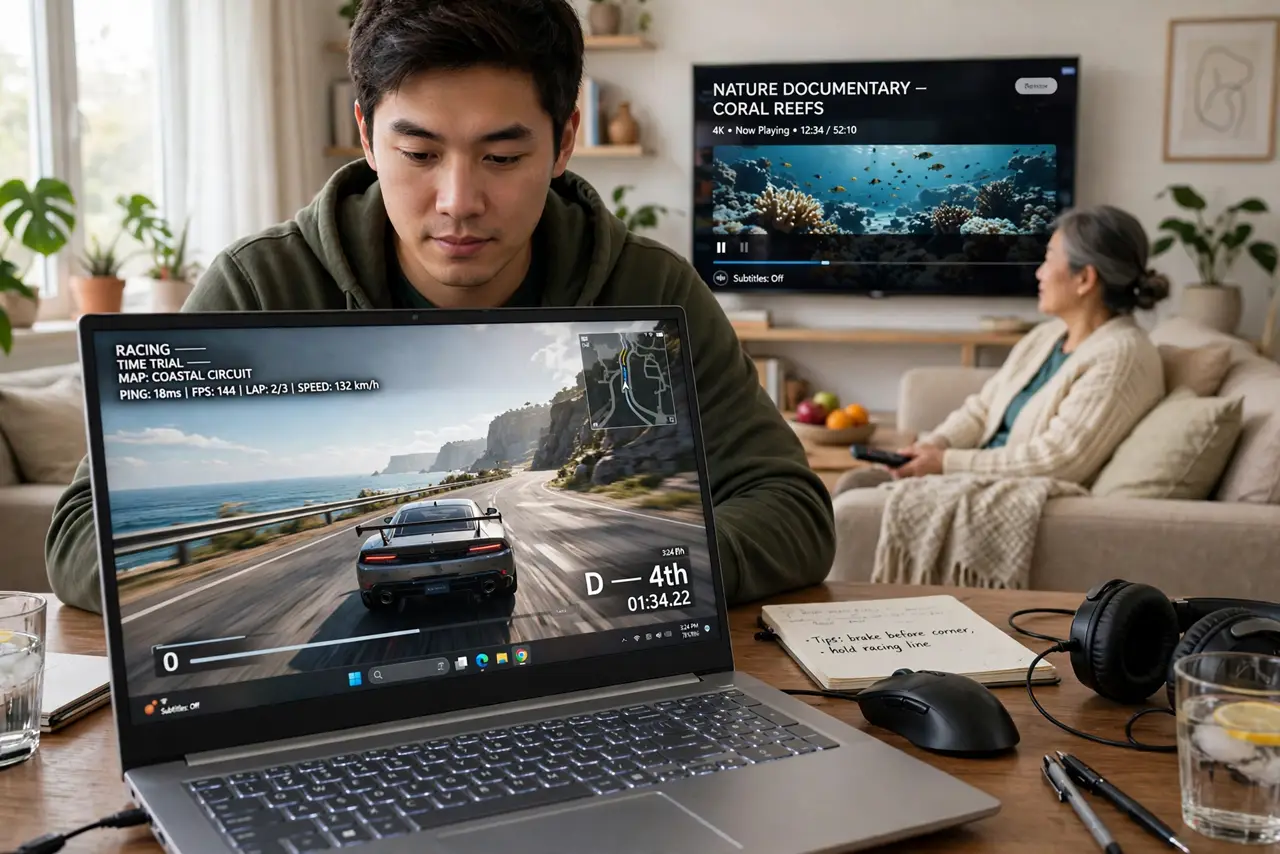
Your game lags every evening — right when the family starts streaming video. The problem is not your internet speed; it is that every device fights equally for it. Quality of Service (QoS) tells your router to put gaming traffic first. This guide shows how to switch it on without breaking everything else.
TL;DR / Quick Fix
Quick fix: log into your router's admin page and find the QoS or traffic prioritization setting. Turn it on and set your gaming PC or console as the highest-priority device, or choose the Gaming preset. Evening lag shrinks because your game packets jump the queue ahead of video streams.
Follow these steps
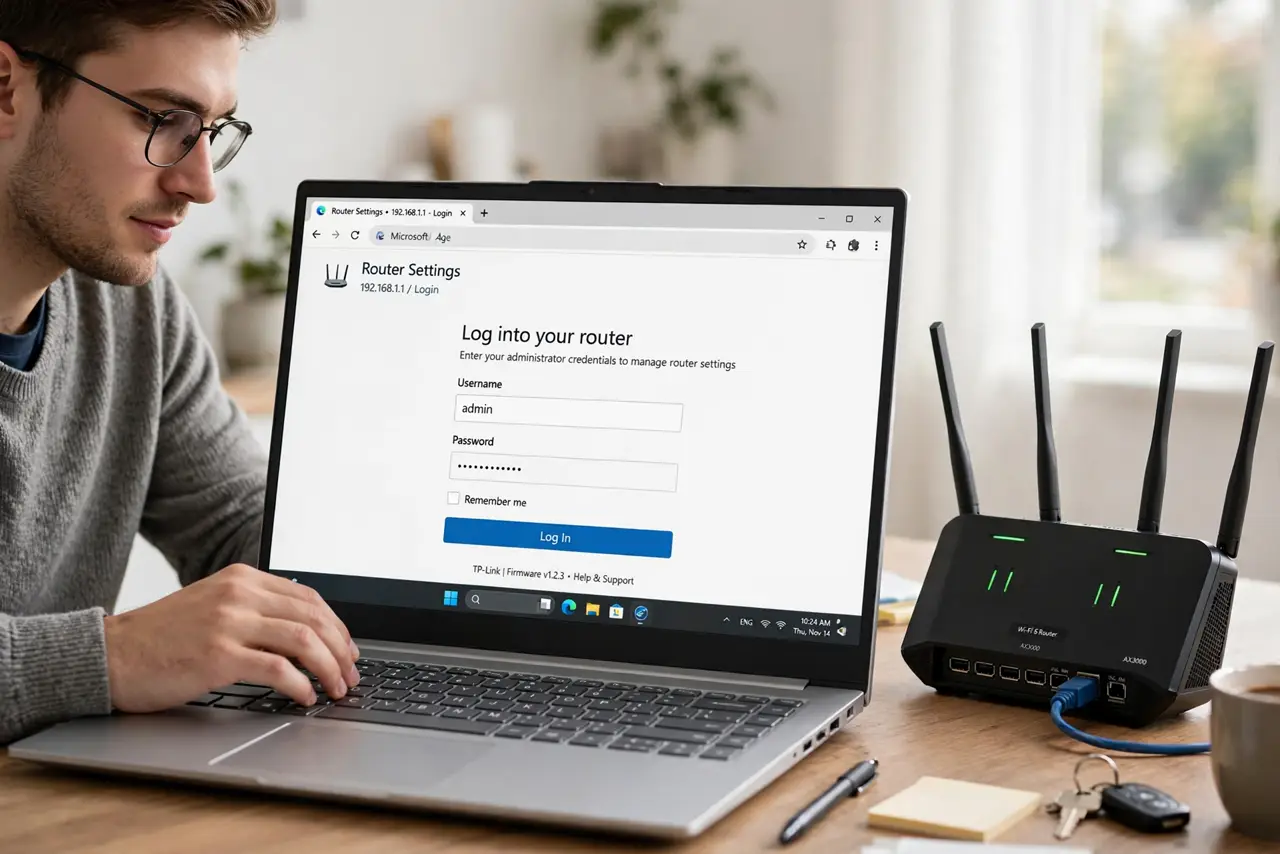
- Log into your router. Open a browser and enter your router's admin address — usually printed on the router's sticker. Sign in with the admin password, not the Wi-Fi password.
- Find the QoS setting. Look under Advanced, Traffic Control, or a Gaming section for QoS, traffic prioritization, or media prioritization. See your router's QoS basics if the menu looks unfamiliar.
- Turn QoS on. Enable it — on many routers it is off by default. Without this switch, every device's traffic is treated equally and gaming loses the fight.
- Prioritize your gaming device. Add your PC or console by its device name or MAC address and set it to highest priority. Alternatively, pick the Gaming or Low Latency preset if your router offers one.
- Set sensible bandwidth limits. If QoS asks for your total speeds, enter about 90% of your plan's actual speed — this gives the router room to manage the queue properly.
- Test during the busy hour. Play in the evening while the family streams, as usual. If lag spikes are gone or smaller, the prioritization is working — tweak the device priority if not.
What NOT to do
- Do not prioritize every device. QoS only works by choosing winners — if everything is high priority, nothing is.
- Do not expect QoS to fix a slow plan. It manages sharing of your speed; it cannot create speed you do not pay for.
- Do not enable QoS and forget it. A new console or PC needs adding to the priority list, or it games unprotected.
- Do not confuse QoS with port forwarding. They solve different problems — QoS manages traffic priority; port forwarding opens network paths.
Frequently asked questions
Will QoS slow down everyone else?
Slightly, during congestion — that is the point. Streaming video buffers a little earlier so your game's packets get through first. Normal browsing barely notices.
My router has no QoS setting. Now what?
Some basic routers omit it. A gaming preset in a newer router, or upgrading to one with QoS, is the fix — check before buying.
Is QoS the same as a gaming VPN?
No — and a VPN usually adds lag rather than removing it. QoS prioritizes locally; it does not route your traffic anywhere.