Prioritize Work Calls
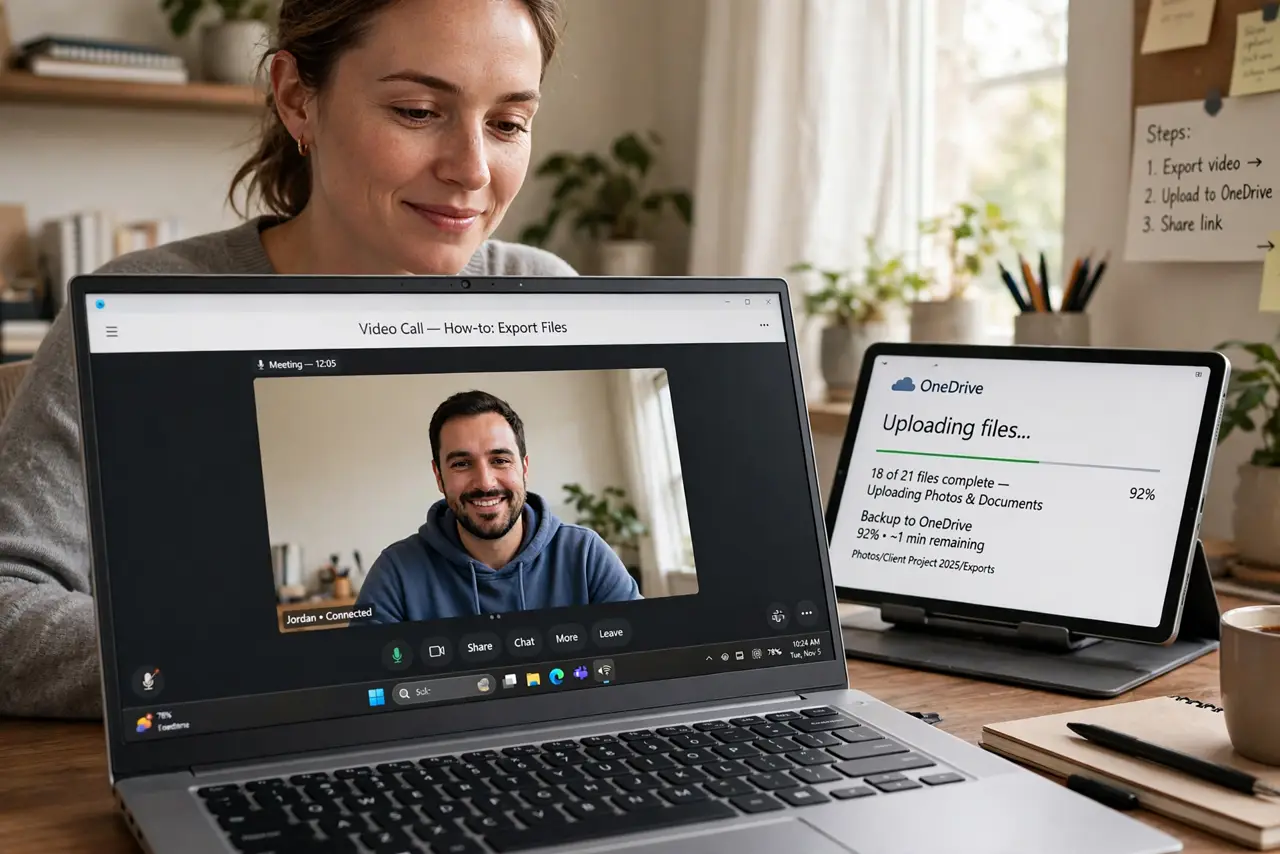
Your video calls stutter and freeze every time someone uploads photos or the cloud backup kicks in. Uploads hog the connection's upstream, and your call packets get stuck behind them. QoS — Quality of Service — lets your router put call traffic first. This guide sets it up for stable work calls.
TL;DR / Quick Fix
Quick fix: log into your router's admin page and enable QoS or traffic prioritization. Prioritize your work laptop, or choose a Work-from-home or Video Conferencing preset if offered. Your calls then jump ahead of uploads and streams in the queue, ending the freeze-every-upload pattern.
Follow these steps
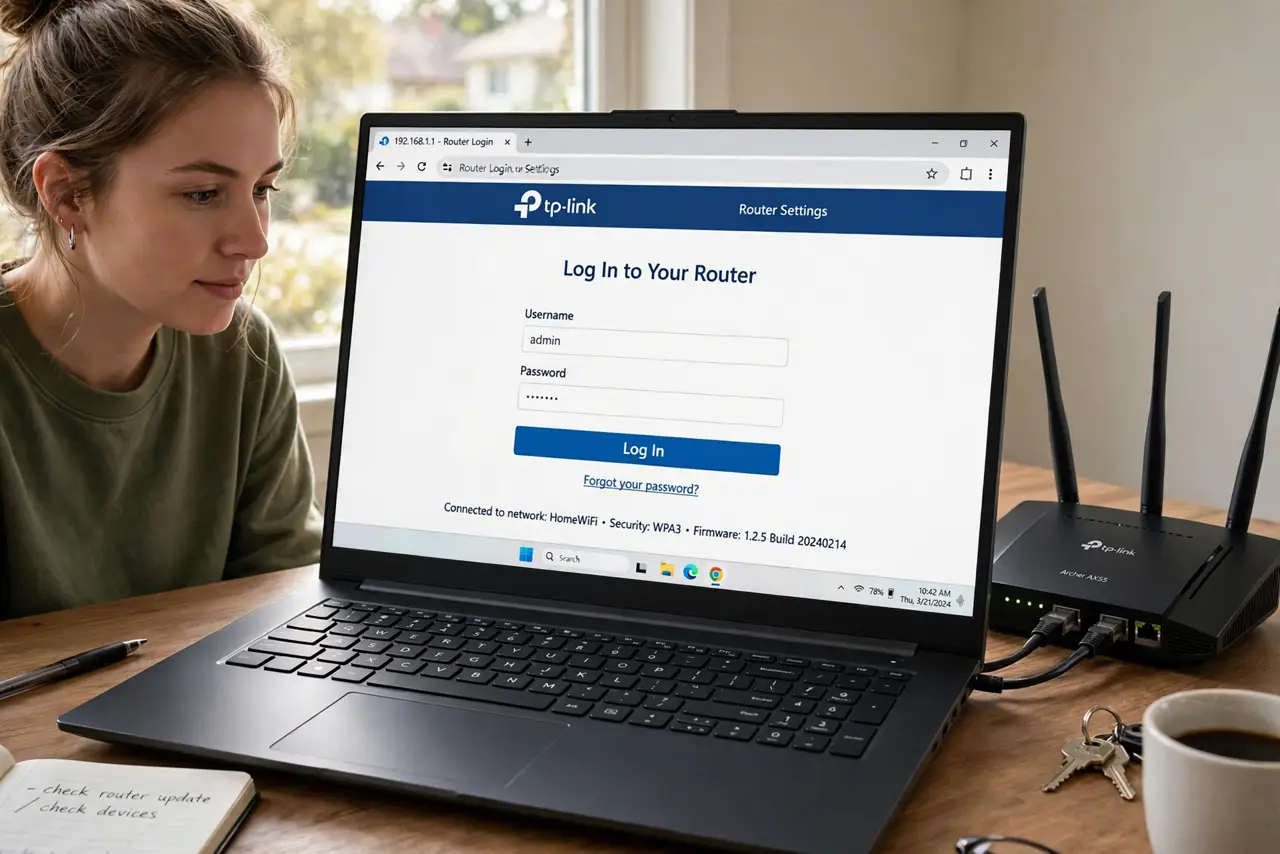
- Log into your router. Enter the router's admin address from its sticker into a browser, and sign in with the admin password — not the Wi-Fi password.
- Find the QoS setting. Look under Advanced settings for QoS, traffic prioritization, or a Work-from-home preset. The exact name varies — see the QoS overview if your menu looks different.
- Enable QoS. Turn it on. Many routers ship with it off, treating a cloud backup and your video call as equally important — which is exactly the problem.
- Prioritize your work device or call apps. Add your laptop as a high-priority device, or prioritize video-conferencing traffic if the router lists applications. Either approach puts calls first.
- Cap the upload hogs if needed. Some routers let you limit bandwidth per device. Capping the backup machine's upload speed leaves headroom for calls without stopping the backup.
- Test during a real upload. Start a big upload and join a test call. If your video stays smooth while the upload runs, the prioritization is doing its job.
What NOT to do
- Do not prioritize everything. QoS works by choosing — if every device is high priority, your calls gain nothing.
- Do not expect QoS to fix a tiny upload speed. If your plan's upload is very slow, prioritization helps but cannot create bandwidth.
- Do not forget new devices. A new work laptop needs adding to the priority list, or it calls unprotected.
- Do not confuse this with buying more speed. A faster plan helps everything; QoS specifically protects calls during congestion.
Frequently asked questions
Will this slow down my family's streaming?
Only during congestion, and only slightly — video buffers handle brief deprioritization gracefully, while live calls cannot.
Do I need QoS if I have fiber?
Fast fiber rarely congests, so you may never notice. It still helps on the upload side during big backups.
Can my work VPN break QoS?
A VPN encrypts traffic so the router cannot see it is a call — prioritize the laptop device itself rather than the application in that case.