Secure Boot Keys Explained
Deep in your BIOS sits Secure Boot, and deeper still are its keys — the cryptographic signatures that decide which software your PC trusts at startup. Most people should never touch them. But dual-booters and tinkerers meet key questions eventually. This guide explains what the keys are and when custom ones make sense.
TL;DR / Quick Fix
Quick fix: Secure Boot uses cryptographic keys to verify your system boots only trusted software. Most users should leave the default Microsoft keys alone — they just work. Custom keys matter only for Linux dual-booters or organizations signing their own bootloaders. Do not clear keys unless you know exactly why.
Follow these steps
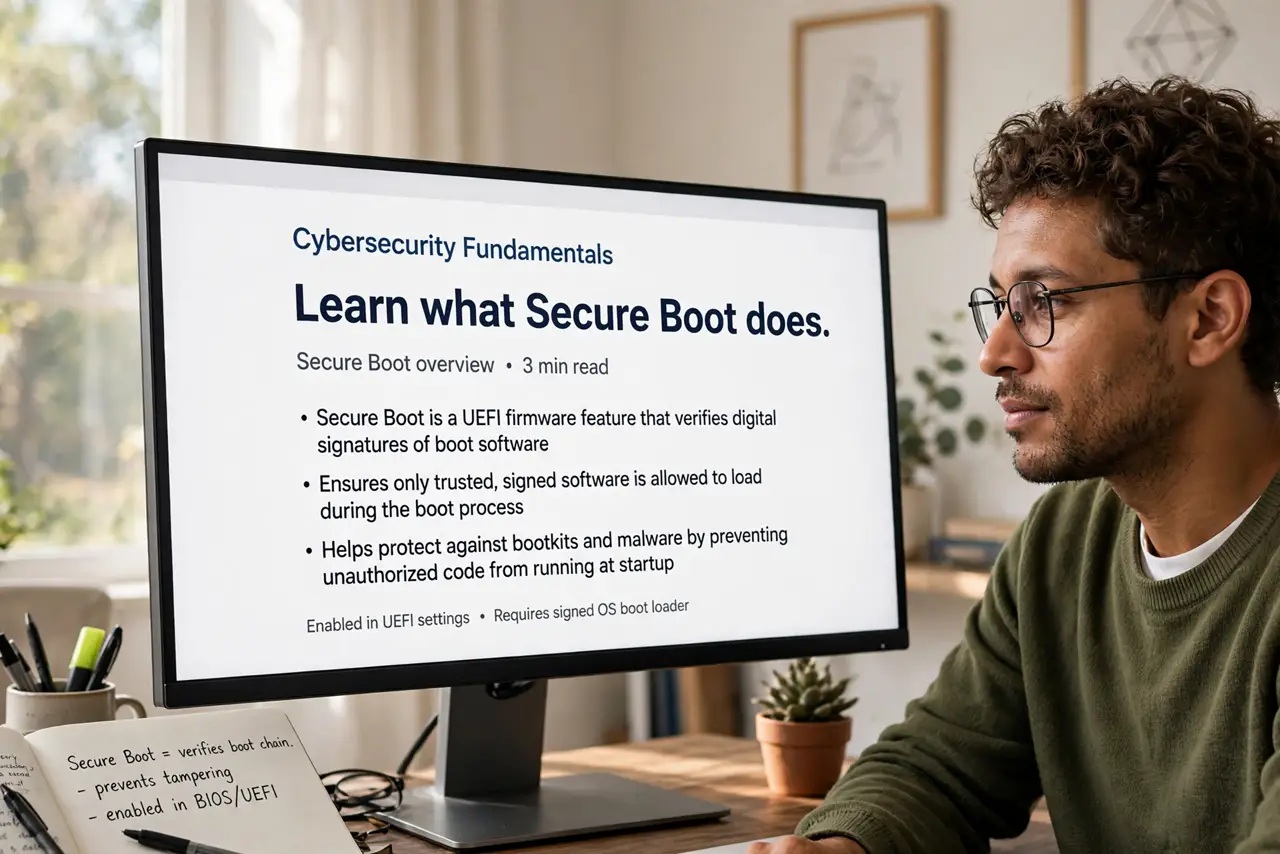
- Learn what Secure Boot does. At startup, your PC checks each boot component's signature against its keys. Unsigned or tampered code — like most boot malware — gets refused before it can run.
- Meet the default keys. Microsoft's keys ship with virtually every PC and trust Windows and major Linux distributions' signed bootloaders. For standard use, these defaults are exactly right.
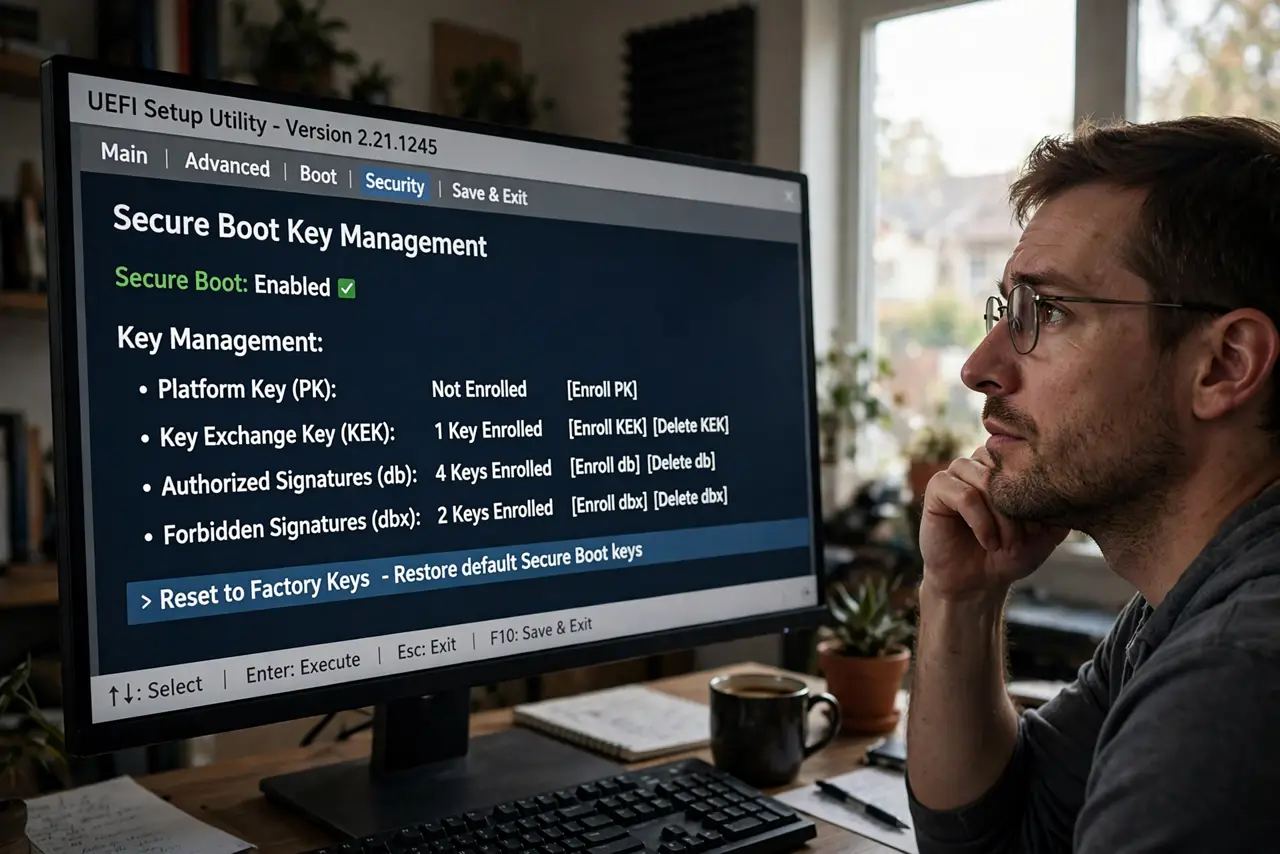
- Understand Platform Key and KEK. The Platform Key owns the system; the Key Exchange Key updates the signature database. You do not need to manage them — just know they are why clearing keys is drastic.
- Know when custom keys matter. Linux users with self-compiled kernels, or organizations signing their own bootloaders, enroll their own keys (Machine Owner Keys). Everyone else: skip this.
- Enroll a MOK carefully if you must. Linux distributions guide you through enrolling a Machine Owner Key at install. Follow the distribution's steps exactly — improvising in key management is how unbootable systems happen.
- Never clear keys casually. Clearing returns the system to setup mode with no trusted keys — nothing boots until you fix it. If a guide says 'clear Secure Boot keys' without explaining why, close the guide. Pair with TPM basics for the full boot-security picture.
What NOT to do
- Do not disable Secure Boot to install random software. Disabling removes a real protection layer — find signed alternatives instead.
- Do not clear keys unless you have a specific, understood reason. 'Setup mode' sounds harmless and bricks bootability.
- Do not mix key advice across vendors. ASUS, MSI, and Lenovo phrase key management differently — follow your board's manual.
- Do not assume Secure Boot equals antivirus. It guards the boot chain only; Windows still needs its normal protections.
Frequently asked questions
Does Secure Boot slow down my PC?
No — verification adds milliseconds at startup. There is no runtime performance cost.
Why does Linux ask about Secure Boot?
Some distributions need you to enroll their key or disable Secure Boot. Major ones (Ubuntu, Fedora) work with it enabled.
Can malware bypass Secure Boot?
Sophisticated attacks have, historically — it raises the bar enormously but is not magic. Keep everything updated.