Email Headers? Spot Spoofing
An email says it's from your bank, the logo looks right, but something feels off. Email headers — the hidden technical routing info behind every message — reveal where it really came from. Learning to read the few lines that matter lets you catch spoofed senders that look perfect on the surface.
TL;DR / Quick Fix
Quick fix: in Gmail, open the message, click the three dots, and choose Show original; in Outlook, open message options to see headers. Check that the From domain matches the Return-Path and that SPF/DKIM show 'pass'. A mismatch means the sender is faked.
Follow these steps
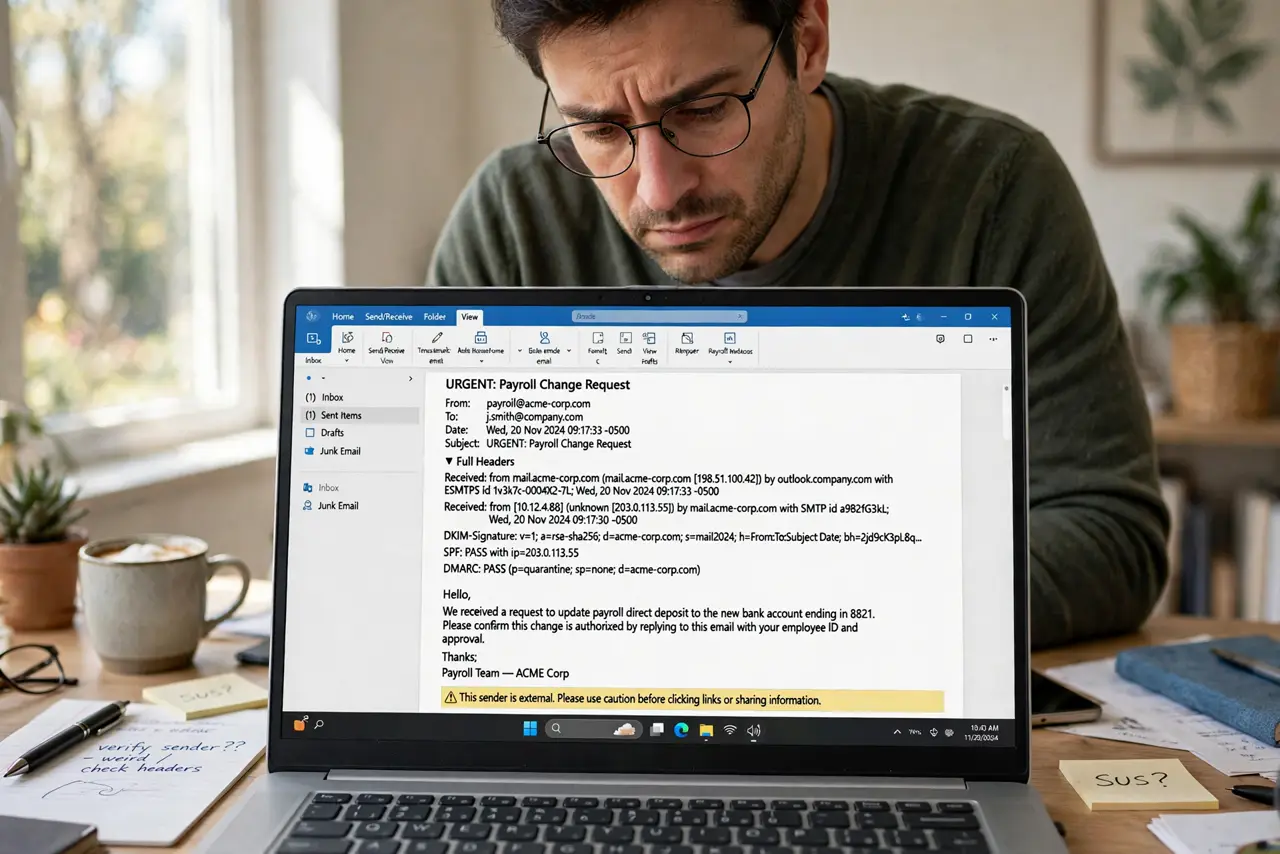
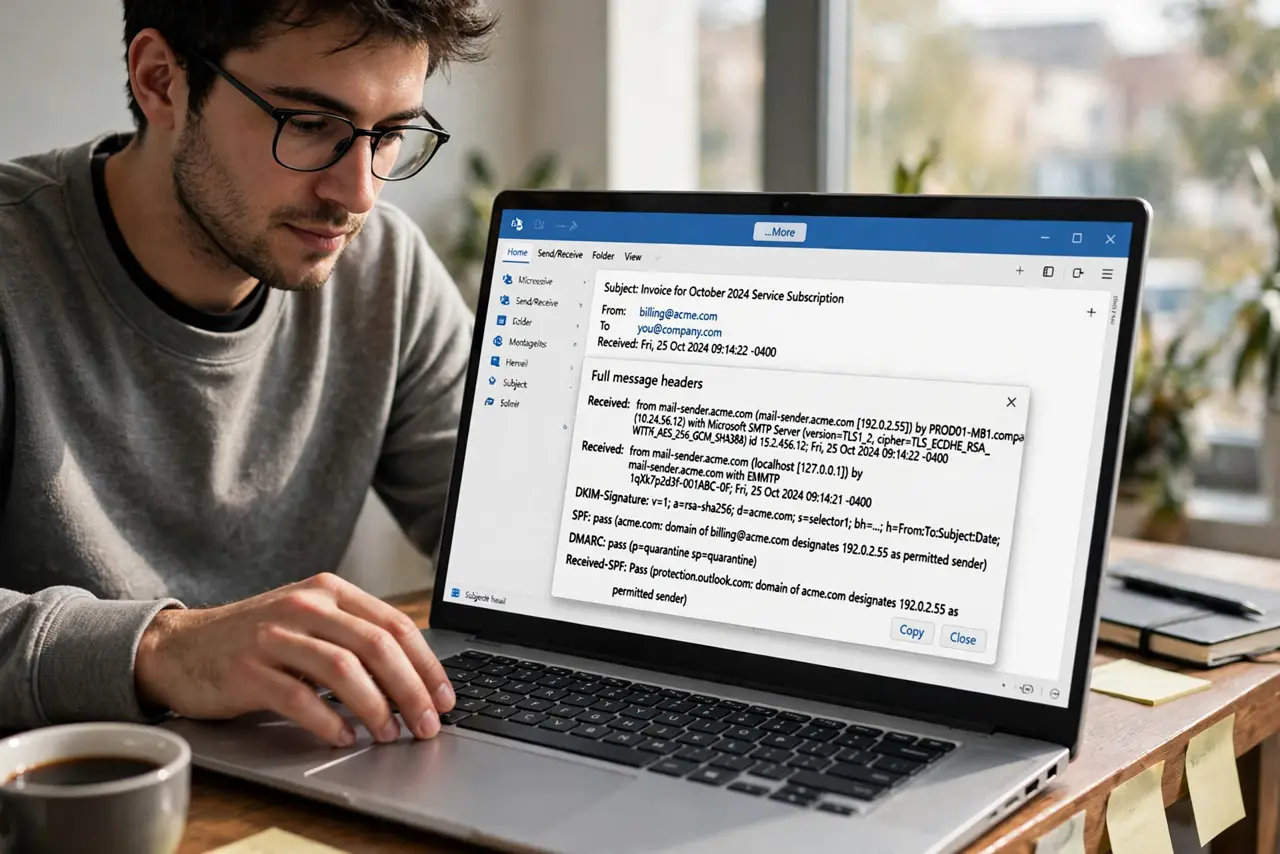
- Open the full headers. In Gmail: three-dot menu, Show original. In Outlook: File, Properties or message options. In Apple Mail: View, Message, All Headers. The wall of text that appears is the email's travel log.
- Read the Received chain bottom-up. Each Received line is a server the message passed through, newest at top. A legitimate bank email comes through the bank's servers — a spoofed one shows an unrelated server at the bottom of the chain.
- Compare From with Return-Path. The From line is what you see; Return-Path is where bounces go. If the visible From says your bank but the Return-Path is a random domain, the sender address is forged.
- Check SPF, DKIM, and DMARC results. These authentication lines show whether the sending server was authorized. Look for spf=pass and dkim=pass — failures here are a strong spoofing signal, and see spoofed sender names for the display-name trick.
- Look at Reply-To. A mismatched Reply-To is a classic phish tell: the From looks legitimate but replies go to the attacker's address. Legitimate companies rarely set a Reply-To on a different domain.
- When in doubt, don't engage. Headers confirm suspicion but aren't required to act on it — if anything looks wrong, delete the message and contact the company directly. See bank impersonation patterns for what to do next.
What NOT to do
- Do not reply to a suspicious email to 'test' it. Replying confirms your address is active and invites more phishing — just delete it.
- Do not click links in the email to verify it. That's exactly what the attacker wants — verify through the company's real site or app instead.
- Do not assume a pass on SPF means the email is safe. Attackers can pass authentication on their own domains — the domain itself must be the real company's.
- Do not forward the raw headers carelessly. Full headers contain your email address and IP — fine for IT support, not for public forums.
Frequently asked questions
Can headers be faked too?
The earliest Received lines can be forged by the sender, but each server adds its own line on top that the attacker can't fake. Read the chain from the top (your provider's servers) down for the trustworthy part.
What does 'via' mean next to the sender in Gmail?
It means the From domain doesn't match the actual sending service — Gmail is flagging a mismatch for you. Treat 'via' as a yellow flag and inspect before trusting.
Do I need to check headers on every email?
No — only when something feels off: unexpected requests, urgency, odd wording. For everyday mail from known contacts, the normal spam filters handle it.