Secure Your Home Wi-Fi?
Your home Wi-Fi is the front door to everything — your bank logins, your photos, your smart home. Most routers ship with settings that are merely okay, and a few quick changes close the biggest holes: the admin password, the encryption, and who gets on the network. This checklist walks through the fixes that actually matter, in order.
TL;DR / Quick Fix
Quick fix: secure your home Wi-Fi by changing the router's admin password, using WPA2 or WPA3 encryption with a strong Wi-Fi password, and updating the firmware. Add a guest network for visitors and smart gadgets. These four changes close the biggest real-world holes.
Follow these steps
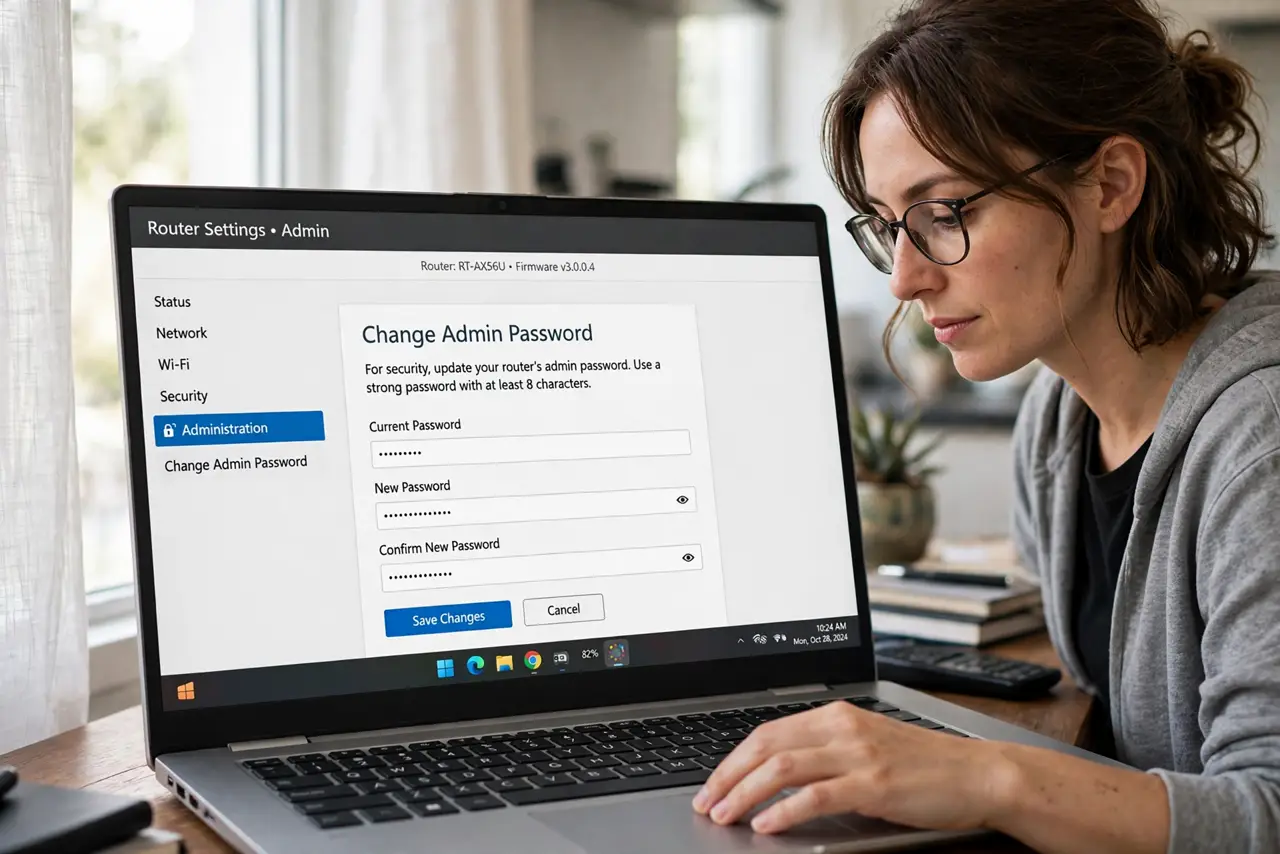
- Change the router admin password. The admin login printed on the router is the same for thousands of units — change it first, since anyone on your network could otherwise reconfigure everything. See the default login guide for how.
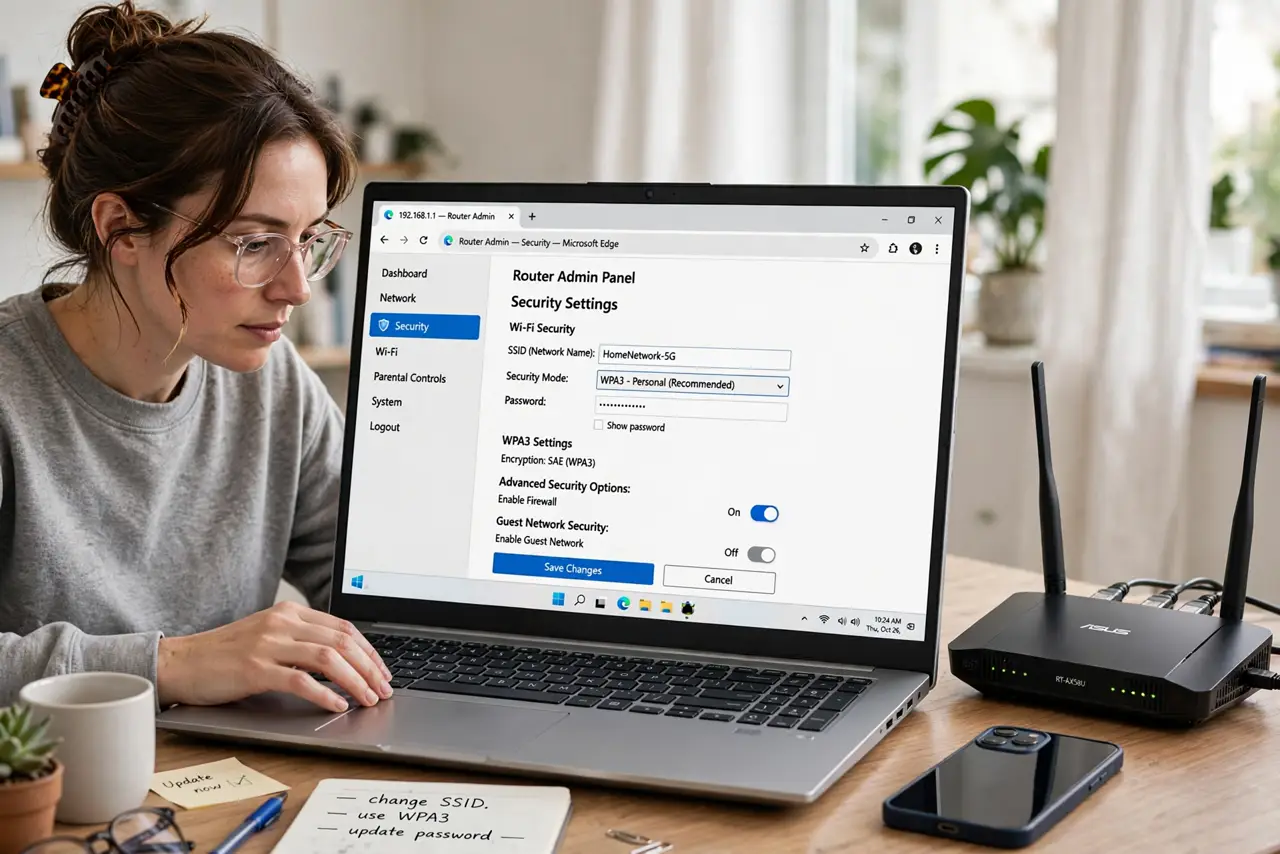
- Use WPA2 or WPA3 with a strong password. In the wireless settings, set encryption to WPA2-Personal or WPA3-Personal and choose a long, unique Wi-Fi password. Never use WEP or open networks — both are trivially crackable.
- Update the router firmware. Outdated firmware is the most exploited router weakness. Check for updates in the admin panel or enable automatic updates if offered.
- Set up a guest network. A separate guest network keeps visitors and cheap smart gadgets isolated from your computers and files. It takes two minutes and removes a whole class of risk.
- Turn off remote administration. Unless you truly manage the router from away, disable remote/WAN admin access. An internet-exposed login page is an invitation to automated attacks.
- Review connected devices occasionally. Glance at the device list every few months. Unknown devices mean a leaked password — change it and re-check.
What NOT to do
- Do not keep the default admin password. It is public knowledge — the single most important change on this list.
- Do not use WEP or no encryption. Both are broken; WPA2 or WPA3 is the minimum.
- Do not share your main Wi-Fi password widely. Guests and gadgets go on the guest network — that is what it is for.
- Do not ignore firmware updates. An unpatched router is the easiest target on your whole network.
Frequently asked questions
How do I know if someone is using my Wi-Fi?
Check the connected-devices list in your router's admin panel for unfamiliar names. Unknown devices mean it is time to change the Wi-Fi password.
Is hiding my network name (SSID) useful?
Barely — it does not stop anyone determined and makes your own devices work harder. A strong password matters; a hidden name does not.
Should I use WPA3?
Yes if all your devices support it; it is stronger than WPA2. If older gadgets refuse to connect, WPA2/WPA3 mixed mode is the practical compromise.