Make Instagram Private?
Going private on Instagram means only approved followers see your posts, stories, and reels — strangers get a locked door instead of an open window. It is the single biggest privacy lever on the platform, and it takes thirty seconds. This guide shows how to switch, what stays public, and what to review afterward.
TL;DR / Quick Fix
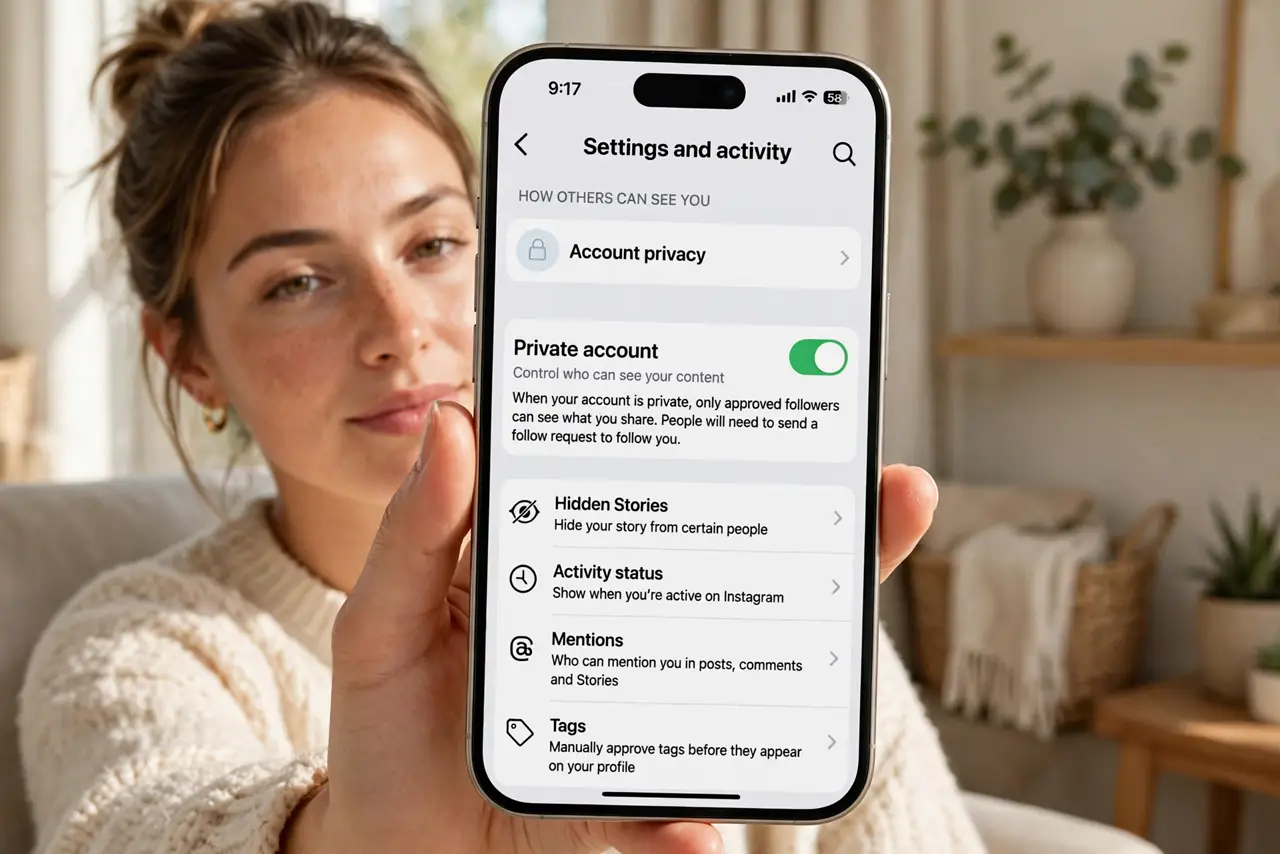
Quick fix: make Instagram private under Settings, Privacy, Account privacy — toggle Private account on. Only approved followers see your posts and stories. Existing followers stay. Review your follower list after switching and remove anyone you do not recognize. Private does not hide your profile photo or bio.
Follow these steps
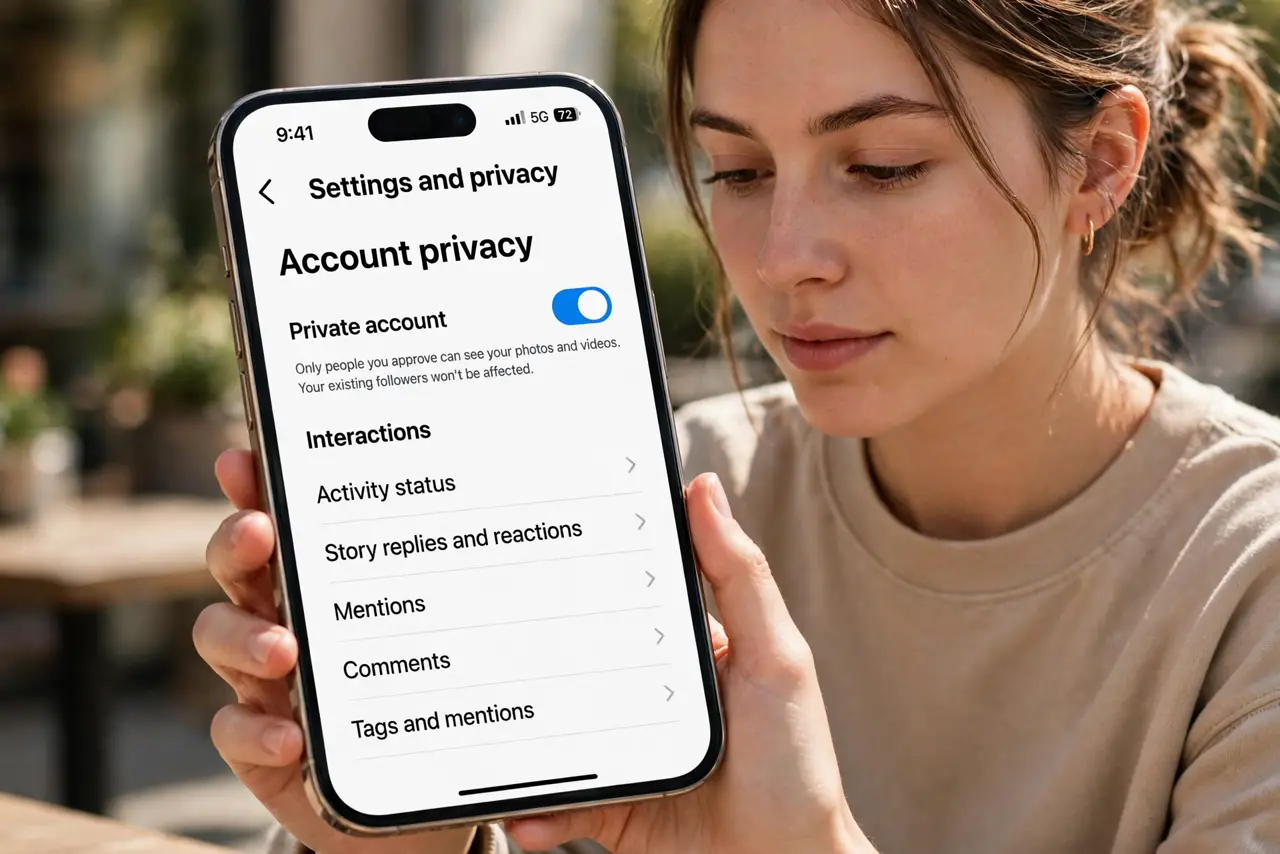
- Open Account privacy. Go to your profile, tap the menu, Settings and privacy, then Account privacy. The Private account toggle sits right at the top.
- Toggle Private account on. Flip the switch and confirm. Your existing followers stay — only new follow requests need your approval from now on.
- Review your followers. Scroll your follower list and remove anyone you do not recognize. Going private with 500 stranger-followers is a locked door with the keys already handed out.
- Check what stays public. Your profile photo, bio, and username remain visible to everyone — private hides your posts, not your identity. Scrub the bio of phone numbers and addresses.
- Approve requests thoughtfully. New followers now land in your requests inbox. Check mutuals and content before approving — a private account is only as private as its weakest approval.
- Trim ad topics too. Privacy is not only about people — advertisers profile you as well. While you are in settings, review which ad topics Instagram may use.
What NOT to do
- Do not assume private hides everything. Profile photo, bio, username, and follower counts stay public — true anonymity needs a separate anonymous account.
- Do not approve every request. A private account with indiscriminate approvals is public with extra steps — vet requests, especially empty profiles.
- Do not forget tagged photos. Friends can still tag you in public posts; review tags in settings so strangers cannot browse you through others.
- Do not switch to professional and expect privacy. Creator and business accounts must be public — going pro forces your account open.
Frequently asked questions
Will my existing followers stay?
Yes — switching to private does not remove anyone. Audit the list afterward and remove followers you do not actually know.
Can non-followers message me?
They can send message requests, which land in a separate inbox you can ignore. Your stories and posts stay hidden from them.
Does private affect hashtags?
Yes — your hashtagged posts only appear in hashtag searches to your followers. For everyone else, they are invisible there.