Turn Off Location History
Your phone keeps a minute-by-minute diary of everywhere you go — and has for years. Location history powers genuinely useful features like traffic predictions, but it is also one of the most sensitive datasets about you in existence. Turning it off, or auto-deleting it, keeps the useful parts while shrinking the permanent record.
TL;DR / Quick Fix
Quick fix: your phone logs everywhere you go by default — turn off location history or set it to auto-delete every few months. Check iPhone Settings > Privacy & Security > Location Services, or your Google account's Timeline settings. Navigation still works fine without the history.
Follow these steps
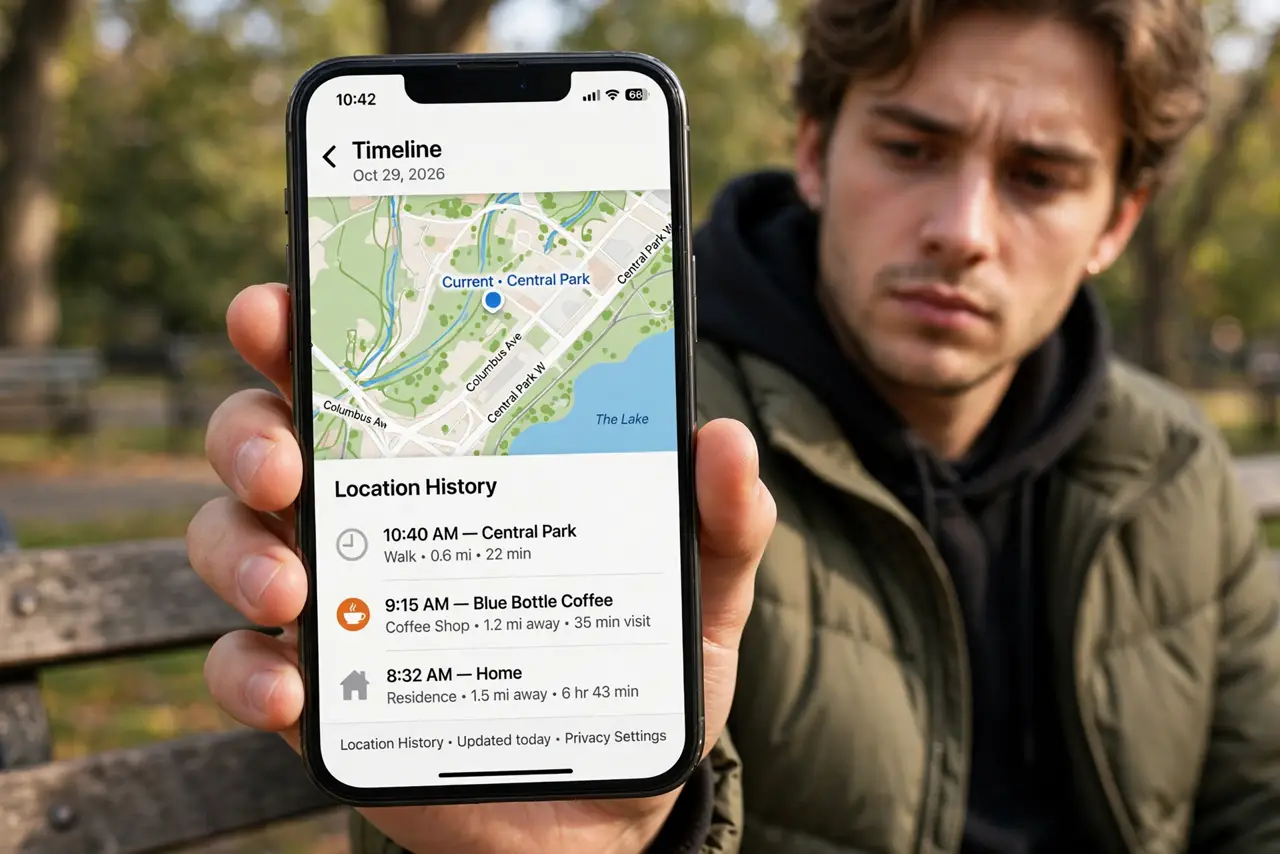
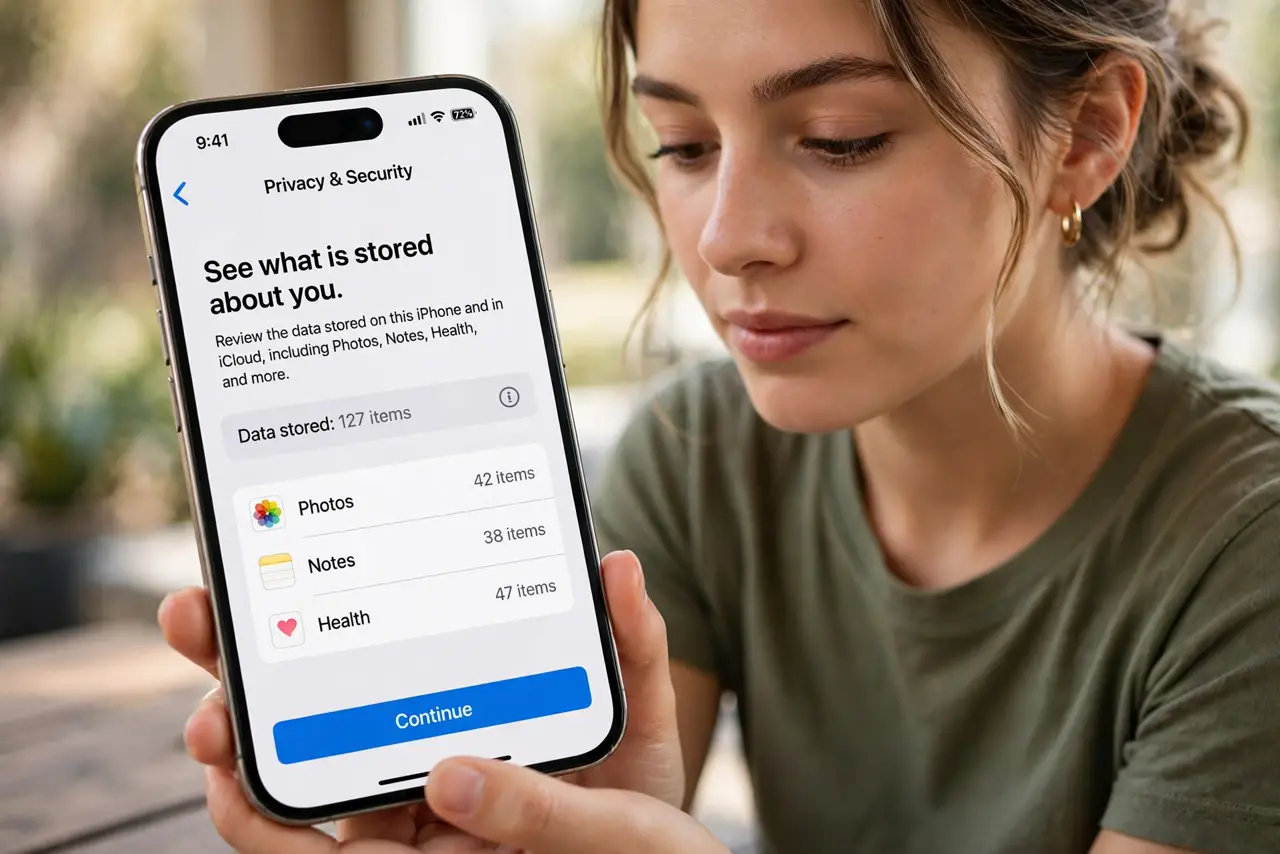
- See what is stored about you. Open your Google Timeline or iPhone Significant Locations and look. Most people are stunned — years of commutes, trips, and late-night food runs, all timestamped. Seeing it makes the decision easy.
- Turn off the master history switch. In your Google account's data controls, pause Location History; on iPhone, limit Significant Locations. This stops new entries from accumulating — the single highest-leverage toggle.
- Delete what is already there. Pausing stops the future, not the past. Use the delete controls to wipe the stored history — all of it, or older than a few months if you like keeping recent trips.
- Set auto-delete and forget it. Choose the shortest auto-delete window you are comfortable with. Future location data then expires on its own — privacy that maintains itself beats privacy you must remember.
- Keep per-app location tight. History is the archive; per-app permission is the tap. Set apps to While Using or Ask Every Time — a weather app does not need to know where you were Tuesday. Watch for apps that track location in the background.
- Understand what still works. Maps, navigation, ride-hailing, and Find My all work without history — they need your current location, not your archive. You lose personalized commute predictions, which most people happily trade.
What NOT to do
- Do not confuse pausing with deleting. Pausing stops new entries; years of old entries stay until you delete them explicitly.
- Do not grant Always location to apps that ask casually. Always feeds the history machine — While Using covers nearly every legitimate need.
- Do not assume turning off one switch covers everything. Google, Apple, and individual apps each keep their own location stores — check all three.
- Do not ignore the timeline review prompt. Periodically glance at what got recorded anyway — it is the fastest way to catch a permission you mis-set.
Frequently asked questions
Will turning it off break Google Maps?
No. Navigation, search, and traffic all use your live location. You only lose history-based features like time-to-leave predictions and the timeline diary itself.
Does my carrier track me anyway?
Your carrier always knows roughly where your phone is — that is how cellular networks work. Location history settings control the detailed, app-level diary, which is far more revealing.
Should I delete or auto-delete?
Auto-delete is the set-and-forget answer. Full deletion plus auto-delete is the maximum — choose based on whether you ever actually revisit your timeline.