Tracking Protection? Basics
Every website you visit quietly notes what you clicked, and trackers follow you from site to site to build a profile of your habits. That is why an ad for shoes you glanced at once haunts you for a week. Tracking protection is the browser feature that blocks most of these trackers before they load. This guide explains what it actually does, what it cannot do, and how to set it up without breaking the sites you use.
TL;DR / Quick Fix
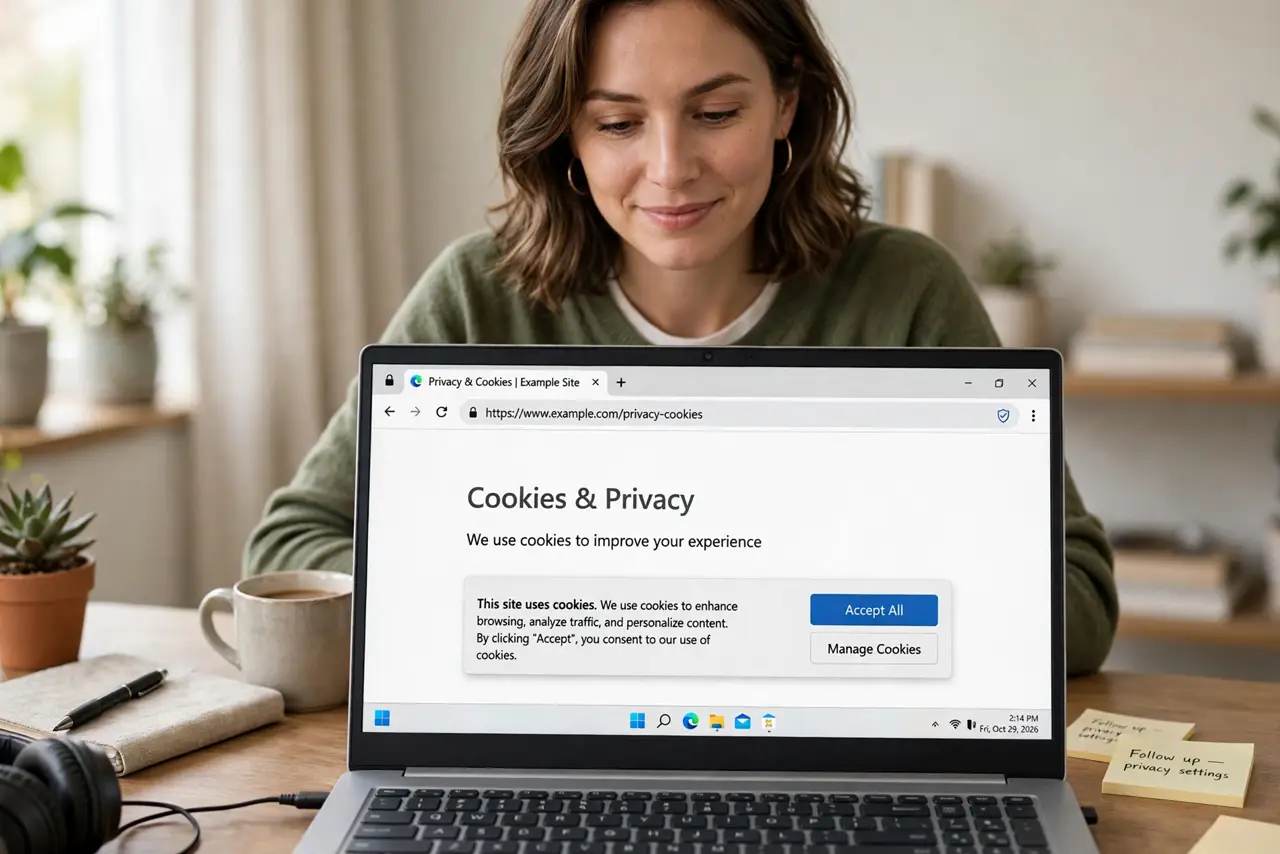
Quick fix: tracking protection blocks most ad and cross-site trackers, cutting the creepy ads that follow you around. Turn it on in your browser's privacy settings — Strict mode blocks more but can break sites. Signed-in services still track you by account, so this is not total invisibility.
Follow these steps
- Understand what tracking protection blocks. Browsers block third-party trackers — scripts from ad networks and data brokers that load inside other websites and record your visits. This is what stops one site's ads from following you to the next site. It does not block the site you are actually visiting from seeing you.
- Know what it cannot do. When you are signed in to Google, Facebook, or a store, that account tracks your activity inside its own services regardless of tracker blocking. Tracking protection also does not hide your IP address or make you anonymous — see the VPN basics guide for what actually changes your visible location.
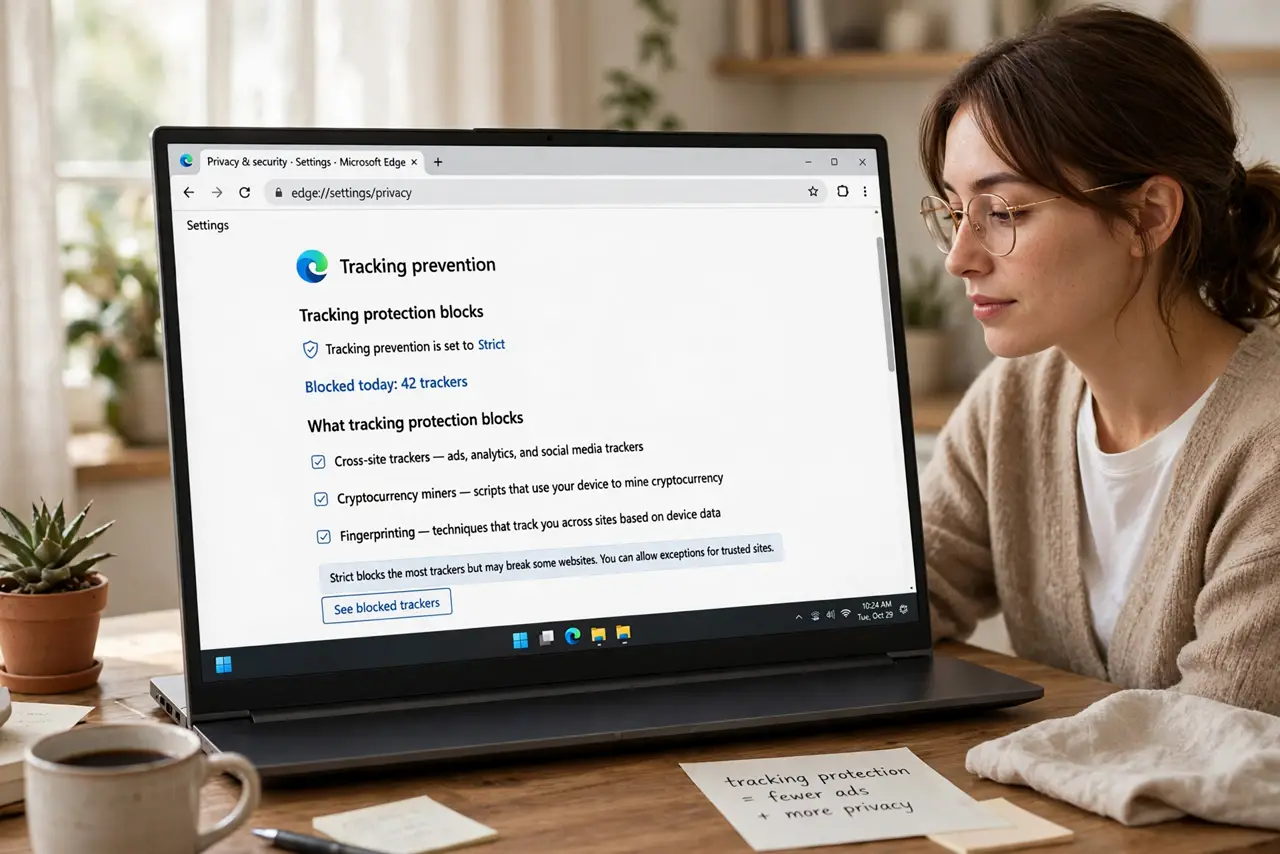
- Turn it on in your browser. In Chrome, Edge, and Firefox, open Settings and find Privacy and security — tracking protection is usually on by default at a Standard or Balanced level. Firefox and Safari are stricter out of the box; Chrome's default is the most permissive of the big browsers.
- Try Strict mode if ads still follow you. The Strict or Enhanced setting blocks more trackers, including some that Standard mode allows for site compatibility. Flip it on for a day and see which sites you use still work — you can always step back down.
- Whitelist sites that break. Some login pages, paywalls, and embedded videos need trackers to function. When a trusted site misbehaves, use the shield or lock icon in the address bar to turn protection off for just that site, rather than disabling it everywhere.
- Pair it with fewer data trails. Clearing old cookies removes the trackers already stored on your device, and a privacy-respecting search engine stops one more party from logging your queries. Protection works best as a habit, not a single switch.
What NOT to do
- Do not expect tracking protection to make you anonymous. Sites you visit and accounts you are signed into still see your activity.
- Do not disable it everywhere because one site broke. Whitelist that single site instead of turning off protection globally.
- Do not stack five tracker blockers at once. Multiple blockers fight each other and break pages — one good setting is enough.
- Do not confuse tracking protection with antivirus. Blocking ad trackers does not stop malware — downloads and phishing need separate caution.
Frequently asked questions
Does tracking protection stop all ads?
No — it blocks the trackers behind personalized ads, so you see fewer creepy follow-you-around ads. Many sites still show generic ads that do not depend on tracking you.
Why does a site say I must disable my protection?
Some sites detect tracker blocking and refuse to load, especially free news and streaming sites that live on ad revenue. Whitelisting that site is the honest tradeoff.
Is private browsing the same thing?
No. Private or incognito mode mainly deletes your local history after the session; it does not block trackers while you browse. The two features solve different problems.